What Is Google Apps Script? Running Your Code on Google's Servers
Who this is forPeople who want to keep an AI-built automation running without the burden of a separate server, and anyone curious what it means to run code with only a Google account.
Series · AI automation glossary part 10 of 13, expand to see all
- What Is an API? Understanding It with One Snack Bar Order Slip
- What Is a Webhook? Understanding It With a Restaurant Waiting Ticket
- What Is a Server? A Computer That Stays On When Yours Doesn't
- What is a terminal? A plain-English guide to the CLI and shell
- AI automation terms explained: MCP, agent, context, skill, and secret
- Claude terms explained: Projects, Artifacts, Cowork, and scheduled tasks
- What Is a Database? Why Tables Look Alike but Lock Differently
- What Is Supabase? Tables, Auth, and Server Functions in One Place
- Auth and RLS Explained: Keep the Screen Open, Lock the Data
- What Is Google Apps Script? Running Your Code on Google's Servers
- What Is Playwright? Why AI Suddenly Opens a Chrome Window
- What Is Aside? An Agent Browser That Clicks Using Your Own Logins
- What Does AX Mean? AI Transformation vs. DX and 3 Workplace Bottlenecks
TL;DR: Has AI ever told you to put your code into Apps Script, and then you stopped because you had no idea what that meant? Apps Script is a tool that uses a single Google account to host your code on Google’s servers and keep it running. This post uses real trigger and project-list screens to show what it is, and covers both time-based and event-based triggers.
Contents
- Uploading your code to Google’s servers
- What it connects to
- Two kinds of triggers: time and events
- The real trigger and project screens
- Why not use Claude’s scheduled tasks instead
- When you get stuck: first-run warnings and Gmail permissions
- Try it yourself: scheduling a script on a blank sheet
- What to watch out for once it works
When you ask AI to build an automation, you sometimes get the answer “put this code in Apps Script and it will keep running.” In What is a server? I compared a server to “a computer that stays on for you,” and Apps Script is a way to rent that computer through a Google account. You don’t need to have read the earlier post to follow this one.
This post is for people who have a Google account but have never set up a server or a code-running environment. By the end, you’ll know exactly what Apps Script handles for you, and you’ll have created an empty project and run code in it once.
1. Uploading your code to Google’s servers
If you build an automation on your own computer, it only runs while the computer is on. Close the laptop or restart it, and the automation stops too. Renting a new always-on server is also a hassle: you have to create an account, add a payment method, and learn the setup.
Apps Script is the option in between. You sign in with your Google account and write code in the browser, and the code is both stored and run on Google’s servers. There’s no program to install, and the code is saved to Google Drive automatically.
When you build a script on your own computer
- Code Runs inside my laptop Close the laptop and it stops
- When it runs Only while I keep it on Even with auto-run set, it shuts off when the power goes off
- Result You need a separate computer that stays on The same problem covered in the server post
You need a separate machine that never turns off
When you put code into Apps Script
- Code Saved on and run from Google's servers Written in the browser editor, it autosaves to Drive
- When it runs The times and events set by triggers Keeps running regardless of my computer's power
- Result Keeps running as long as the account exists Like renting an always-on computer, with no install or separate server
A Google account is how you rent a server
2. What it connects to
What sets Apps Script apart is that it’s already connected to Google Workspace services. Call the predefined names in your code and you can use Sheets, Gmail, Calendar, and similar services right away. Instead of getting an API key, which you usually need to connect external services in code, you go through a single Google approval screen.
| Service | What it does when connected |
|---|---|
| Sheets | Write, read, and tidy values in a table |
| Gmail | Read, draft, and send email |
| Calendar | Look up events, add new events |
| Docs | Create documents, fill in content |
| Forms | Check responses, run automatically on responses |
With this connection you can build many forms of things: a new menu or separate panel in a Sheets or Docs screen (a sidebar); a function you use directly in a sheet like a formula (a custom function); a standalone page you open in a browser (a web app); an extension that plugs into the Workspace interface (an add-on); and the automations we’ll look at next. All of these can be built with Apps Script alone.
3. Two kinds of triggers: time and events
Automations that run without a person have two kinds of triggers. Something that runs when a set time arrives is a schedule, and something that runs when an event happens is an event-based run. There’s one question to tell them apart: is this job driven by the calendar, or by something that happens?
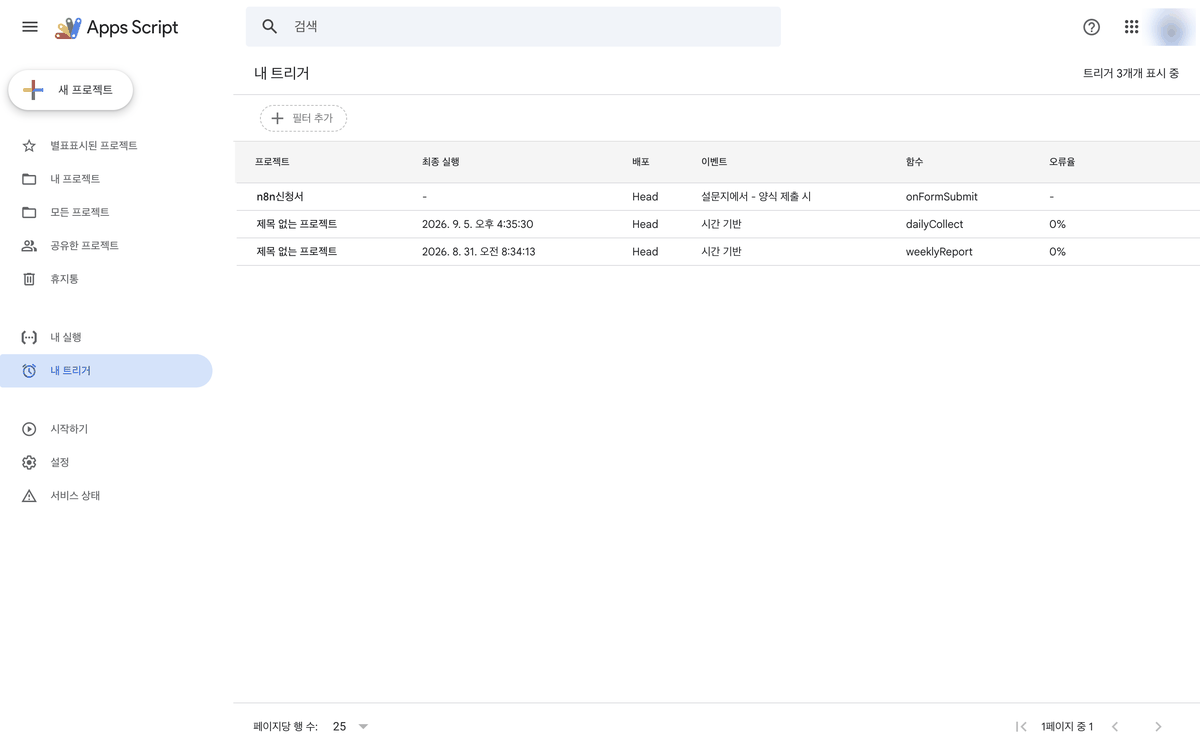
In Apps Script, you create both kinds as triggers (installable triggers) attached directly to the editor code. Time-based triggers can be set anywhere from every minute to every month, and event-based triggers attach to things like editing a sheet, submitting a form, or changing a calendar. These triggers always run with the permissions of the account that created them. They don’t run on someone else’s behalf; they run under the name of the person who set them.
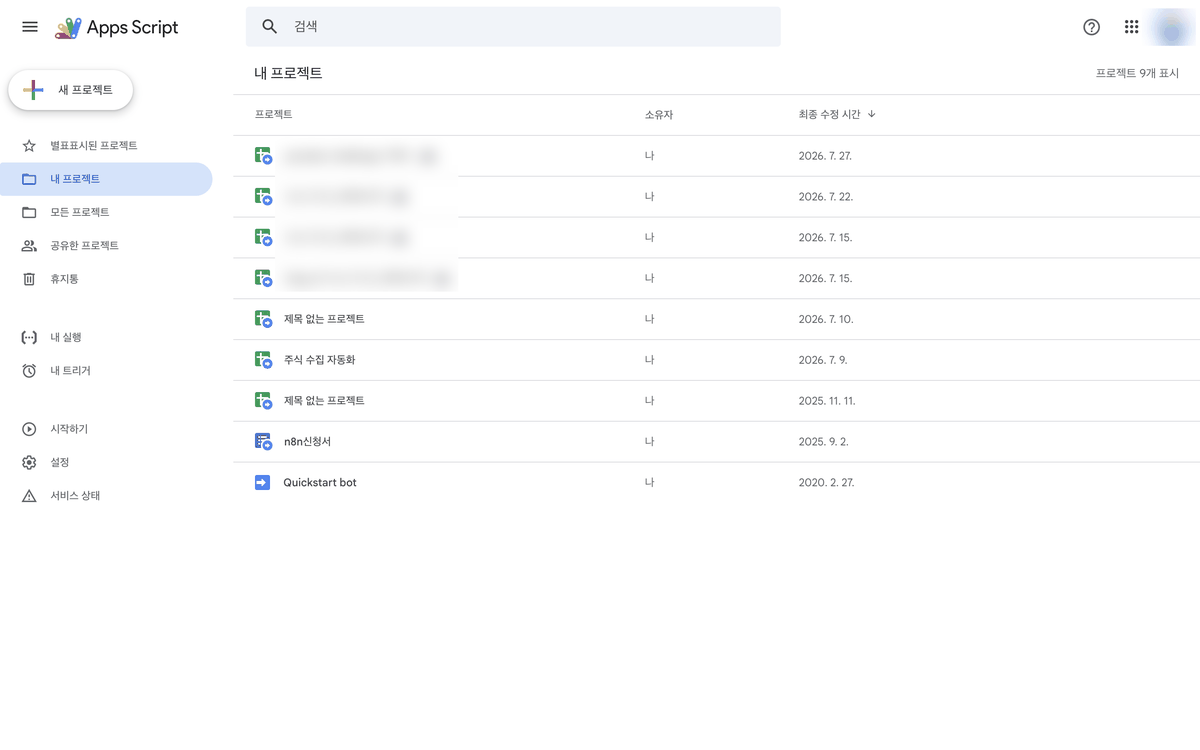
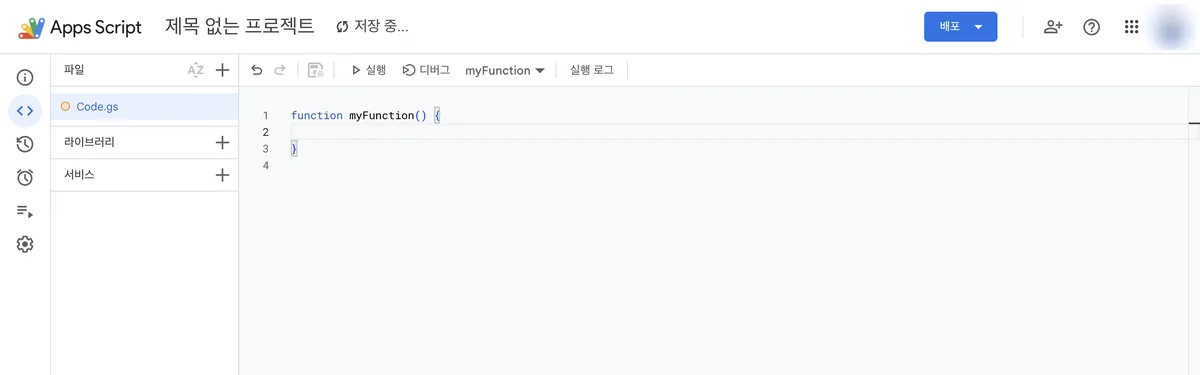
4. The real trigger and project screens
Descriptions alone are abstract, so let’s check real screens.
5. Why not use Claude’s scheduled tasks instead
Claude has a scheduled task feature for repeating runs at set times. So why put code into Apps Script at all?
6. When you get stuck: first-run warnings and Gmail permissions
There are two points where you can get stuck from the very first run. Neither is a danger signal, just a confirmation step, but they can be scary the first time you see them.
| Symptom | Cause | What to do |
|---|---|---|
| Pressing Run shows a red warning triangle and the phrase “unverified app” | Just a label that Google hasn’t reviewed the app yet, not an actual risk verdict | If the developer name is your own account, click the proceed option marked unsafe (the Korean UI labels it differently). For the detailed screens, see the Apps Script first-run approval guide |
| After adding Gmail code, the permission screen shows the phrase “View, compose, send, and permanently delete all of your email” | Regardless of what the code actually does, the GmailApp service name itself requests the broadest permission scope | Don’t panic over the screen text alone; check what the code actually does. For how to narrow the scope, see the Apps Script Gmail permissions guide |
7. Try it yourself: scheduling a script on a blank sheet
You can check this right now with just a Google account.
- Create a new Google Sheet.
- Go to Extensions, then Apps Script.
- Paste the code below into
Code.gs.
function logToday() {
  var sheet = SpreadsheetApp.getActiveSheet();
  sheet.appendRow([new Date()]);
}- In the function list, select
logTodayand click Run. - If it’s your first time, an approval screen appears. Click Review permissions, choose your account, and continue.
- Go back to the sheet and check whether one new row was added.
- Open the Triggers menu from the clock-shaped icon on the left, add a new trigger, and set it to run daily on a time-based schedule.
8. What to watch out for once it works
A trigger runs under the account of the person who created it. Its access scope is whatever you allowed on the approval screen. Even if you wrote code to touch just one sheet, if the approval screen asked for broader permissions, the code can actually reach that wider scope. When you share an automation with others or put it in a project that several people use, it’s worth checking once more exactly which permissions the project runs with.
For more on what you can build with Apps Script and how triggers are divided, see the official Google Apps Script overview. The planning document, code, and setup guide for the stock collector built with Google Sheets and Apps Script are available as-is in the repository below.
You use Apps Script with a Google account. Check quotas in the official docs. The official overview doesn’t state whether it’s free, so I won’t claim either way here. Last verified: September 5, 2026.
Frequently asked questions
- What is Google Apps Script and where does its code run?
- Apps Script stores and runs your code on Google's servers under a Google account, with no program to install. Code written in the browser editor autosaves to Google Drive.
- What is the difference between time-based and event-based Apps Script triggers?
- Time-based triggers run at a set time, from every minute to every month. Event-based triggers run when something happens, such as a sheet edit, a form submission, or a calendar change.
Want the full system? The Claude Code & Codex Skills guidebook collects the skills and subagents behind this blog, from $19.
BuildnWrite helps teams build AI agents that keep running. About BuildnWrite ›