Your First n8n Automation: Build a Morning News Briefing Without Coding
Who this is forAnyone who has just opened n8n, is stuck on the blank screen, and wants to finish one automation from start to end without coding.
TL;DR: n8n is an open-source tool that automates repetitive work without coding. This post builds the easiest first automation: “get news of interest by email every morning.” No programming experience is needed to follow along.
Contents
- Why the first automation matters
- Setup: two ways to open n8n
- Walkthrough: the morning news briefing workflow
- Three places where people get stuck
- Next steps
Why the First Automation Matters
Most people who decide to learn automation stop at either the tool installation step or the step of deciding “so what should I build?” That happens because they try to build something grand.
One goal is enough for a first automation: to have one thing that keeps running without my telling it to. A daily morning news briefing fits that goal best. The results show up every day, you lose nothing if it fails, and the structure is simple, so you learn the skeleton of automation (trigger, collection, delivery) directly.
Setup: Two Ways to Open n8n
n8n starts in two ways. If this is your first time, I recommend starting with the cloud version, getting comfortable with it, and then considering self-hosting.
| Category | n8n Cloud | Self-hosting |
|---|---|---|
| How to start | Just sign up and use it in your browser | Install directly on your own computer or server |
| Cost | Free trial, then a paid subscription | The software itself is free (server costs are separate) |
| Difficulty | Low. No installation process | Medium. You manage installation and updates yourself |
| Best for | People trying it for the first time today | People who want to save money once they’re comfortable |
Walkthrough: The Morning News Briefing Workflow
Before starting, learn just two terms. In n8n, one automation is a workflow, and each block that makes up a workflow is a node. The workflow we build today needs only three nodes.
First, here is the finished version. From left to right: the trigger (when), the tasks (what to gather), and the target (where to send it).
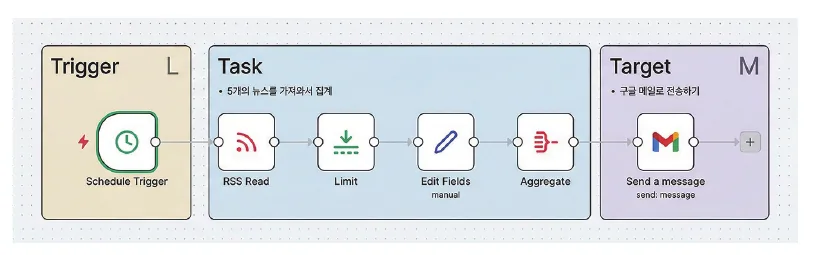
Step 1. Create a New Workflow
On the screen you see after logging in, create a new workflow. An empty canvas opens, and you add nodes to it one at a time.
Step 2. Trigger: Schedule Trigger Node
The first node is the trigger that decides “when to run.” Press the add-node button, search for Schedule Trigger, add it, and set the run interval to every morning at 8 a.m.
A trigger is the start button of an automation. That a clock presses this button instead of a person is half of what you learn today.
Step 3. Collect: RSS Read Node
Connect an RSS Read node after the Schedule Trigger. RSS is the standard way news sites publish their “list of new articles” in a form machines can read easily. Put the RSS address of the publication you want to follow into the URL field. Most news outlets and blogs offer RSS, so searching “publication name + RSS” will usually turn up the address.
Run the node once at this step. If a list of articles appears as a table on the right, collection is working. The habit of running the node each time you attach one and checking it with your own eyes is the second half.
Step 4. Deliver: Gmail Node
Finally, connect a Gmail node. The first time you use a service, you go through a one-time account connection (allowing login). Enter your own email address as the recipient, and drag the article titles and links collected by the previous node into the subject and body. n8n shows data from previous nodes as a list so you can pick the items you want, so just select what you need.
Step 5. Activate
Turn on the activation switch at the top right of the workflow. From now on, at 8 a.m. tomorrow, the news briefing will arrive in your inbox without you doing anything.
Three Places Where People Get Stuck
- When the RSS address doesn’t work: Enter the RSS address directly into the browser’s address bar. If you see a code-like screen in XML, the address is correct. If you enter a regular homepage address, it fails.
- When the Gmail connection is a hassle: The account connection only needs to be done once, not for each workflow. Once you get past the first connection, later automations take just one click. If the connection is blocked by an error, check 5 things to check when the n8n Gmail connection won’t work in order.
- When execution doesn’t happen: First check whether you turned on the activation switch. In most cases where manual runs work but automatic runs don’t, this is the cause.
Next Steps
Trigger, collect, deliver. The three-node structure you built today extends directly to meeting-note summaries, receipt collection, and sales reports. Only the kinds of nodes change; the skeleton stays the same.
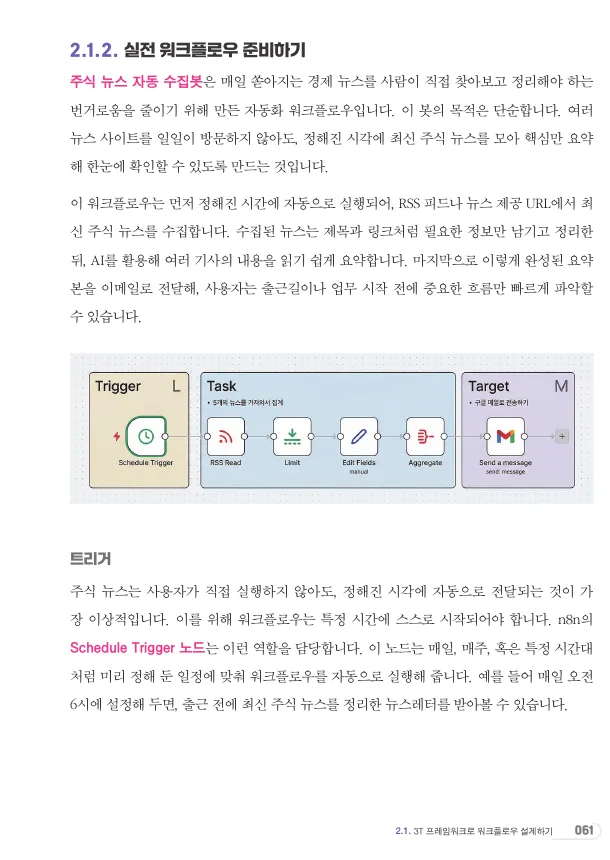
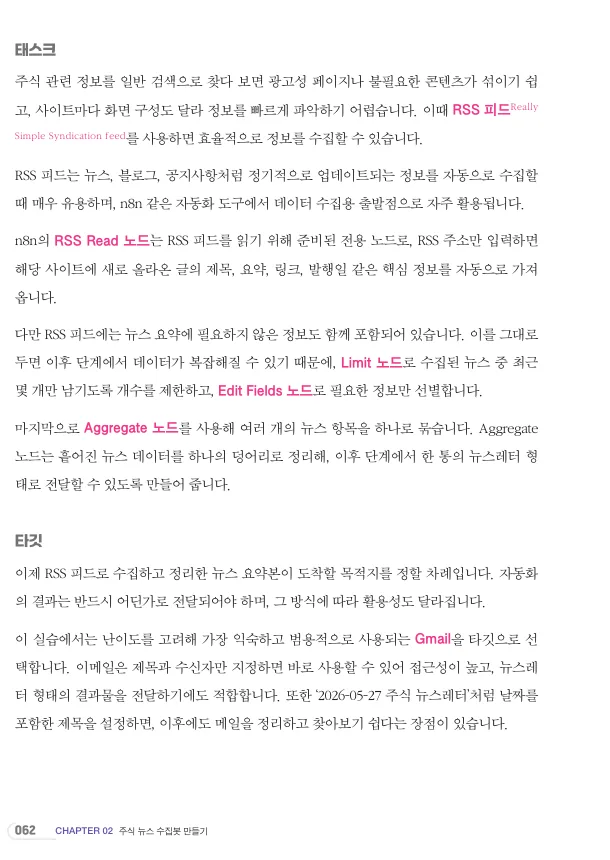
The finished version of today’s news briefing is covered in Chapter 2 of the book n8n Does Everything for You. It goes as far as narrowing the news to five items and sending them together in one email. The original pages are shown below as written.
The record of the people who built this together is in review of the six-week n8n finish-the-book challenge.
If you want to keep building on video, go straight to the beginner course below. The news-collection structure you built today carries into the Chapter 2 stock news bot in the course.
Frequently asked questions
- What does the first n8n automation in this post do?
- It sends a morning news briefing by email. A Schedule Trigger runs it every morning at 8 a.m., an RSS Read node collects articles, and a Gmail node sends the titles and links to your address.
- Is n8n free to use?
- The n8n software is free to self-host, but server costs are separate. n8n Cloud has a free trial and then requires a paid subscription.
Want the full system? The Claude Code & Codex Skills guidebook collects the skills and subagents behind this blog, from $19.
BuildnWrite helps teams build AI agents that keep running. About BuildnWrite ›