What Is a Database? Why Tables Look Alike but Lock Differently
Who this is forPeople managing data in Google Sheets who have been told by AI to move it to a database and want to know when to leave the sheet.
Series · AI automation glossary part 7 of 13, expand to see all
- What Is an API? Understanding It with One Snack Bar Order Slip
- What Is a Webhook? Understanding It With a Restaurant Waiting Ticket
- What Is a Server? A Computer That Stays On When Yours Doesn't
- What is a terminal? A plain-English guide to the CLI and shell
- AI automation terms explained: MCP, agent, context, skill, and secret
- Claude terms explained: Projects, Artifacts, Cowork, and scheduled tasks
- What Is a Database? Why Tables Look Alike but Lock Differently
- What Is Supabase? Tables, Auth, and Server Functions in One Place
- Auth and RLS Explained: Keep the Screen Open, Lock the Data
- What Is Google Apps Script? Running Your Code on Google's Servers
- What Is Playwright? Why AI Suddenly Opens a Chrome Window
- What Is Aside? An Agent Browser That Clicks Using Your Own Logins
- What Does AX Mean? AI Transformation vs. DX and 3 Workplace Bottlenecks
TL;DR: A Google Sheet is a table, and a database table is also a table. The difference is not the shape. It is whether the table holds up when many writers touch it at once, whether the table enforces its own rules, whether programs pass through a defined gate, and whether the table itself locks down who can see which rows.
When you ask AI to build an automation, at some point you hear: “Put this data in a database, not a sheet.” You have handled everything in one Google Sheet so far, and suddenly the word database appears with no clear sense of what is missing. The reason is simple. A sheet is a grid of rows and columns, and a table inside a database is also a grid of rows and columns.
This article starts from the fact that both are tables and walks through four differences, so that someone already using Sheets does not stop at the word database. After reading it, you should be able to judge whether the automation you are building is fine in a sheet or whether it is time to move to a database.
Contents
- A sheet is a table, and so is a database
- What is different, four differences
- When a sheet is enough
- Try it yourself, add a rule to a sheet
1. A sheet is a table, and so is a database
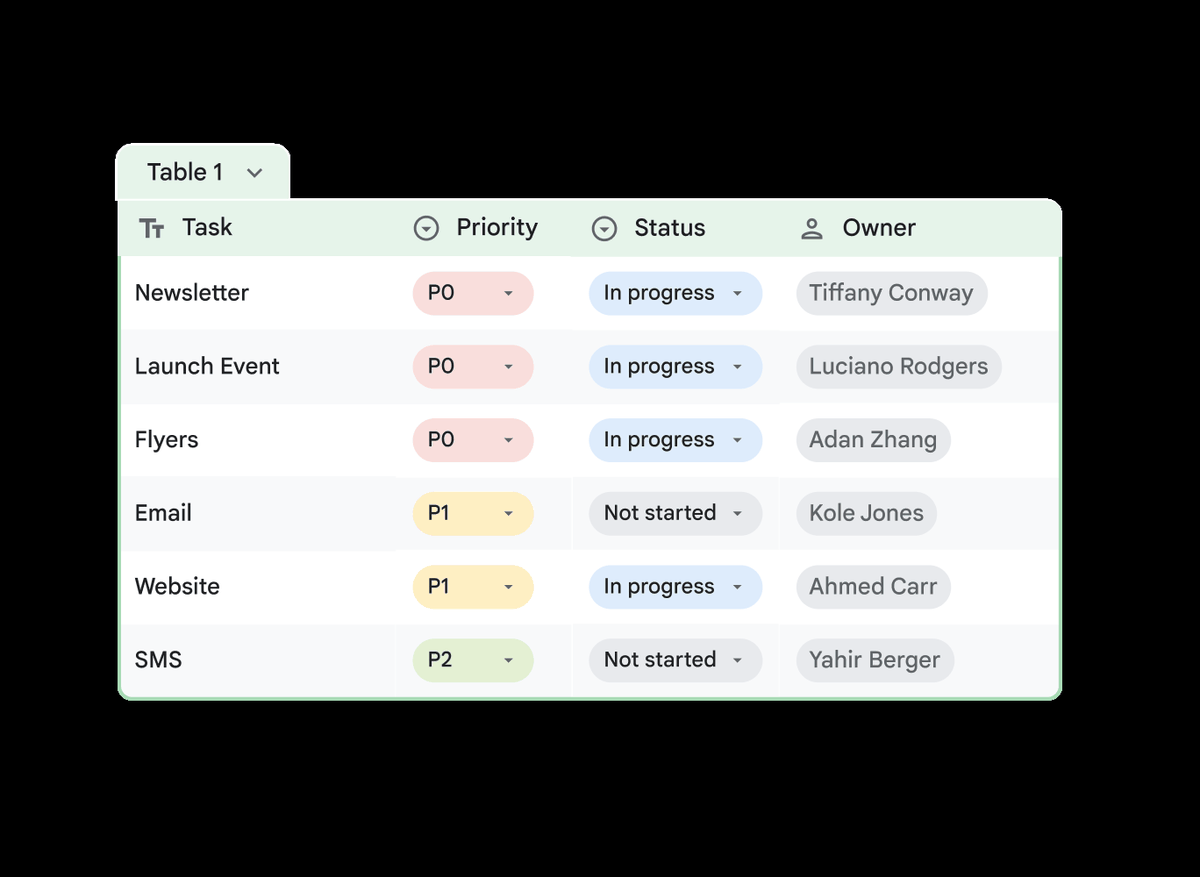
Below is the Google Sheets product screen. It is a table made of columns (Task, Priority, Status, Owner) and rows (Newsletter, Launch Event, Flyers…). The P0, P1, and P2 values in the Priority column are chosen from a dropdown.
You can see the same kind of table in a database screen. Below is the news_archive table, which the author built by collecting news RSS feeds, opened in the Supabase dashboard.
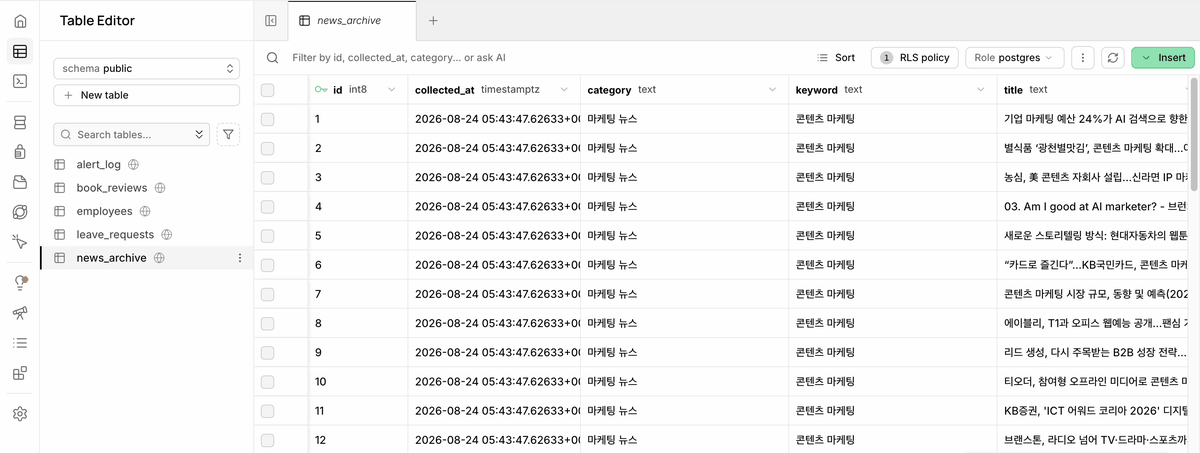
A table inside a database has the same shape. One row holds a single item, such as one person or one order, and one column holds one kind of value, such as name, age, or price. One more thing is added here: the key.
Structure of one table
2. What is different, four differences
If the shapes are the same, why would anyone be told to move to a database? The four points below are where the two actually diverge. The “gate” point refers to the channel programs use to go in and out to read and write data, which is the same idea covered in the What is an API? article.
Google Sheets
- Simultaneous writes Built for people editing together Designed for several people viewing and editing together, not for several programs writing at the same time
- Rule enforcement Data validation is optional If no validation rule is set, any value goes in as is
- Gate One screen that people open By default, one screen opened with a mouse. It is not a gate built for several programs to pass through safely at once
- Locking Protected sheets and ranges You can restrict editing by specifying ranges, but you cannot show each logged-in person a different set of rows
A tool that is sufficient up to the point where one or two people manage it by hand
Database
- Simultaneous writes Assumes many programs write at once Includes rules inside the table (transactions) that set the order so several programs are processed one at a time
- Rule enforcement The table rejects directly If the value is not in the defined format, the table itself refuses it, no matter which program tries to enter it
- Gate One defined channel People and programs pass through the same channel, so automations can access it reliably without a screen
- Locking Row-level rules Limits which rows a person can see inside the table, depending on who is logged in
A tool that stays stable when many programs and many people come and go at once
3. When a sheet is enough
Knowing the four differences does not mean a database is always the right answer. It depends on what you are building.
| Situation | Recommendation |
|---|---|
| One or two people manage it by hand, no automation | Google Sheets |
| Strict rules, login, or scheduled automation is needed | Supabase |
| When paying for Supabase is a burden | GCP (Google Cloud Platform, Google’s server rental service) or a home server (a computer you keep at home or in the office, see the What is a server? article) |
If I had to reduce the decision rule to one sentence: will several programs touch this table at the same time, or does it stay at the level where a person opens the screen and manages it by hand? If the latter, a sheet is enough. If the former, it is time to move to a database. Among databases, the service covered in the What is Supabase? article provides tables, authentication, and scheduled execution in one place.
4. Try it yourself, add a rule to a sheet
You will feel it right away if you add a rule to a sheet yourself and see that a sheet can enforce rules too. All you need is a Google account and a sheet.
- Open a new document in Google Sheets.
- Select any column. Let’s say this is the column where you will record priority.
- From the top menu, open Data > Data validation.
- Set the criteria to choose from a list, and enter only three values: P0, P1, and P2. Do not open “Advanced options.” Save with the defaults. The default setting rejects values that are not in the list. (If you change it to “Show warning,” values not in the list still get in, so do not touch that for this exercise.)
- Type a value that is not in the list (for example, “High”) directly into an empty cell in that column.
If you left the default (reject), the moment you enter a value not in the list, the sheet refuses the input and shows an error message. What you just built is the “rule enforcement” from the diagram earlier. However, this rule is attached only to this one sheet file. If another program tries to enter the same data through a different gate, this rule does not apply.
Frequently asked questions
- When should I use a database instead of Google Sheets?
- Use Google Sheets when one or two people manage the data by hand with no automation. Move to a database when several programs write to the table at once, or when strict rules, login, or scheduled automation are needed.
- What is a primary key in a database table?
- A primary key is a value that tells rows apart. When a column is set as the key, the table blocks any row whose key value is already taken. A sheet does not block duplicates this way by default.
Want the full system? The Claude Code & Codex Skills guidebook collects the skills and subagents behind this blog, from $19.
BuildnWrite helps teams build AI agents that keep running. About BuildnWrite ›