Apps Script Gmail Permissions: What the 'Permanently Delete' Prompt Means
Who this is forPeople who hesitate at the 'permanently delete' wording on the Apps Script permission screen and want to know whether the permission scope can be narrowed.
TL;DR: When I add Gmail features to Apps Script code and run it, the permission approval screen says “Read, compose, send, and permanently delete all emails in Gmail.” This happens even when I wrote code that only reads mail. This post checks why that wording appears against the official documentation, and covers how to read the screen and what to do when you get stuck.
Contents
- Adding Gmail code brings up the approval screen
- The permission screen: what to know before you click
- How to read the Gmail wording
- Why read-only code gets delete permission too
- Can the scope be narrowed?
- When you get stuck
- Checking completion: a number in the log is enough
- What to watch out for after granting access
Adding Gmail code brings up the approval screen
Apps Script is a program that runs on a Google account. To run code that touches the mailbox in my account, I first have to approve what that code is allowed to do in my account. The approval screen that asks for that permission is the one this post covers.
This is code I actually wrote. It finds up to five emails with ‘contract’ in the subject and logs only how many it found.
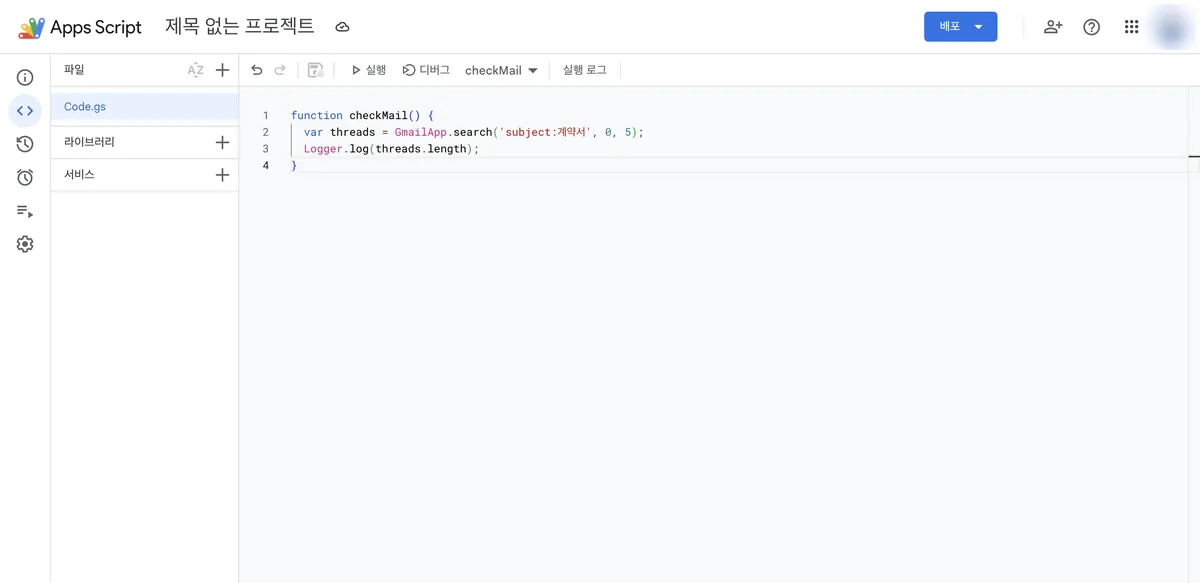
When you first run this code, you go through account selection and a permission approval screen. The click sequence for choosing an account and continuing is not covered here. The Apps Script first-run approval guide covers it separately, so start there if the first run is unfamiliar. This post focuses on how to read the Gmail wording that appears in the middle of that flow.
The permission screen: what to know before you click
A warning screen may appear before the permission approval screen.
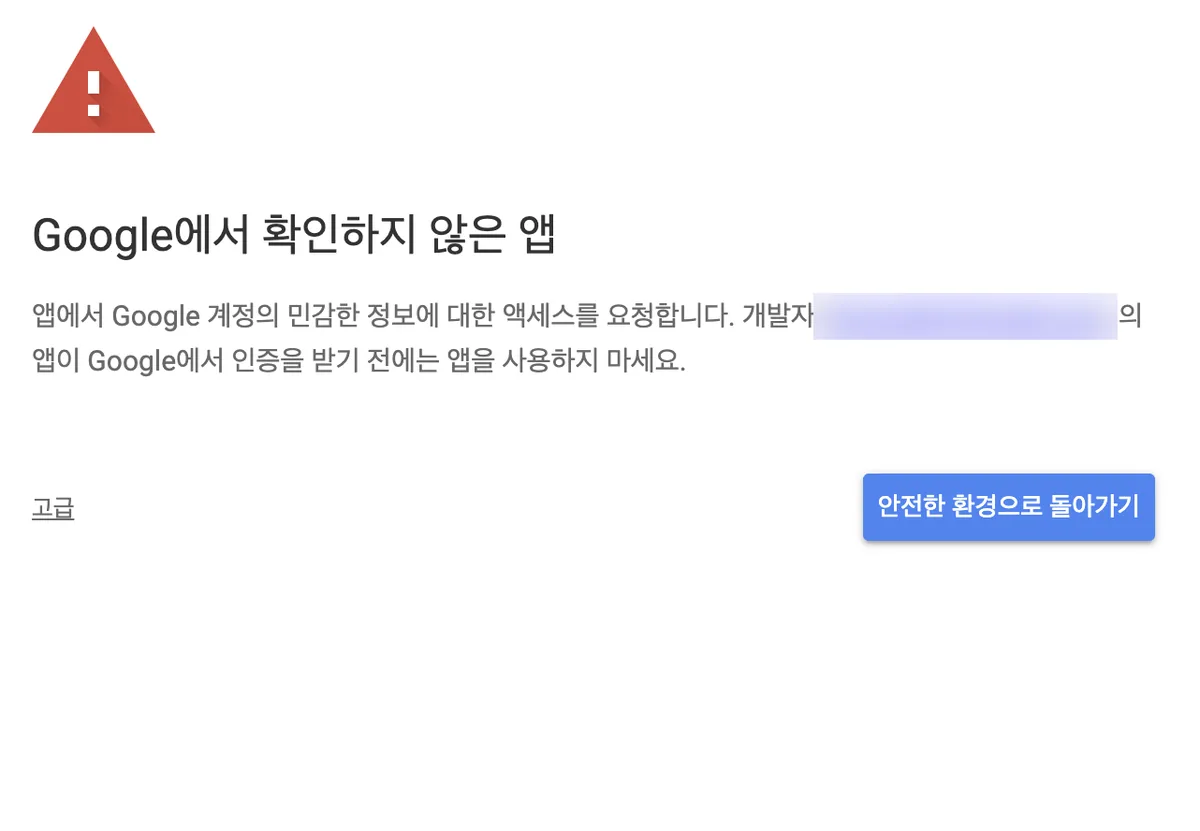
Word for word, the sentence on this screen is: “This app is requesting access to sensitive information in your Google Account. Do not use the app until the developer’s app has been verified by Google.” The condition is “before verification,” not “this app is dangerous.” Every personal script that hasn’t gone through Google review passes through this screen. If the code is yours, or someone you trust gave it to you, you can click the Advanced link in the bottom left to move on.
Next comes the screen that actually matters for this post.
How to read the Gmail wording
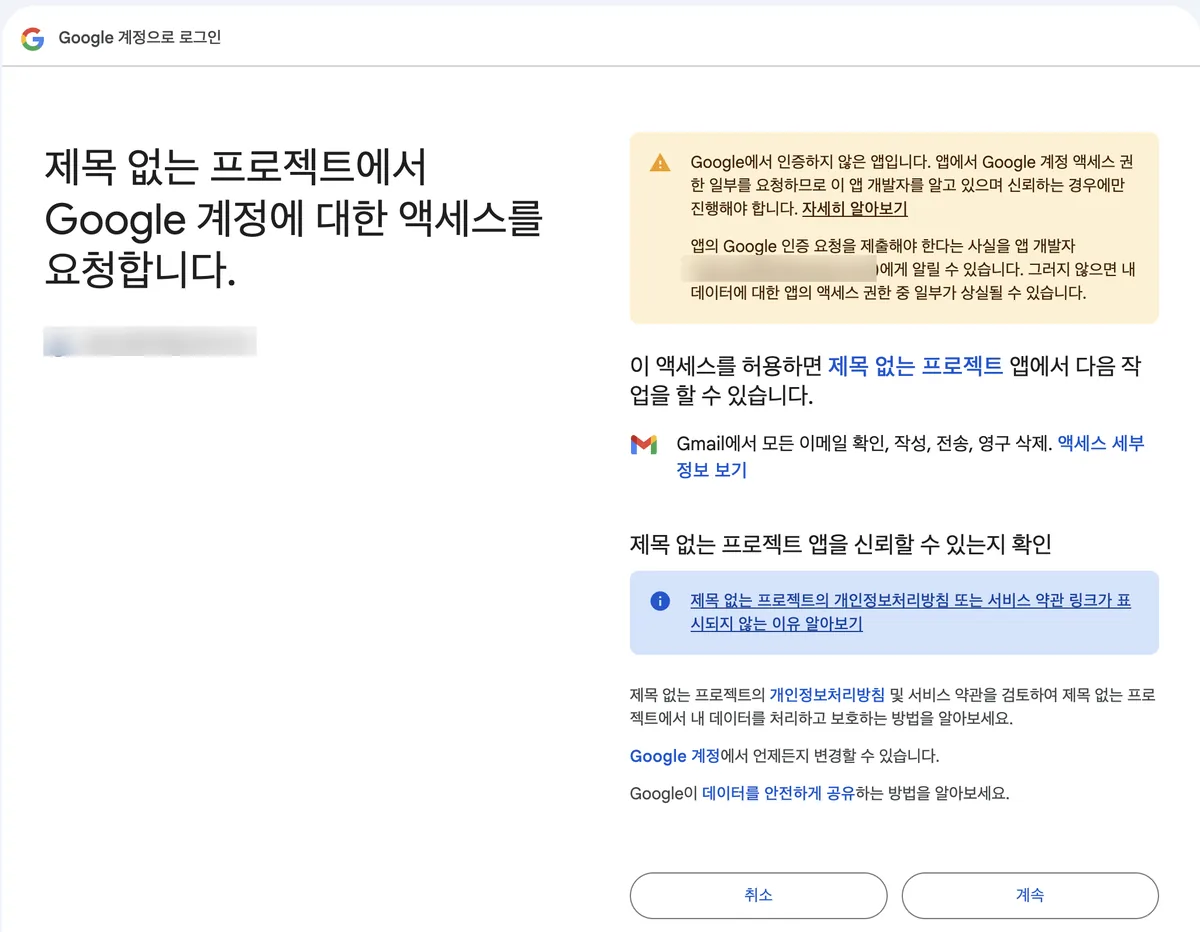
Clicking the “View access details” link next to the Gmail line (the Korean UI labels it differently) lets you check the exact permission scope string being requested. If you compare it with the table in the next section, you can see with your own eyes which scope matches the wording on this screen. The sentence at the bottom of the screen, “You can change this at any time in your Google Account,” is easy to skip. But the cancel method covered in “When you get stuck” later in this post is exactly what that sentence refers to.
Why read-only code gets delete permission too
The Apps Script official documentation (the authentication guide) explains that when a script runs, it scans the code to automatically find which services it uses. For example, if a name like SpreadsheetApp or GmailApp appears in the code, it concludes that service is in use. It then automatically picks permission scopes to match those services.
The problem comes next. Another page in the same documentation set (the Apps Script scopes guide) puts it this way:
Apps Script sometimes automatically selects broader permissions than it needs, so a script can ask users for more access than it actually requires.
As soon as GmailApp is used, the service name GmailApp itself calls for a broad permission scope, whether the code only searches or also deletes. That’s because the scope is chosen based on the service name the code uses, not on what the code does.
Lining up the permission scopes defined by the Gmail API shows clearly how different they are.
| Permission scope | What it allows | Compared with this screen’s wording |
|---|---|---|
| gmail.readonly | Reading mail only | Not shown on this screen |
| gmail.modify | Reading, composing, and sending (immediate deletion that skips the trash is not possible) | Not shown on this screen |
| mail.google.com/ | Reading, composing, sending, and permanently deleting without going through the trash | Exactly matches the wording shown on this screen |
The original text Google uses to describe this broadest scope is “Read, compose, send, and permanently delete all your email from Gmail.” The Korean wording on the screen is a direct translation of that sentence. This is why code that only calls GmailApp.search() still gets this broadest scope.
Can the scope be narrowed?
The official documentation does describe a way. By specifying the permission scopes you want directly in the project’s manifest file (appsscript.json), you can have it request only the narrower scopes instead of the broad ones it picks automatically. This work, however, is for whoever opens the code directly. Someone who only clicks through the screen has no option to narrow it.
So the judgment this post’s readers need is not how to narrow it. It’s somewhere else: who wrote this script.
Code I wrote myself
- What I know What the code does with GmailApp I know whether it only searches or contains delete code
- When I look at the screen I only need to confirm the permission I already know I can explain why the wording appears
Clicking Continue is backed by evidence
Code someone else gave me
- What I know Only the permission wording on screen If I haven't looked inside the code, I don't know what it actually does
- When I look at the screen I have to open the code first I check first whether GmailApp is used and how far it goes
If I haven't seen the code, I don't click Continue
When you get stuck
| Symptom | Cause | What to do |
|---|---|---|
| Right after picking an account, a notice says app access is blocked and you can’t go further | Your company or school’s Google Workspace admin has set this app to blocked | Contact your admin, or try again with a personal Gmail account that the admin doesn’t control |
| I clicked Continue without thinking and want to undo the grant | The permission has already been granted | Remove this app’s access in the Security section of your Google Account |
| I’m too worried about the unverified app warning to get past it | Personal scripts normally haven’t gone through Google verification (review) yet | If you or someone you trust is the developer, proceed. If an unknown person gave you the script, don’t |
On company or school accounts, admins can set app access levels in advance. According to the Google Workspace admin documentation, an app is classified into one of four levels: trusted, allow only limited services, allow only specified scopes, or blocked. If an app is set to blocked, users see a notice that the app is blocked. If the admin hasn’t specified custom text, only the default notice appears. In this case, there’s no way for an individual user to get around it from the screen. Asking the admin is the only route.
To remove permissions from a script you clicked through by mistake or no longer use, revoke that app’s access in the Security section of your Google Account, as the official documentation describes. The sentence at the bottom of the permission screen, “You can change this at any time in your Google Account,” points to exactly this place. After revoking, running the same script again takes you back through the approval screen from the beginning.
Checking completion: a number in the log is enough
After you click Continue on the approval screen, the code actually runs. To check whether it worked, I don’t guess. I check the execution log.
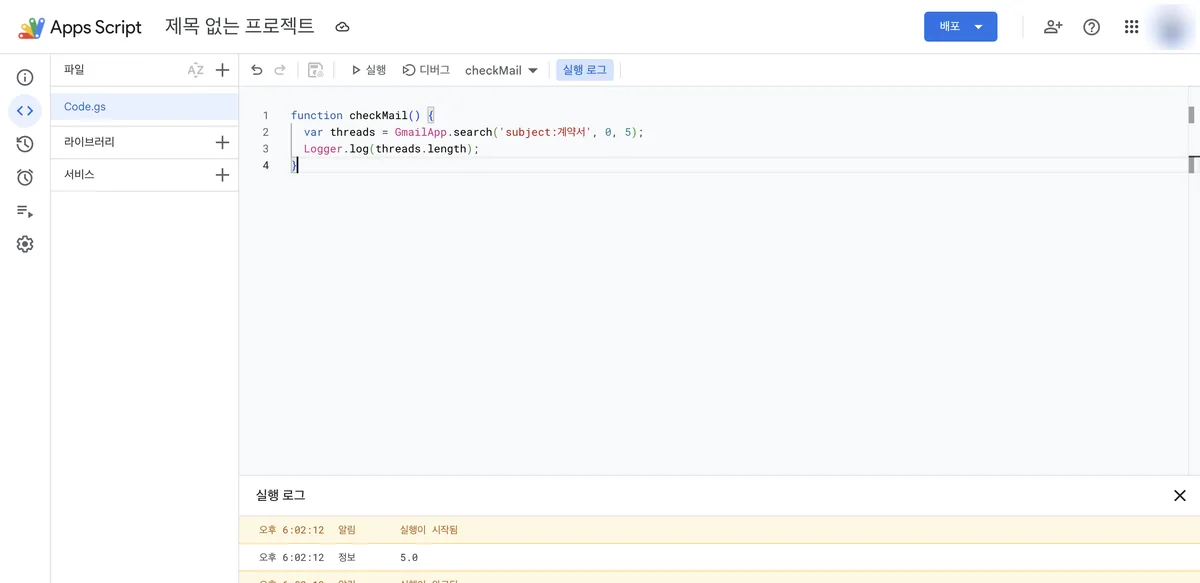
The code was set to find up to five emails that match the condition and log the count. The 5.0 in the log means matching emails existed and it found five of them. When a number appears, the permission and the code both worked.
What to watch out for after granting access
Permission applies not to the single line of code you just ran but to the entire set of services that script uses. Even if you only ran a one-line search with GmailApp, if the scope you approved is the broadest one, that script can at any point later read, write, send, and permanently delete mail. That the code you ran was only a search does not guarantee it will only ever search.
This risk grows especially when you grant Gmail permission to a script someone else gave you. Code you haven’t reviewed ends up with the ability to permanently delete emails in your account.
The screens in this post were checked on August 25, 2026. I also checked the Apps Script authentication guide, the Gmail API permission scopes, and the Google Workspace admin documentation cited here on the same day. Google can change screen layouts and wording, so if your screen looks different, use the sentence on the permission screen as your guide.
Frequently asked questions
- Why does the Gmail permission screen mention deleting emails for read-only code?
- Apps Script chooses permission scopes from the service names in the code. Using GmailApp selects the broadest Gmail scope, which includes permanent deletion, even when the code only searches.
- Can the Gmail permission scope requested by Apps Script be narrowed?
- Yes. Specifying the wanted scopes in the project's appsscript.json manifest makes the script request narrower scopes instead of the broad ones chosen automatically. Someone who only clicks through the screen cannot narrow it.
Want the full system? The Claude Code & Codex Skills guidebook collects the skills and subagents behind this blog, from $19.
BuildnWrite helps teams build AI agents that keep running. About BuildnWrite ›