Google Apps Script First Run: Getting Past the 'Unverified App' Warning
Who this is forAnyone whose first Apps Script run stopped at the red 'unverified app' warning and who wants to judge whether it's safe to click through.
TL;DR: Apps Script is a tool that runs your code with nothing to install and no server, just a Google account. On the first run, an approval screen and a red warning appear in sequence. The warning does not mean “this is a dangerous app.” It means the app has not yet gone through Google’s review. And the person who made that app is you. This post covers that judgment and what to check when you get stuck, using real screenshots.
Contents
- No install, no server
- Put the code in the editor
- What happens when you press Run
- Authorization required, then choosing an account
- “Google hasn’t verified this app”: where people freeze
- Completion check: the execution log
- When you get stuck
- If someone else gave you the script, the answer is different
No install, no server
You only need to sign in to script.google.com with a Google account. There is nothing to download and no server to set up. A single browser tab serves as both the editor and the runtime.
Once you’re in, the left side shows a New project button and a list of projects you created before.
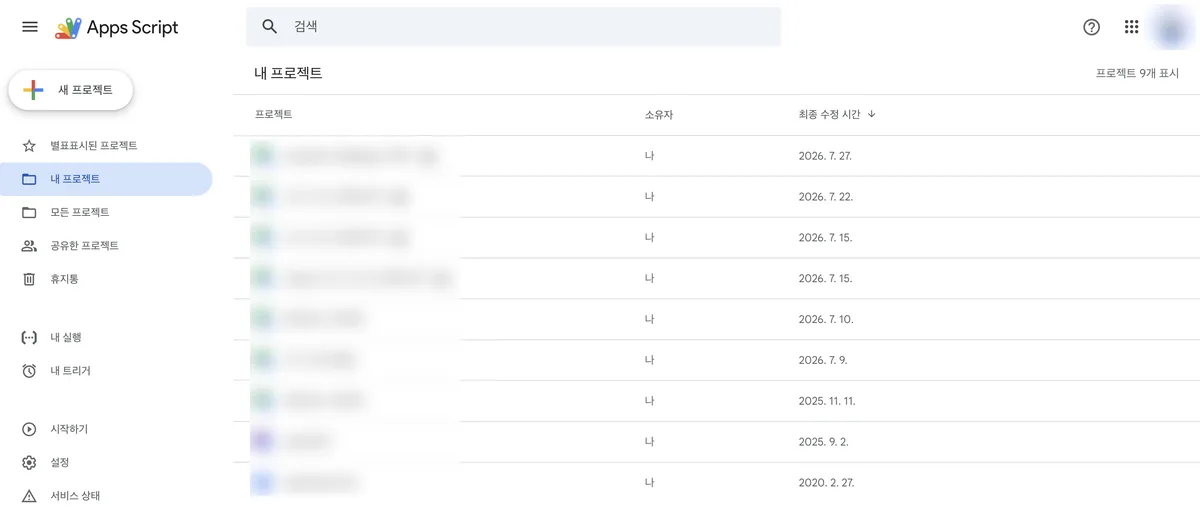
Clicking New project opens the editor right away. There is no signup and no install check.
Put the code in the editor
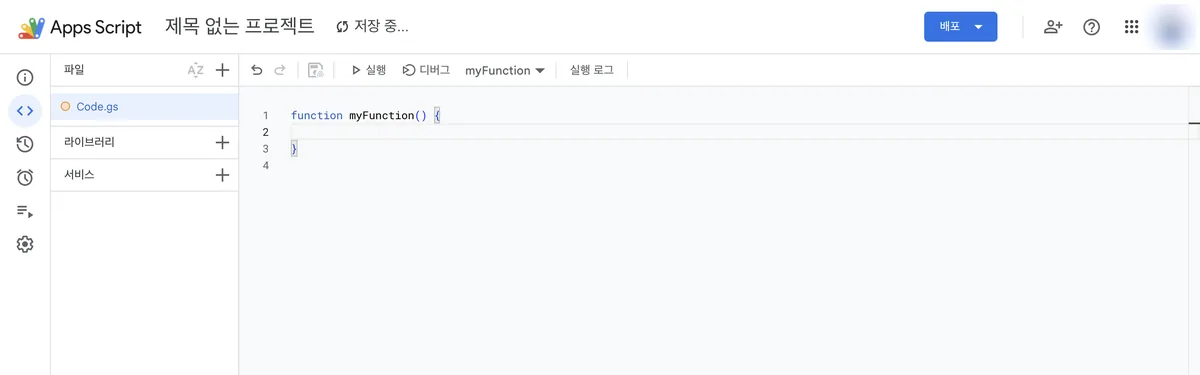
The name starts out as Untitled project. You can rename it later, so don’t worry about it now. In the file list on the left, there is one file called Code.gs, and it contains an empty function.
function myFunction() {

}
Put your code between those curly braces. In this post, we’ll add one line that fetches the email address of your Google account.
function myFunction() {
  Session.getActiveUser().getEmail();
}
What happens when you press Run
The top toolbar has Run, Debug, a dropdown for choosing a function name, and an Execution log button. When you press Run, the code does not run immediately. It goes through one step first.
Apps Script scans the code to see which services it uses, and automatically determines the permissions those services need. The line you just added reads your account email, which is personal information, through the Session service. If you haven’t approved this permission yet, an approval window appears first. You only go through this approval once, the first time you run in a given project. After that, it won’t ask again. The approval screens for code that reads or sends Gmail are covered separately in Granting Gmail permissions in Apps Script.
Screens you pass through on the first run
- 1 Authorization required dialog Click Review permissions
- 2 Account selection Choose the account you want to run the code under
- 3 Unverified app warning This is where most people stop
- 4 Advanced → Go to You have to click this to move on
You go through this only once per project
Authorization required, then choosing an account
When you press Run, this window appears first.
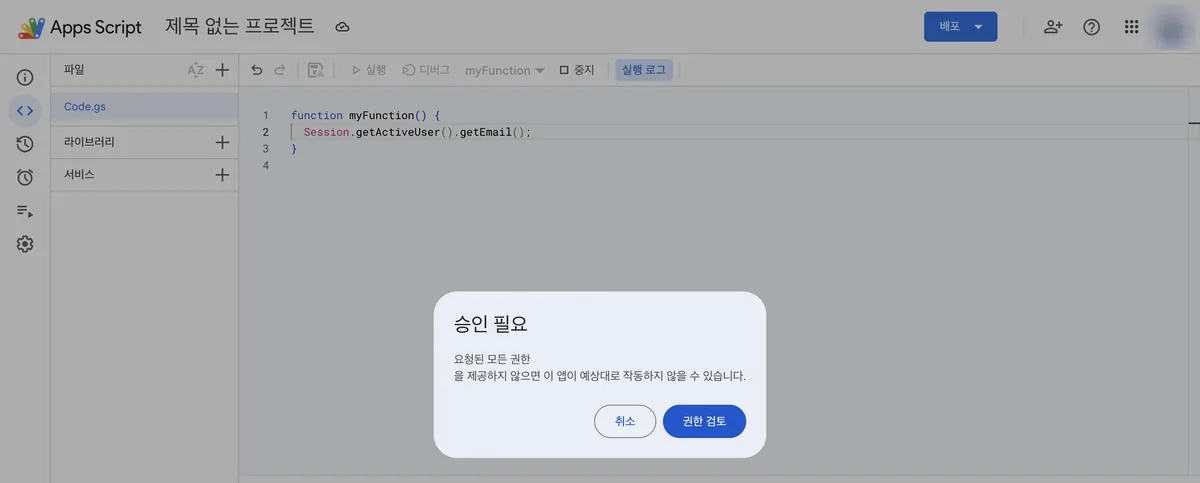
Click Review permissions. Next is the account selection screen.
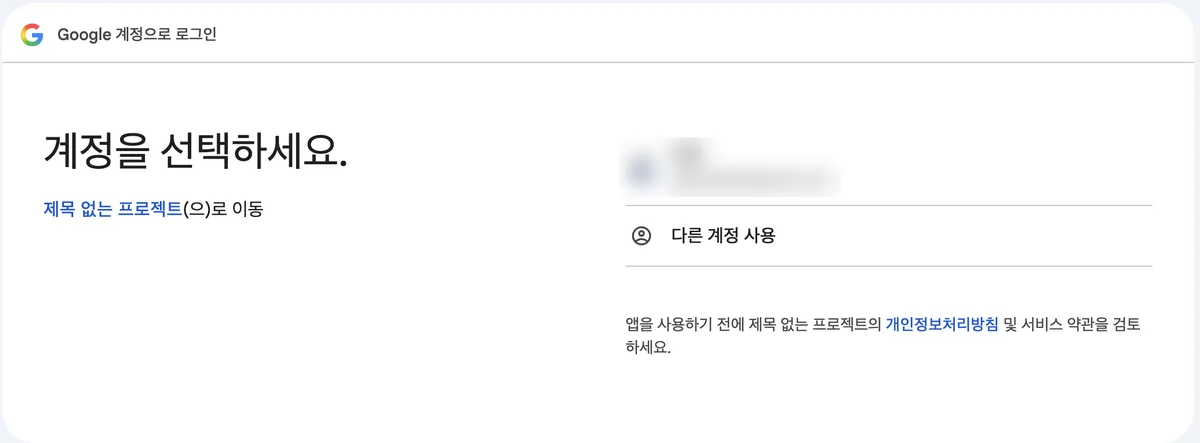
So far, nothing unusual. It’s the same as signing in to any other service with a Google account. As soon as you pick an account, the next screen changes the mood.
“Google hasn’t verified this app”: where people freeze
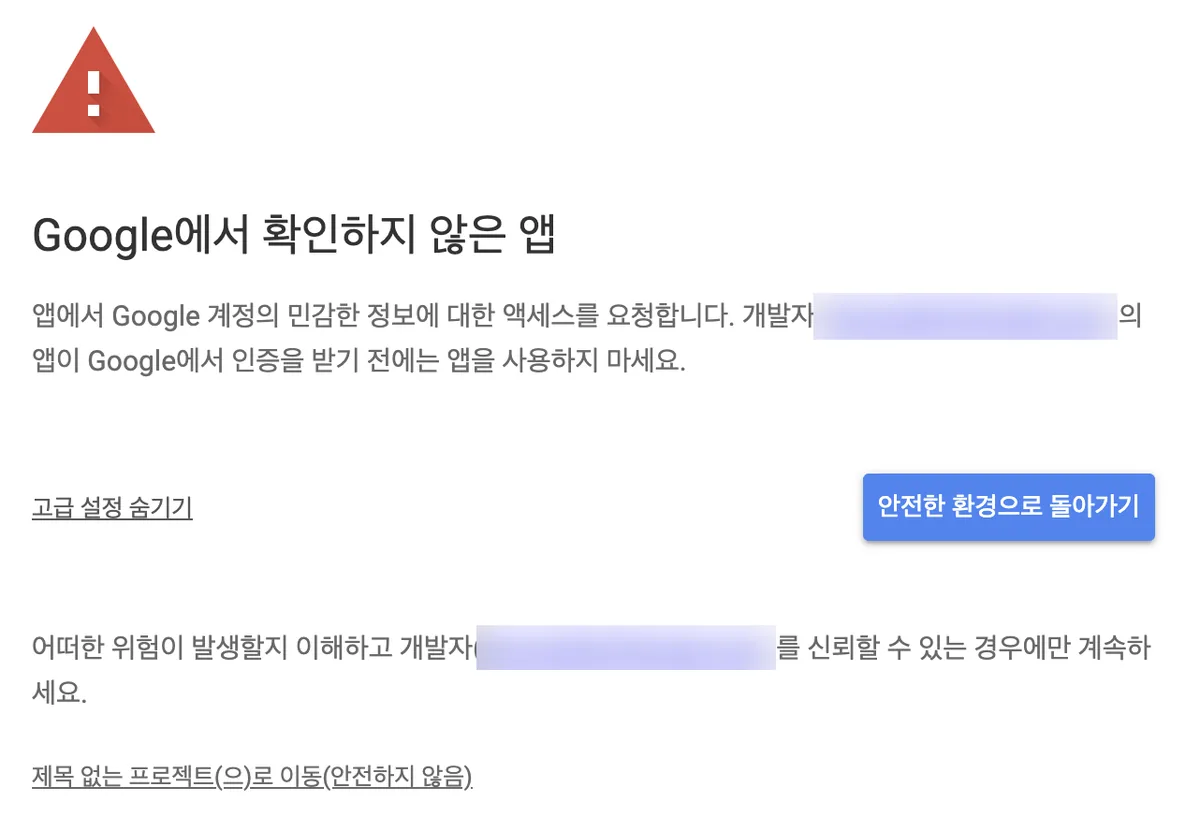
Here is the on-screen text, with what each line means.
| On-screen text | What it means |
|---|---|
| Google hasn’t verified this app | This app has not gone through Google’s review |
| This app is requesting access to sensitive information in your Google Account | The code you just added is trying to read personal information such as your email |
| Don’t use this app until the developer [name]’s app is verified by Google | It names the person who made the app and tells you to proceed only if you trust that person |
| Continue only if you understand the risks and trust the developer | The screen itself gives the criterion. It’s not the size of the risk, it’s whether you trust the developer |
| Go to Untitled project (unsafe) | A link to proceed anyway. “Unsafe” means Google hasn’t reviewed the app, not that a risk was confirmed |
Google’s official explanation states the reason for this warning precisely:
“An unverified app is an app or Apps Script that requests a sensitive or restricted OAuth scope, but hasn’t gone through the Google verification process.” Google support doc: Unverified apps
So the warning does not mean “this app is dangerous.” It means “this app has not yet been reviewed by Google.” The same document also explains that apps in experimental or testing stages don’t need this verification unless they are made public.
Clicking Go to (unsafe) takes you back to the editor you were running from, and the code actually runs.
Completion check: the execution log
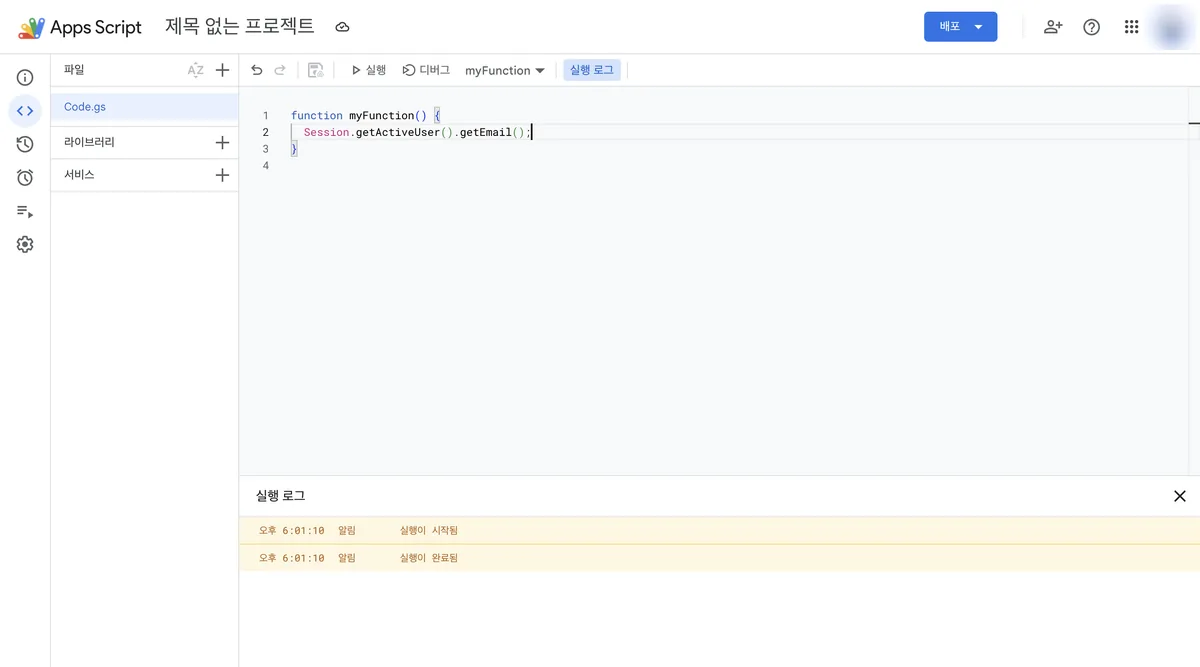
When the Execution log panel opens at the bottom of the screen and two lines appear, you’re done.
When you get stuck
That’s the normal path. Depending on your account type or editing state, you may get stuck in the ways below. I’ve listed only the causes confirmed in Google’s official documentation.
| Symptom | Cause | What to do |
|---|---|---|
| The “Go to (unsafe)” link is missing, or clicking it doesn’t advance to the next screen | Company or school Google Workspace accounts may have admins blocking new installs of unverified third-party apps | Try again with a personal Gmail account. If you must use a work account, ask your admin to add this app to the allowlist |
| You fixed the code and ran it again, but the approval screen didn’t change | The project save didn’t take effect, or the editor wasn’t reloaded | Save the project, reload the editor, then run again |
| After setting up automatic runs such as a time-based trigger, an “authorization required” error appears again | Triggers must be approved by the person who created them, and adding code that needs new permissions requires going through approval again | Run the function once manually from the script editor to bring the approval window back up, then approve |
If someone else gave you the script, the answer is different
Everything above, including the judgment that it’s fine to click through the “unverified app” warning, holds only if you wrote the script yourself.
If someone sent you a script by link or file and you hit the same warning, the name in the developer spot is no longer you. At that moment, the whole decision changes.
For your next step, if you want Apps Script to pull in external data, you can choose sources from 9 public data API sources (Korean government open-data APIs).
The screens in this post were checked on August 25, 2026. The explanations quoted come from the Apps Script authorization official docs and the Unverified apps support doc. Google may change the screens and wording, so if your screen differs, go by the wording on that screen.
Frequently asked questions
- Why does Google warn "hasn't verified this app" when I run my own Apps Script?
- The warning means the app has not gone through Google's verification review, not that it is dangerous. If you ran a script you wrote, the developer name shown is your own account.
- What to do if the "Go to (unsafe)" link is missing on the first run?
- Company or school Google Workspace admins may block unverified apps, so try a personal Gmail account or ask your admin to allowlist the app. Saving and reloading the editor, then running again, can also help.
Want the full system? The Claude Code & Codex Skills guidebook collects the skills and subagents behind this blog, from $19.
BuildnWrite helps teams build AI agents that keep running. About BuildnWrite ›