What is a terminal? A plain-English guide to the CLI and shell
Who this is forReaders who were told to 'open the terminal' by an AI tool, don't know what that means, and aren't sure what to type into the black screen.
Series · AI automation glossary part 4 of 13, expand to see all
- What Is an API? Understanding It with One Snack Bar Order Slip
- What Is a Webhook? Understanding It With a Restaurant Waiting Ticket
- What Is a Server? A Computer That Stays On When Yours Doesn't
- What is a terminal? A plain-English guide to the CLI and shell
- AI automation terms explained: MCP, agent, context, skill, and secret
- Claude terms explained: Projects, Artifacts, Cowork, and scheduled tasks
- What Is a Database? Why Tables Look Alike but Lock Differently
- What Is Supabase? Tables, Auth, and Server Functions in One Place
- Auth and RLS Explained: Keep the Screen Open, Lock the Data
- What Is Google Apps Script? Running Your Code on Google's Servers
- What Is Playwright? Why AI Suddenly Opens a Chrome Window
- What Is Aside? An Agent Browser That Clicks Using Your Own Logins
- What Does AX Mean? AI Transformation vs. DX and 3 Workplace Bottlenecks
TL;DR: A terminal is a window where you operate the computer by typing commands as text instead of using a mouse. This method is called the CLI, and the program that understands the text typed in that window is the shell. This article explains that relationship using one building as an analogy, and ends with opening a window on macOS and Windows yourself to type a single command.
Sooner or later, while using an AI automation tool, you run into an instruction that says “open the terminal.” For someone who has so far clicked icons and picked items from menus, that single line is baffling. It’s unclear which thing to open, and what to do once it’s open.
This article is for anyone who stopped at that instruction. By the end, you’ll know what “open the terminal” means, and you’ll have actually opened a terminal and run a single command.
Contents
- Entering through the front door vs. the staff entrance
- The terminal window and the shell are different things
- macOS and Windows: Open It Yourself
- Further reading
Entering through the front door vs. the staff entrance
Think about how you’ve used a computer so far. Most of the time, you clicked icons with a mouse and picked what you wanted from menus. This kind of screen is called a GUI (Graphical User Interface). It means a screen you use by looking at icons and menus and pressing them.
The terminal works differently. Instead of finding a button and pressing it, you write what you want to do as text and run it. This method is called the CLI. The difference between a GUI and a CLI can be compared to two different doors in the same building. A GUI is a front door with a sign on it, and a CLI is a staff entrance with no sign. The front door only takes you as far as the places listed on the sign. Someone who knows about the staff entrance can walk straight to places that aren’t on the sign. The catch is that without the exact wording, you can’t get in at all, the same as before.
GUI: you pick from menus with the mouse
- What you do Click icons and menu items on screen with the mouse What you can reach is limited to what's visible on screen
- Building analogy A front door with a sign You can only go as far as the sign says
This is the kind of screen most of us have used so far
CLI: you type commands as text
- What you do Type a command into the terminal window and run it Even without buttons, the command runs as long as you know it
- Building analogy A staff entrance with no sign There's no sign, but anyone who knows the way can go anywhere in the building
This is the method an AI means when it says "open the terminal"
Here’s what a real terminal window looks like. Below is the screen after running the top command in the macOS Terminal. There are no menus or icons. Apart from the white bar at the top of the window, it’s all text.
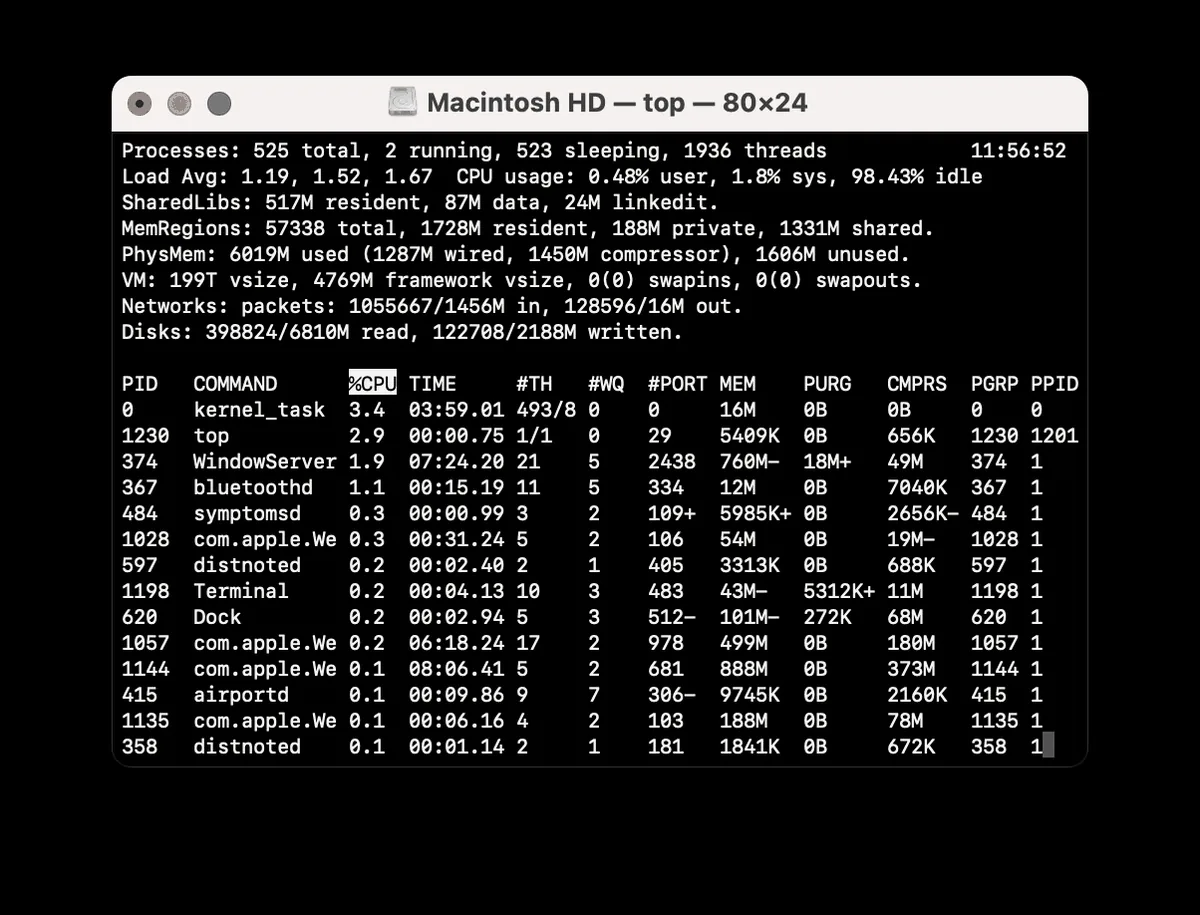
top command run in the macOS Terminal. Photo: StreetcarEnjoyer, Wikimedia Commons (CC0)The terminal window and the shell are different things
So far, it’s fine to lump everything under “the terminal.” But “the terminal won’t open” and “I typed a command and nothing happened” are actually problems at different layers. More precisely, they break down as follows.
| Layer | What it is | Nature |
|---|---|---|
| CLI | A way to give commands to the computer in text instead of with screens | Concept |
| Terminal | A window where you type text and see the output | Program (window) |
| Shell | A program that interprets and runs the text typed in that window | Program (interpreter) |
| bash/zsh (macOS, Linux) / PowerShell/cmd (Windows) | Kinds of shell | Implementation |
If the window doesn’t show anything when you open it, the problem is with the terminal itself. If the window opens but doesn’t understand the command you typed, the problem is with the shell. Errors like command not found are answers from the shell, not the terminal. In everyday use, though, you don’t need to split things this finely. Until the moment you have to tell the layers apart, you can use the single word “terminal” for all four.
macOS and Windows: Open It Yourself
That’s the definition. You’ll feel right away that the terminal isn’t anything special once you open it yourself and type a single command.
macOS: Press Cmd + Space to open Spotlight search, type “Terminal,” and press Return. In the window that opens, type the line below and press Return.
dateHere is the result I got running this on my Mac just now.
Mon Aug 31 10:11:41 KST 2026You didn’t press a button. You typed the text date to ask the computer for today’s date, and it understood the text and answered. That’s all a CLI does.
Windows: Open the Start menu, type “Windows PowerShell,” select Windows PowerShell from the results, and click Open. This is the procedure in Microsoft’s official documentation. In the window that opens, type Get-Date and press Enter, and today’s date comes back the same way. The macOS date and the Windows Get-Date have different command names because the shells are different. That’s why bash/zsh and PowerShell were on different rows in the table above.
If you want to go further and install an actual tool in this window, the Installing the Claude Code CLI post covers the next steps for both macOS and Windows.
Further reading
This article focused on building the skeleton with an analogy. Once that skeleton is in place, the two resources below are good for filling it in. Both are in Korean and free.
- AWS: “What Is a Command Line Interface (CLI)?” (Korean-language page) A standard explanation of the CLI written by a cloud company.
- Microsoft Learn: “Starting Windows PowerShell” (Korean-language page) The official procedure for opening PowerShell on Windows. The Windows instructions in this article come from here.
Frequently asked questions
- What is the difference between a terminal and a shell?
- The terminal is the window where you type commands and see the results. The shell is the program that interprets and runs those commands. bash, zsh, and PowerShell are kinds of shell.
- How do I open the terminal on macOS and run a command?
- On macOS, press Cmd + Space, type Terminal, and press Return. Then type date and press Return to print today's date. On Windows, open Windows PowerShell and type Get-Date.
Want the full system? The Claude Code & Codex Skills guidebook collects the skills and subagents behind this blog, from $19.
BuildnWrite helps teams build AI agents that keep running. About BuildnWrite ›