How to Install the Claude Code CLI on Mac and Windows
Who this is forFor readers who stalled on old guides saying to install Node.js first and need the right install path for their Mac or Windows PC.
TL;DR: To use Claude Code directly in the terminal, you need to install the CLI. The recommended path is one line from the official install script, and Node.js is not required. Mac and Windows open different windows and use different commands, so this article covers each in its own track.
Contents
- Why this article exists
- If you are new to the terminal
- Step 1. Run the install script in one line
- Other install methods
- The npm path is optional
- Step 2. Run
claudeand log in - If something goes wrong
Why this article exists
Claude Code isn’t a desktop app; you use it directly in the terminal. But many guides you find in search still describe the old approach of “install Node.js first.” The CLI itself is one tool, but the window you open and the command you run during installation differ between Mac and Windows. So this article lays out one currently recommended path, side by side for each operating system.
You only need to know whether your computer is a Mac or a Windows PC. Follow along from there.
If you are new to the terminal
You don’t need to have opened a terminal before. Here’s how to open one, as described in the official docs.
Mac: Press Cmd + Space to open Spotlight search, type “Terminal,” and press Enter.
Windows: Press Win + X and pick “Windows PowerShell” from the menu. Searching “PowerShell” in the Start menu opens the same window.
Either way, a window with only a blinking cursor opens. That window is the terminal. There’s nothing to click with the mouse. All you need to do is paste the code block below and press Enter.
Step 1. Run the install script in one line
There are several ways to install Claude Code, but the one the official docs mark as Recommended is the install script below. This path doesn’t use Node.js at all.
Mac (Linux and WSL work the same way)
- Window to open Terminal Open Spotlight with Cmd + Space and type "Terminal"
- Install command Paste the code block below Paste into Terminal and press Enter
- Check command claude --version If a version string prints, it worked
Done with this one line; no Node.js needed
Windows (PowerShell)
- Window to open PowerShell Type "PowerShell" in the Start menu
- Install command Paste the code block below Paste into PowerShell and press Enter
- Check command claude --version If a version string prints, it worked
Done with this one line; no Node.js needed
On Mac, Linux, and WSL, paste the command below into the terminal.
curl -fsSL https://claude.ai/install.sh | bashOn Windows, paste the command below into PowerShell.
irm https://claude.ai/install.ps1 | iexOther install methods
The same docs list other paths too. If you already use one of the tools below, you can use it as is.
| Method | Command | Notes |
|---|---|---|
| Mac Homebrew | brew install --cask claude-code |
If you already have Homebrew |
| Windows winget | winget install Anthropic.ClaudeCode |
If you already have winget |
| npm | npm install -g @anthropic-ai/claude-code |
Requires Node.js. See the section below |
The npm path is optional
If you used the Step 1 install script, you don’t need this section. Claude Code can also be installed through npm, but that’s an option for people who already use npm, not the recommended path.
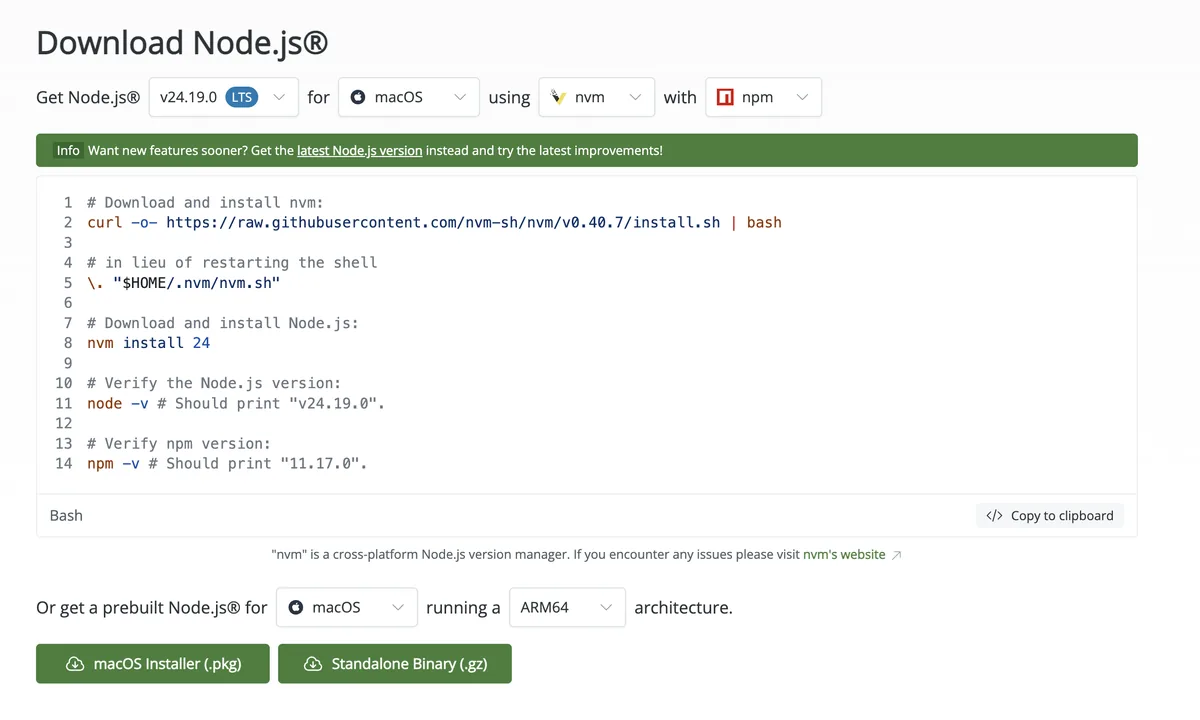
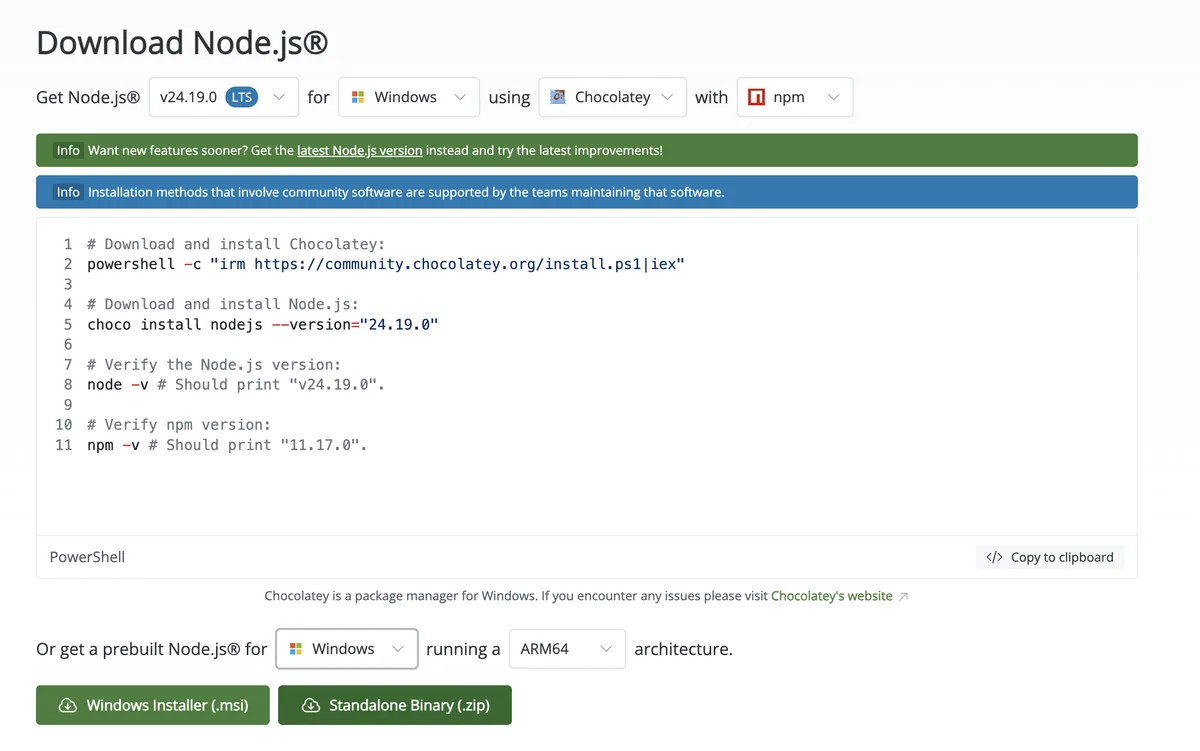
Only refer to the notes below if you want to install Claude Code through npm for another project. The official docs say the npm path requires Node.js 22 or later, and they explicitly say not to use sudo npm install -g. The page’s default selections in the screenshots (nvm on Mac, Chocolatey on Windows) are developer paths that start by installing a version manager. Instead of following those, it’s simpler to download the installer under “Or get a prebuilt Node.js®”: a .pkg file on Mac, or a .msi file on Windows.
Step 2. Run claude and log in
If claude --version printed a version, the install is done. Now type claude and press Enter.
The first time you run it, you need to log in. A browser window opens automatically and takes you to the login screen. If you have a free-plan account, you’ll be blocked at this step (see the pitfall at the top). After you log in and return to the terminal, a welcome screen appears. When you see this screen, you’re ready.
A few things worth knowing once you’re inside:
- You can’t click with the mouse inside the terminal. Move with the arrow keys.
- To stop Claude while it’s running something, press
Esc. - To exit, type
exit, or pressCtrl + Dtwice at an empty prompt. - Type
/helpto see the list of available commands.
If something goes wrong
The cause differs depending on whether the install command itself fails or the install works but login doesn’t. The responses below are organized by symptom, following the official troubleshooting docs.
When the install command fails
| Symptom | Cause | What to do |
|---|---|---|
syntax error near unexpected token '<', or HTML code appears on screen |
The install address returned a web page instead of the script | Run the same command again after a while. If it keeps failing, install with brew install --cask claude-code on Mac or winget install Anthropic.ClaudeCode on Windows |
curl: (22) ... 403 |
A firewall or proxy blocked it, or the region isn’t supported | Use the alternative install command above |
irm not recognized in PowerShell (is not recognized) |
The window you opened is Command Prompt, not PowerShell | Open PowerShell fresh and retry, or use the Command Prompt-only command curl -fsSL https://claude.ai/install.cmd -o install.cmd && install.cmd && del install.cmd |
command not found: claude / 'claude' is not recognized |
Installed, but the install folder isn’t on PATH yet (the list of folders the shell searches for commands) | Close the window, open a new one, and retry. If it still fails, run the PATH command below |
If command not found keeps appearing, add the install folder to PATH directly.
Mac (Zsh): Paste the two lines below and run them, then open a new terminal.
echo 'export PATH="$HOME/.local/bin:$PATH"' >> ~/.zshrc
source ~/.zshrc
Windows (PowerShell): Paste the command below and run it, then open a new window.
$currentPath = [Environment]::GetEnvironmentVariable('PATH', 'User')
[Environment]::SetEnvironmentVariable('PATH', "$currentPath;$env:USERPROFILE\.local\bin", 'User')
If you get an error saying the install folder isn’t writable, then on Mac or Linux, reset the owner to your account with the command below. On Windows, the install location is inside your user folder (%USERPROFILE%), so this error almost never happens.
sudo mkdir -p ~/.local/bin
sudo chown -R $(whoami) ~/.local
When the install works but login doesn’t
| Symptom | Cause | What to do |
|---|---|---|
| The browser doesn’t open automatically | Automatic launch may not work depending on the environment | On the login waiting screen in Claude Code, press c to copy the login address, then paste it into your browser manually |
OAuth error: Invalid code |
The login code expired, or part of it was cut off while copying | Press Enter to retry. If the browser opens, finish logging in quickly |
403 Forbidden after login |
The account is on the free plan, or the subscription is inactive | Check your subscription status at claude.ai/settings |
| You don’t know the cause | - | Log out with /logout, quit the terminal, then restart with claude and log in again |
If your symptom isn’t in the tables above, run claude doctor and check the diagnostic results. It will tell you what’s missing.
The install commands and account requirements in this article were checked on August 24, 2026, at code.claude.com/docs/en/setup. The terminal-opening steps and first-run guidance were checked the same day at code.claude.com/docs/en/terminal-guide, and the symptom-based responses in “If something goes wrong” were checked at code.claude.com/docs/en/troubleshoot-install. The Node.js page and version numbers (v24.19.0, npm 11.17.0) were checked on the same day at nodejs.org/en/download. Install methods and account requirements may change, so if your screen looks different, follow the official docs.
Frequently asked questions
- Do I need Node.js to install Claude Code?
- No. The recommended install script is a single line from the official docs and does not use Node.js. Node.js is only needed for the optional npm install path, which requires Node.js 22 or later.
- Can I use Claude Code on the free Claude.ai plan?
- No. Claude Code requires a Pro, Max, Team, Enterprise, or Console account. The install finishes on the free plan, but login is blocked.
BuildnWrite helps teams build AI agents that keep running. About BuildnWrite ›