How to Create a Gmail App Password for Scripts and Automation
Who this is forAnyone whose automation needs to send mail from their own Gmail account and who is stuck on the app password step or can't find the menu.
TL;DR: To have an AI-written script or GitHub Actions send mail from your Gmail account, you need a separate key called an app password, not your sign-in password. Issuing one takes a single search on the Security page, but if 2-Step Verification is off or you’re on a work account, the menu itself won’t appear. This post covers how to issue one, what to check when it’s blocked, and the alternatives.
Contents
- When automation stops at the mailbox
- Check first whether you need this key
- How it differs from your account password
- Issuing it: one search on the Security page
- Where to store it
- If you can’t find the menu
- What to watch after issuing it
When automation stops at the mailbox
If you ask an AI to “send me a summary by email every morning,” the automation has to actually log in somewhere. That’s where most people try to paste their Google password directly. It won’t work.
Google treats passing an account password directly through a sign-in as an outdated method. The App passwords page says this:
App passwords let you sign in to your Google Account from older apps and services that don’t support modern security standards.
A Python script written by AI or a GitHub Actions workflow falls into this category. These programs connect straight to Gmail’s sending server and send mail without a sign-in screen. Because the program has to authenticate quietly in the background instead of having a person approve through a Google sign-in page, you need a separate key just for this program, apart from your account password. That key is the app password.
Check first whether you need this key
An app password isn’t a master key. It’s a key used only for a specific way of connecting. Before you go to the issuing page, first check whether your case is one of these.
| What you’re trying to do | Is an app password needed? |
|---|---|
| Adding a Gmail account to a mail app on your phone or in Outlook | Yes. This is the use Google’s official documentation gives as its example |
| Sending Gmail from a script you wrote or from GitHub Actions | Yes. This is the case this post covers |
| Tools that show a “Sign in with Google” button (such as n8n’s Gmail integration) | Not needed. Connecting through that button is the method Google recommends |
Google’s official documentation advises not to create an app password if the app you’re connecting to offers “Sign in with Google,” and gives Outlook and smartphone mail apps as examples (checked August 27, 2026). n8n’s dedicated Gmail integration, based on the official documentation, also uses this sign-in method, so no app password is needed (checked August 27, 2026). For a checklist of what to check when that integration is blocked by an error, see 5 things to check when the n8n Gmail integration fails. App passwords are needed when there’s no such sign-in button at all, that is, when the script you wrote connects directly to a sending server.
How it differs from your account password
Before going to the issuing page, you need to know what this key opens. Google’s official documentation defines an app password as a 16-character code that gives an app or device with lower security access to your account (checked August 25, 2026). In other words, it’s a value issued separately only for older apps that don’t support modern security methods.
Account password
- Scope of access Entire account Sign-in, settings changes, and every connected service
- Number Only one You use this one everywhere
- If it leaks Whole account at risk Changing the password logs you out of all other sign-ins too
Why you shouldn't put it straight into automation
App password
- Scope of access That app only Used only in that app's sign-in field
- Number Issued separately for each app You can create separate ones for a script and for a mail app
- If it leaks Revoke just that app and you're done You only delete one entry from the list, and the rest keep working
Each app is managed independently
Issuing it: one search on the Security page
The steps themselves are short. Most people get stuck because they don’t know the menu name.
- Go to myaccount.google.com and click Security in the left-hand menu (the Korean UI labels it differently).
- In the search box at the top of the page, type “app password.”
- Click the App passwords entry at the top of the search results.
- In the app-name field at the bottom, enter a name you’ll recognize for the automation (for example, MailClient or DailyReport), and click the Create button.
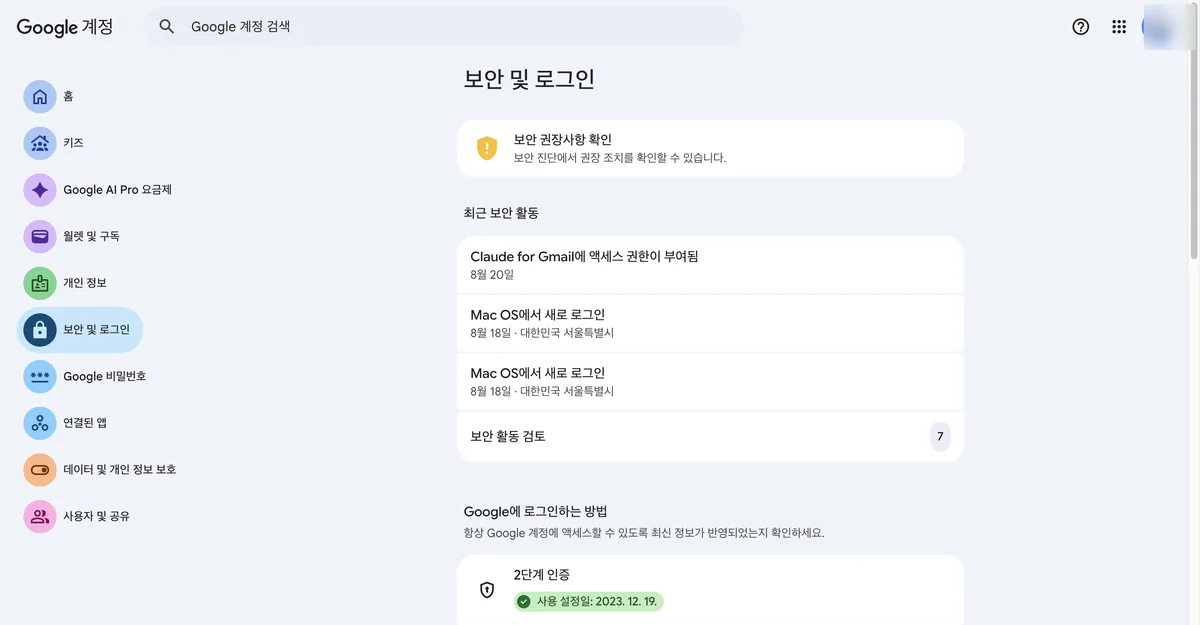
The top of this page also has a Recent security activity list. New device sign-ins and grants of access to other apps accumulate here. Creating an app password adds one more access point to your account, so if you spot unfamiliar activity in this list later, it’s the first place to be suspicious of.
Further down the page, your 2-Step Verification status is also shown. Google’s official documentation notes that you must have 2-Step Verification set up on your account to create an app password (checked August 25, 2026). This account had already turned on 2-Step Verification in December 2023, so searching brought up the menu right away.
If 2-Step Verification is on, you can find the menu just by typing its name in the search box. When there’s no dedicated menu item to click through, search is much faster than digging through menus that aren’t always easy to find.
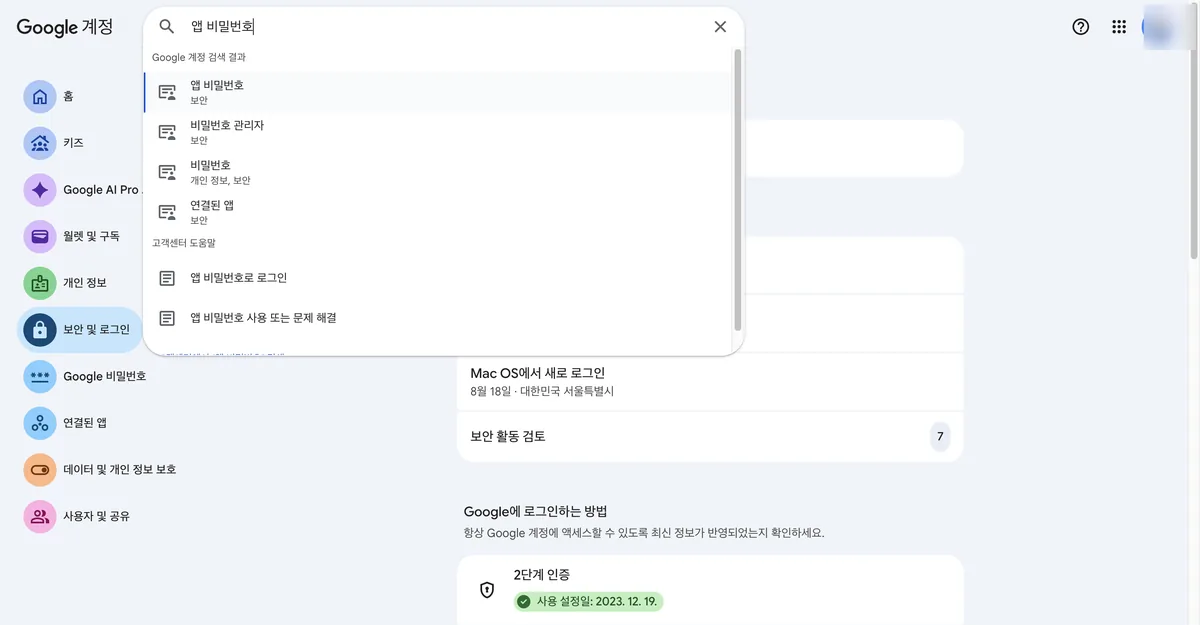
Clicking the result opens the actual issuing page.
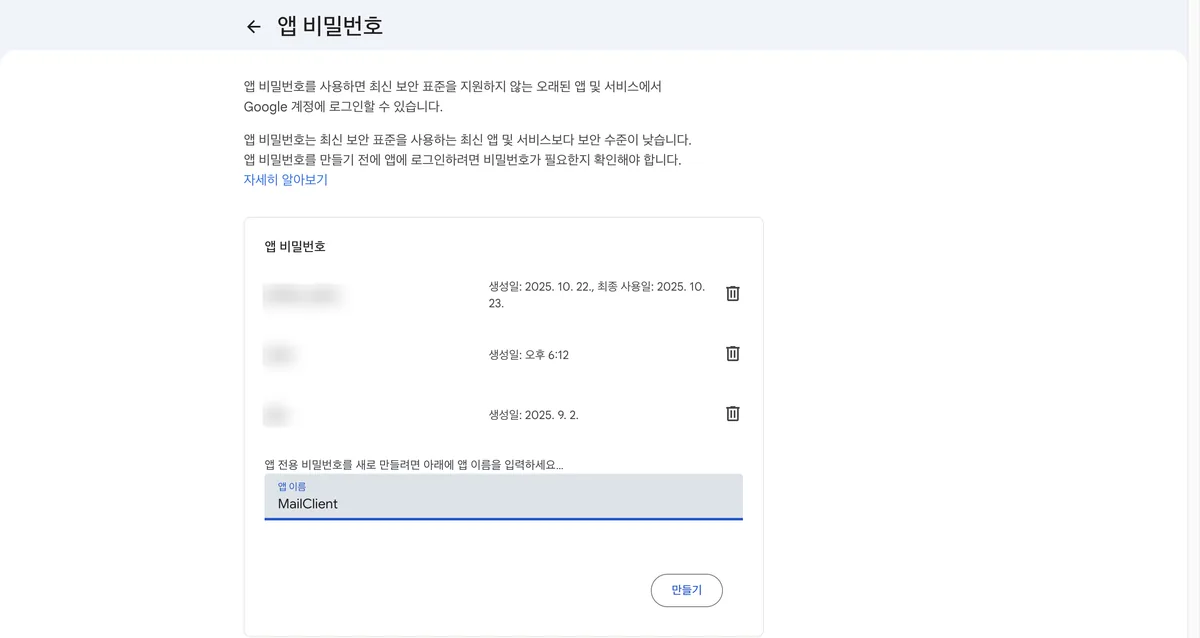
The two paragraphs at the top of this page state what an app password is. The first explains why you need one; the second explains why you should be careful.
App passwords are less secure than modern apps and services that use up-to-date security standards. Before creating an app password, check whether the app actually requires a password to sign in.
When you click Create, a 16-character value appears on screen. I didn’t include the screen where that value appears in this post. However, Google’s official documentation clearly states that this value can only be viewed once, and you can always create a new one (checked August 25, 2026).
Where to store it
If you paste the issued value directly into code or a workflow screen and commit it to a repository, you’ve created the same problem as hardcoding your account password. If you run the automation with GitHub Actions, store this value as a secret and leave only its name in the code.
You can continue with the steps for registering a secret, and a pitfall you’ll definitely run into with conditional steps, in Adding secrets to GitHub Actions.
If you can’t find the menu
Sometimes the app password doesn’t appear even when you search. Google’s official documentation lists three reasons: 2-Step Verification is set up only for security keys, you’re signed in to a work, school, or other organization account, or you’re enrolled in Advanced Protection (checked August 25, 2026). The original wording is:
If you don’t see this option, it’s probably because: Your Google Account has 2-Step Verification set up only for security keys. You’re logged into a work, school, or another organization account. Your Google Account has Advanced Protection.
| Symptom | Cause | What to do |
|---|---|---|
| The app password entry doesn’t appear in search at all | 2-Step Verification is turned off | Turn on 2-Step Verification first. App passwords only appear for accounts with this setting enabled |
| 2-Step Verification is on, but the entry still doesn’t appear | 2-Step Verification was set up only with a security key | Add another method, such as an authenticator app or text message |
| The account is signed in with a work or school email | An organization admin may have blocked this menu | Ask your admin, or issue an app password from a personal Gmail account and run the automation with that account |
| The account is enrolled in Advanced Protection | This program doesn’t support app passwords | Switch to a tool that supports a sign-in method other than app passwords |
What to watch after issuing it
App passwords stay on the issuing page as a list. As the screenshot above showed, several app passwords I had already created were lined up with their names, creation dates, and trash icons. It’s common to end up with at least one value whose name doesn’t tell you what it was for.
Google’s official documentation states that if you revoke an app password, that app can no longer access your account (checked August 25, 2026).
If your device is lost, or your automation code is accidentally uploaded to a public repository, delete the relevant app password from this list first, before you change your account password. It’s much faster, and other automations won’t stop.
The screens and official documentation quotes in this post were checked on August 25, 2026. Google has changed its security screen layout and policies before. If your screens differ, rely on the official documentation for Sign in with app passwords.
Frequently asked questions
- Can I put my Google account password in a script or GitHub Actions to send Gmail?
- No. Google treats passing an account password directly through a sign-in as an outdated method. Automation needs a separate 16-character app password instead.
- Why doesn't the App passwords menu appear in my Google Account?
- The menu appears only when 2-Step Verification is turned on, and Google requires it to create an app password. Work accounts may also not show the menu.
Want the full system? The Claude Code & Codex Skills guidebook collects the skills and subagents behind this blog, from $19.
BuildnWrite helps teams build AI agents that keep running. About BuildnWrite ›