Deploying a Supabase Edge Function: Why HTTP 200 Isn't Enough
Who this is forAnyone who wants to run a small piece of code on the internet without their own server, and wants to confirm it actually works after deploying.
TL;DR: There are two ways to deploy an Edge Function: the dashboard and the CLI. This post gives you criteria for choosing between them, shows what appears after deployment, and uses a real deployment record to show that getting HTTP 200 does not mean the job is complete. It also covers the fact that you must redeploy after every code change for it to take effect.
Contents
- What is an Edge Function
- Which of the two paths to choose
- The dashboard steps you actually click through
- What appears after deployment
- Checking by calling it
- Where to look when it fails
- HTTP 200 does not mean done
- You must redeploy after changes
1. What is an Edge Function
An Edge Function is a piece of code that runs on the internet without your own server, invoked through an address. Among the code an AI writes for you, parts like “fetch reviews and organize them into a table” or “alert me when a negative reaction comes in” need to keep running without your computer staying on. Edge Functions take on that role. Once you deploy, one address (endpoint) is created, and calling that address runs the code.
Using the distinction from my earlier keys guide, it’s easy to see when you need one. There is code that runs in the browser (code that runs only while a user has the screen open) and code that runs on the server (code that must keep running by itself, even when no user is connected). Edge Functions are the place for the latter.
Tasks like fetching reviews and saving them, or alerting on negative reactions, must run by themselves on a schedule or in response to an event, not only while someone is looking at the screen. Browser code stops when the tab closes, so it cannot handle these jobs. Conversely, work that is needed only while a user has the screen open, such as a logged-in user viewing their own post list, does not need to be moved into an Edge Function. Calling it directly from the browser with a public key with RLS enabled is enough. If a task requires a master key (secret, service_role), that code belongs on the server side, in a place like an Edge Function, not in the browser.
2. Which of the two paths to choose
There are two ways to deploy an Edge Function on Supabase: creating it in the dashboard and uploading it with the CLI (a command-line tool where you run text commands instead of clicking). Both produce the same kind of Edge Function, but the method and the situations they suit differ. Every section after this one covers the dashboard path. Below, I only point out what differs in the CLI and when it fits.
Create in the dashboard
- What you need Just a browser Nothing to install
- Where the code lives In-screen editor Paste it and press the Deploy button
- When it fits One function, quick testing When you're deploying for the first time
Fast, but as functions grow, you have to juggle screens to manage them
Upload with the CLI
- What you need CLI installed, local dev environment You need to know how to use a terminal
- Where the code lives Files on your computer Works well with Git version control
- When it fits Many functions, repeated deploys When you keep editing code locally
Needs more setup, but gets easier as the number of functions grows
3. The dashboard steps you actually click through
If you chose the dashboard, start with the green Deploy a new function button on the list screen (functions-list.webp), which appears below. After you click it, the procedure follows the Dashboard Quickstart in the Supabase official documentation, as follows.
- On the Edge Functions list screen, click Deploy a new function.
- Choose Via Editor. You can also upload files, but the editor is simpler if this is your first time.
- Pick a ready-made template (for example, Hello World), or start from a blank screen.
- The template code appears in the in-screen code editor. Here you erase the contents and paste or edit your code.
- Click the Deploy function button below the editor.
- Wait about 10 to 30 seconds, and a message saying the deployment is complete will appear.
You don’t need a terminal or any installation. Putting code into the in-screen editor and uploading it with a button is the entire dashboard path.
4. What appears after deployment
Once deployment finishes, the Edge Functions list gets a new row showing the function name and its address (endpoint).
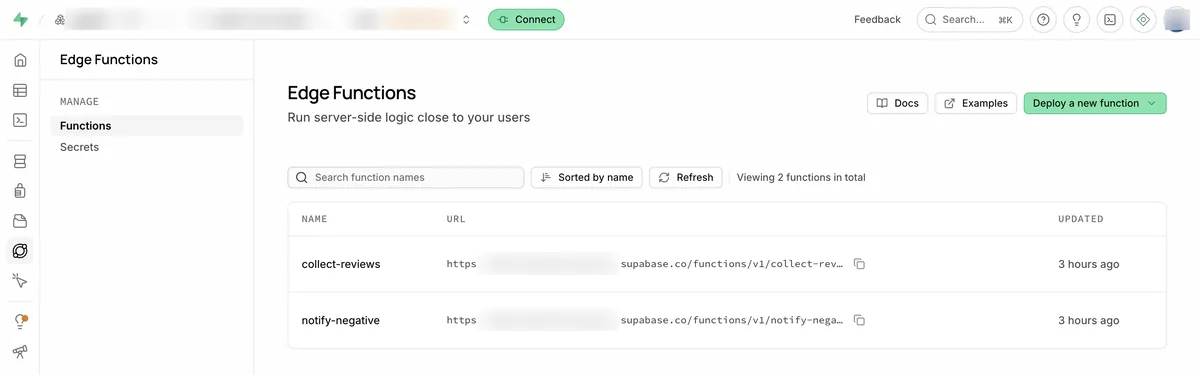
Clicking a function name opens its detail screen. This is where things appear that exist only after deployment.

5. Checking by calling it
You can run a deployed function from within the screen using the Test button in the upper right, or copy the code from the “Invoke function” box on the same screen and call it from a terminal. There are five tabs (cURL, JavaScript, Swift, Flutter, and Python), and cURL is the default.
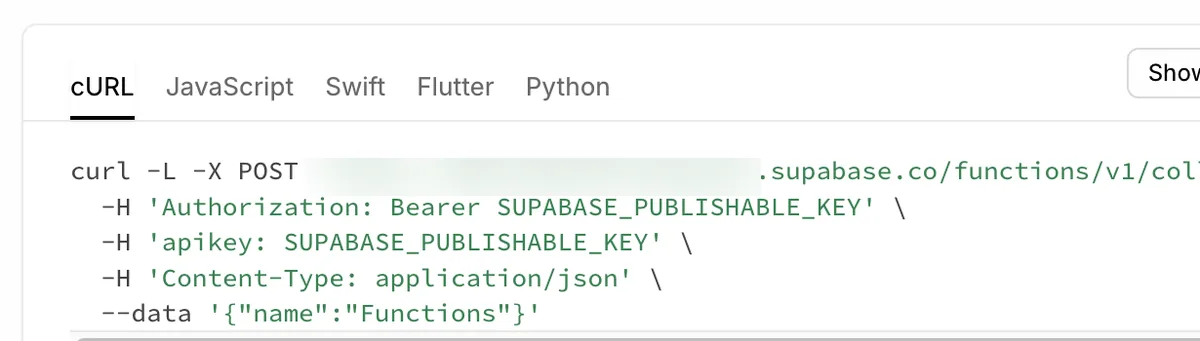
Put an anon or publishable key in the two header slots (Authorization and apikey). What the key is and where to find it is covered in the earlier keys guide.
6. Where to look when it fails
Sometimes deployment succeeds but calls don’t work, or calls work but the results look wrong. Of the five tabs on the function detail screen (Overview, Invocations, Logs, Code, Settings), there are two to check in these cases: Invocations and Logs. They serve different purposes.
| Tab | What it shows |
|---|---|
| Invocations | Request and response records: headers, body, status code, time taken |
| Logs | What happened inside the function code: console.log output, uncaught exceptions and stack traces |
If the call itself is blocked with a 401, the usual cause is an empty or wrong key in the header. The guide covers which key goes in the Authorization and apikey headers shown above.
If the call ends with 200 but the result looks wrong, the problem is in the code, not the call method. In that case, check the Logs tab. If you put console.log in the function code, its output accumulates here, and if the code throws an uncaught exception partway through, the error message and stack trace are saved here. However, in cases like the fetched: 3 example below, where the code doesn’t crash and runs to the end, but a number just comes out quietly small, there are no exceptions or error messages, so the Logs tab alone won’t reveal the cause. In that situation, the only option is to compare the number in the response body against a value you already know, as the next section does.
If you fixed something but it doesn’t take effect, you probably didn’t redeploy. The last section covers this.
7. HTTP 200 does not mean done
This is the core of this post. Just because calling the function returned HTTP 200 does not mean the job is finished.
While deploying and calling a function (collect-reviews) that fetches review pages and organizes them into a table, the following happened.
| Deployment | Response body |
|---|---|
| First deployment | fetched 3 items |
| Redeployment (page loop added) | HTTP 200, 5.3 seconds, {"fetched":29,"negative":4,"inserted":26} |
Even in the first deployment, the function ran to completion and returned fetched: 3. But there were far more reviews that should have been fetched. The cause was that the function code read only the first page of the review list and never moved on to the next page, because it had no pagination (fetching a list split across several pages, one page at a time). Reviews on Aladin (a South Korean online bookstore) are split across multiple pages, so reading only the first page captures just a small fraction of the total.
This pagination problem was not the first time it had happened.
I noticed these 3 items were wrong because the review count I had counted separately locally (14) did not match the fetched value in the response (3). Following that gap, I found that pagination was missing.
After fixing the problem, I added the code that reads page by page and redeployed. The result is the second row of the table above, fetched: 29.
Whether the same function gives the same result when called again also needs checking. collect-reviews places a unique constraint on the review_hash value in its table, so even if the function is called many times, reviews that are already saved do not pile up as duplicates. I confirmed this by rerunning it and seeing the inserted value drop.
8. You must redeploy after changes
Editing code locally does not change a function that is already deployed. Only redeploying makes your changes take effect. In the example above, if you had added the pagination code without redeploying, the 3-item version would still be running.
The screens and procedures in this post were verified on August 24, 2026, using the Supabase official deployment guide, the Dashboard Quickstart, the Logs guide, and the troubleshooting guide. Supabase has changed the dashboard layout and CLI syntax in the past. Check the exact deploy command syntax and the latest screens in the documents above as needed.
Frequently asked questions
- Do I need to redeploy an Edge Function after every code change?
- Yes. A code change does not take effect until you deploy the function again after editing it.
- Why does an Edge Function return HTTP 200 but still give a wrong result?
- HTTP 200 means the server finished processing the request, not that the result content is correct. A function can return 200 while its output is still wrong.
Want the full system? The Claude Code & Codex Skills guidebook collects the skills and subagents behind this blog, from $19.
BuildnWrite helps teams build AI agents that keep running. About BuildnWrite ›