Tailscale Setup Guide: Reach Your Home Mac mini from Anywhere
Who this is forOffice workers who want to leave AI tasks running on a home computer such as a Mac mini and check or direct them from outside, and people setting up a home server for the first time.
TL;DR: Tailscale joins your laptop, phone, and home Mac mini into one private network, so you can reach your home computer from outside without opening ports or dealing with a public IP. This post covers the setup steps from sign-up to naming devices, plus the free personal tier per the official docs. It also covers two problems I hit with the Mac mini as a home server. It suits anyone who wants to leave AI tasks running on a home computer and check on them from outside.
Contents
- Closing Your Laptop Stops the AI Work
- Why Reaching Your Home Computer from Outside Was Hard
- What Tailscale Does
- Installation Steps
- Pricing and the Free Tier
- Two Problems I Hit with the Home Server
- When Something Goes Wrong
- Checking That It Works
1. Closing Your Laptop Stops the AI Work
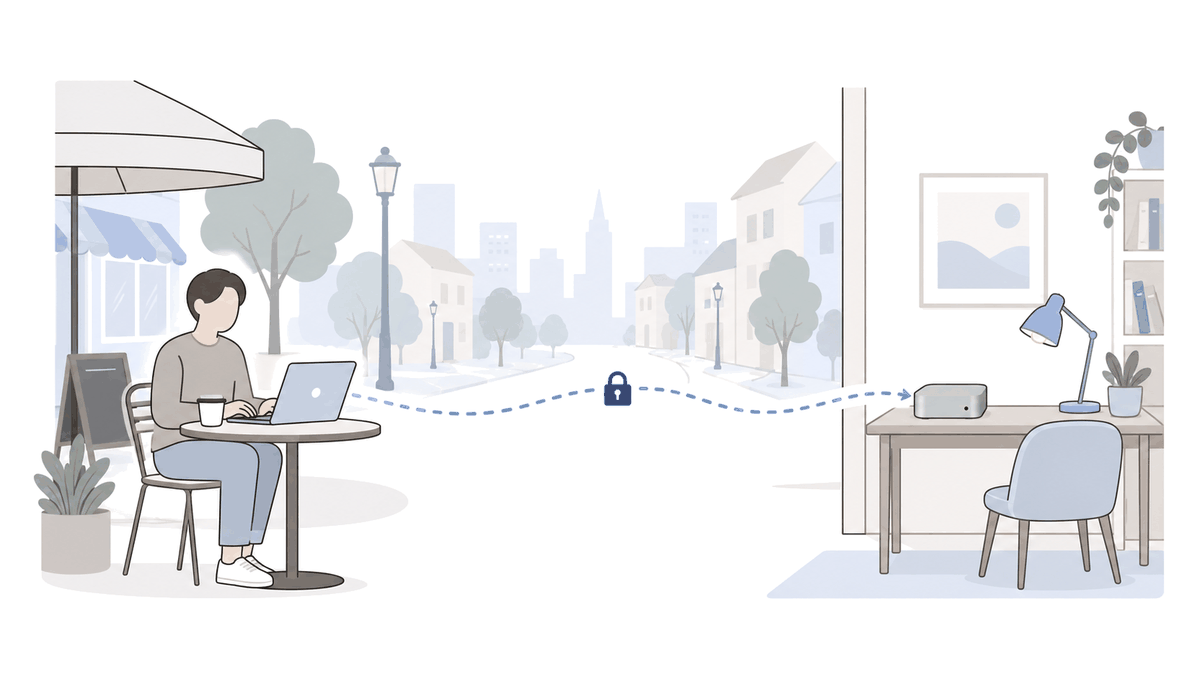
When you hand a long task to an AI, you soon hit one problem. If the task runs on your laptop, it stops the moment you close the lid. So you start looking for a way to move the work to one computer that stays on. That always-on computer, standing in for you, is a server.
One problem remains: how to reach the Mac mini at home from a café or the office.
2. Why Reaching Your Home Computer from Outside Was Hard
Home internet normally blocks connections coming in from outside. The traditional approaches are as follows:
| Traditional approach | What you have to do | Burden |
|---|---|---|
| Port forwarding | Open an incoming port in the router’s admin page and point it at the Mac mini | Menus differ by router; open ports are visible from outside |
| Managing public IP | Get a static IP or a dynamic DNS service so you can still be reached when the home address changes | You must reconfigure whenever the address changes |
| Building your own VPN server | Set up a VPN server at home and distribute config files to each device | Managing certificates and config files |
3. What Tailscale Does
Tailscale joins scattered devices into one private network. This network is called a tailnet. Devices on the same tailnet address each other as if they were all on the same home router, no matter where they are.
From your home laptop you can reach your work laptop, and from work you can reach your home server, as if they were all one machine on the same network.
(Thread by the author, @buildnwrite, June 17, 2026)
Based on Tailscale’s official explanation, there are three principles.
- Traffic between devices is encrypted with WireGuard, an open encryption protocol, and flows directly between devices.
- Tailscale’s coordination server mainly distributes encryption keys and access policies, and almost no actual data passes through it.
- Even across routers, it uses techniques that punch through connections, so no public ports need to be opened. On networks where a direct connection is not possible, a relay server passes along already-encrypted data as is.
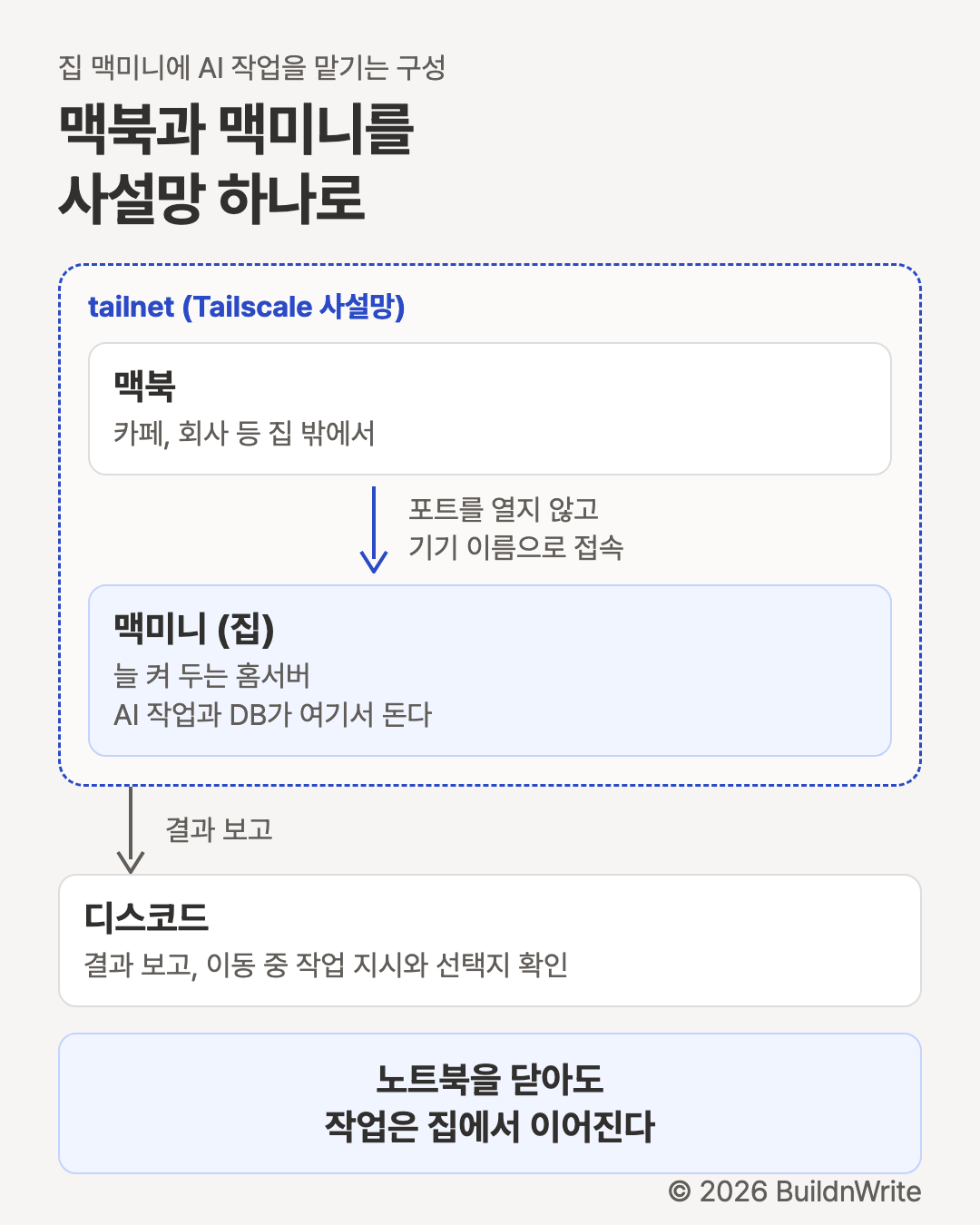
The author’s setup connects a MacBook and a home Mac mini with Tailscale, and receives results via Discord (thread, July 30, 2026). Here is the setup as a diagram.
4. Installation Steps
This is based on the official quick start guide. It assumes the Mac mini is your first device and the laptop is your second.
- Click Get Started on tailscale.com. You can install the app first and sign up inside it.
- On the Sign up with your identity provider screen, log in with an account such as Google, Apple, GitHub, or Microsoft.
- On the Welcome to Tailscale screen, choose Personal use.
- On the Let’s add your first device screen, pick macOS for the Mac mini, install the app, and log in with the account you signed up with in step 2.
- On the Next, add a second device screen, pick the laptop’s operating system to get a link. Send this link to the laptop, then install and authenticate.
- Click Take me home to go to the admin console. There you can see the list of devices on your tailnet.
Where to get the app for each device, per the official installation docs, is as follows.
| Device | Where to install |
|---|---|
| Mac (Mac mini, MacBook) | Mac App Store or the Tailscale download page |
| Windows | Installer on the download page |
| iPhone, iPad | App Store |
| Android | Google Play |
Once installed, you can address devices by name instead of numeric IP addresses. This feature is MagicDNS.
According to the MagicDNS docs, MagicDNS is on by default for tailnets created after October 20, 2022. Using the docs’ example, if the server is named monitoring, you reach it like this:
- Type monitoring in the browser address bar.
- Run ping monitoring in the terminal to confirm a response.
- Run ssh username@monitoring in the terminal to connect to that computer.
To connect to a Mac over SSH, you first need to turn on Remote Login on that Mac. The path is Apple menu > System Settings > General > Sharing > Remote Login; the Korean-language macOS UI labels these items differently (Apple’s official help page, Korean-language version).
At this step, you can open a web page or AI task result running on the Mac mini directly in the laptop’s browser.
5. Pricing and the Free Tier
For personal use, the free plan is enough. The screenshot below was taken from the official pricing page on October 5, 2026.
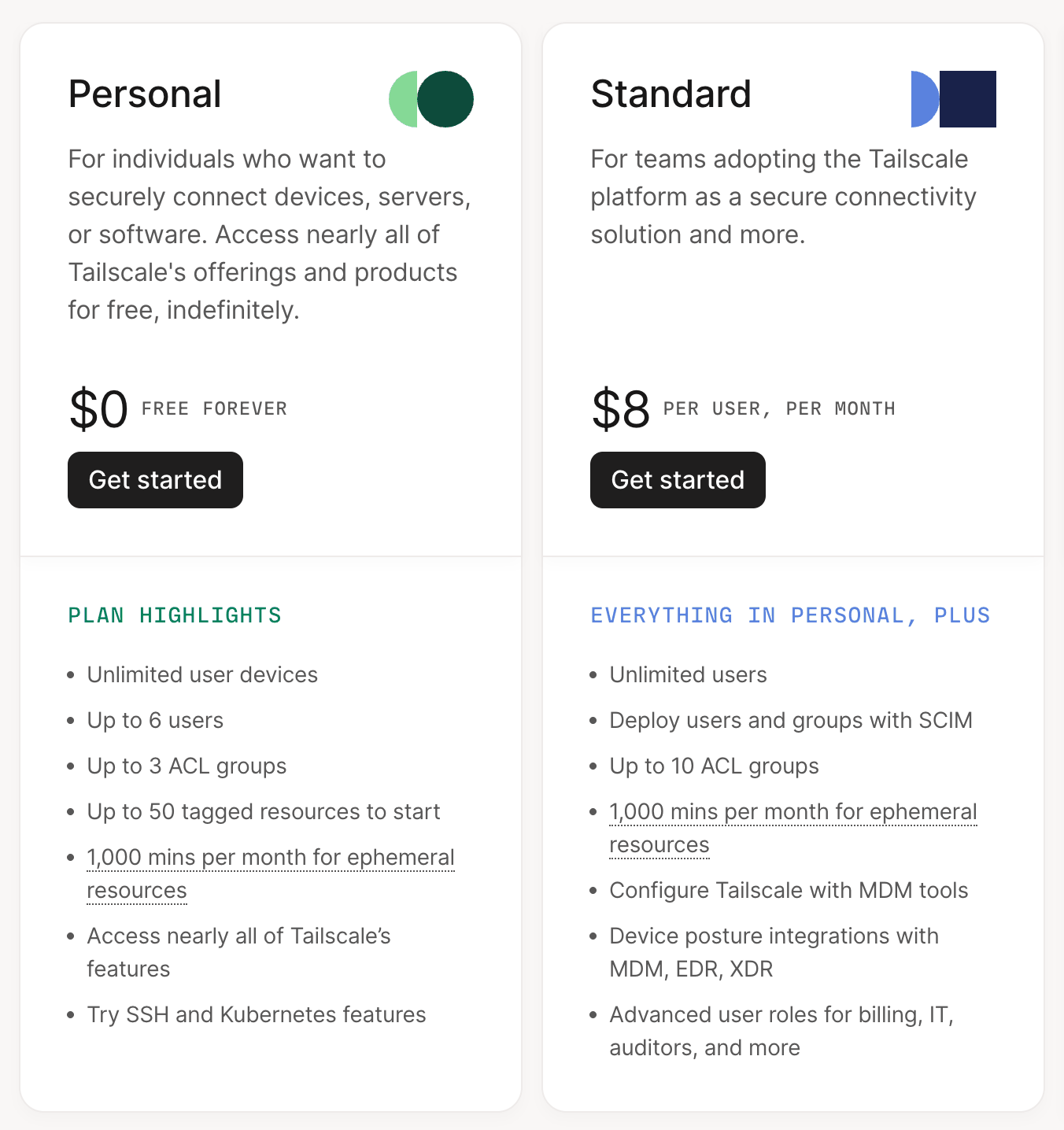
- Personal: $0, up to 6 users, unlimited user devices. A setup connecting a laptop, phone, and Mac mini on your own fits within this.
- Paid plans outside the screenshot: Premium is $18 per user per month; Enterprise requires contacting sales.
The FAQ below the pricing table has two conditions to know before signing up:
- Personal is described as a free plan for personal use at home, suited only to non-commercial use.
- If you create a tailnet with a company domain email, it is treated as business use and is automatically enrolled in the free trial, and that account becomes owned by the company that owns the mail domain.
Prices and terms can change, so check the pricing page again before signing up.
6. Two Problems I Hit with the Home Server
The two issues below are not Tailscale problems. They come from using a home Mac mini as a server.
Home Wi-Fi becomes the bottleneck.
There was a time a service was down overnight.
The game service I ran on the Mac mini was down all night (…) I guess I should separate the production services.
(Thread by the author, @buildnwrite, September 10, 2026)
7. When Something Goes Wrong
I picked what to check for each symptom from Tailscale’s official troubleshooting docs.
| Symptom | Likely cause | What to do |
|---|---|---|
| The other device won’t open | Tailscale is off on one device, or the app is an old version | Launch the app on both devices and update to the latest version |
| Worked fine, then suddenly disconnected | Device authentication expired (180 days by default for new tailnets) | Log in again on that device. For a server that stays on, open the device’s menu in Machines on the admin console and choose Disable Key Expiry |
| Connects but is slow | No direct connection, so traffic goes through a relay server | Run tailscale status in the terminal to see whether the connection is direct or relayed. On a Mac, the command doesn’t work right away just from installing the app; see the note below |
| Doesn’t open when using the name | MagicDNS is off for the tailnet | Check whether MagicDNS is on in the admin console |
| Only devices running firewall software won’t open | Firewall rules on the device or the company network | Remove the rule that blocks the connection between the two devices |
To use the tailscale command on a Mac, the official CLI docs require one more step.
- App installed from the App Store: run the command bundled inside the app by its full path (/Applications/Tailscale.app/Contents/MacOS/Tailscale).
- App installed from the download page: in Tailscale’s settings, under the command-line tool item, click Show me how, then Install Now, and enter your administrator password.
If you are new to the terminal, the What is the terminal? post shows how to open one first.
8. Checking That It Works
Next, decide what to hand off to the Mac mini. If you install an AI tool that runs in the terminal, such as Claude Code, on the Mac mini, the work continues at home even after you close your laptop. Installation is covered in the How to install Claude Code post.
If you want to run AI tasks continuously at the team level, there are things to decide before device connectivity:
- Which work to assign to the always-on computer, and what counts as done
- Where results get reported, and where a person should check them
- When one server goes down, which tasks stop with it
I checked the pricing and screens on October 5, 2026, against Tailscale’s official pricing page and docs. Terms may have changed, so check tailscale.com/pricing yourself before signing up.
Frequently asked questions
- Can I keep using Tailscale for free?
- The Personal plan is listed on the official pricing page as $0, Free forever. It covers up to 6 users with unlimited user devices. Connecting a laptop, phone, and Mac mini on your own fits within this range. Terms can change, so recheck tailscale.com/pricing (verified October 5, 2026).
- Can I use Tailscale on my phone?
- Yes. The official install guide says to get the iOS app from the App Store and the Android app from Google Play. Once you install the app and sign in, your phone becomes a device on the same private network, so you can reach the home Mac mini from your phone while away.
- Is Tailscale secure?
- Traffic between devices is encrypted with WireGuard, an open protocol. The coordination server mainly handles keys and access policies; data flows directly between devices. Relay servers used when a direct link fails only pass along encrypted data. No public ports need to be opened.
Want the full system? The Claude Code & Codex Skills guidebook collects the skills and subagents behind this blog, from $19.
BuildnWrite helps teams build AI agents that keep running. About BuildnWrite ›