Claude Cowork How-To: Start with Manual Approval and a Copy Folder
Who this is forOffice workers on a paid Claude plan who want to try AI on file work for the first time and feel uneasy about opening their folders to it.
TL;DR: Claude Cowork is a feature where Claude directly reads and writes files in your folders and carries multi-step work through to the end. Right now it is being merged into just “Claude” on screen, and the new screen has two permission settings: Auto and Manual (the default). The plan and permission modes are based on the official help docs. The four steps I suggest for first tasks are: keep Manual approval on, connect a copy folder, review the plan before anything runs, and check results against the originals. This post is for office workers trying AI on file work for the first time.
Contents
- Before handing Cowork your first task
- Starting conditions
- Manual approval for the first few weeks
- Four steps for handing off a task
- Good first tasks
- Widening the scope after a few weeks
1. Before handing Cowork your first task
Instead of uploading and downloading files in a chat window, Cowork opens a folder on your computer directly to Claude. The convenience comes with real risk. The official safety document also says Claude can read, write, and permanently delete the files it has been granted access to.
So this post focuses less on features and more on the order for handing off your first task.
First, one change to know about. The note box in the official help article “Getting started with Claude Cowork” says “Claude Cowork is now Claude.”
- When you make a request, Claude decides on its own whether it needs a quick answer or a task to carry out.
- The change is rolling out starting with Pro and Max plans, so even on the same plan, the switch can happen at different times for different accounts.
- If the message box shows Chat and Cowork options, you’re on the old screen. If not, you’re on the new one.
- On the new screen, you can hand off the same kind of work in any conversation without selecting Cowork separately.
This post covers both screens. For how Cowork connects with other Claude features (Projects, Artifacts, and scheduled tasks), see the Claude glossary post.
2. Starting conditions
Cowork is only available on paid plans. Below is the first screen of the official help article as I opened it on October 16, 2026.
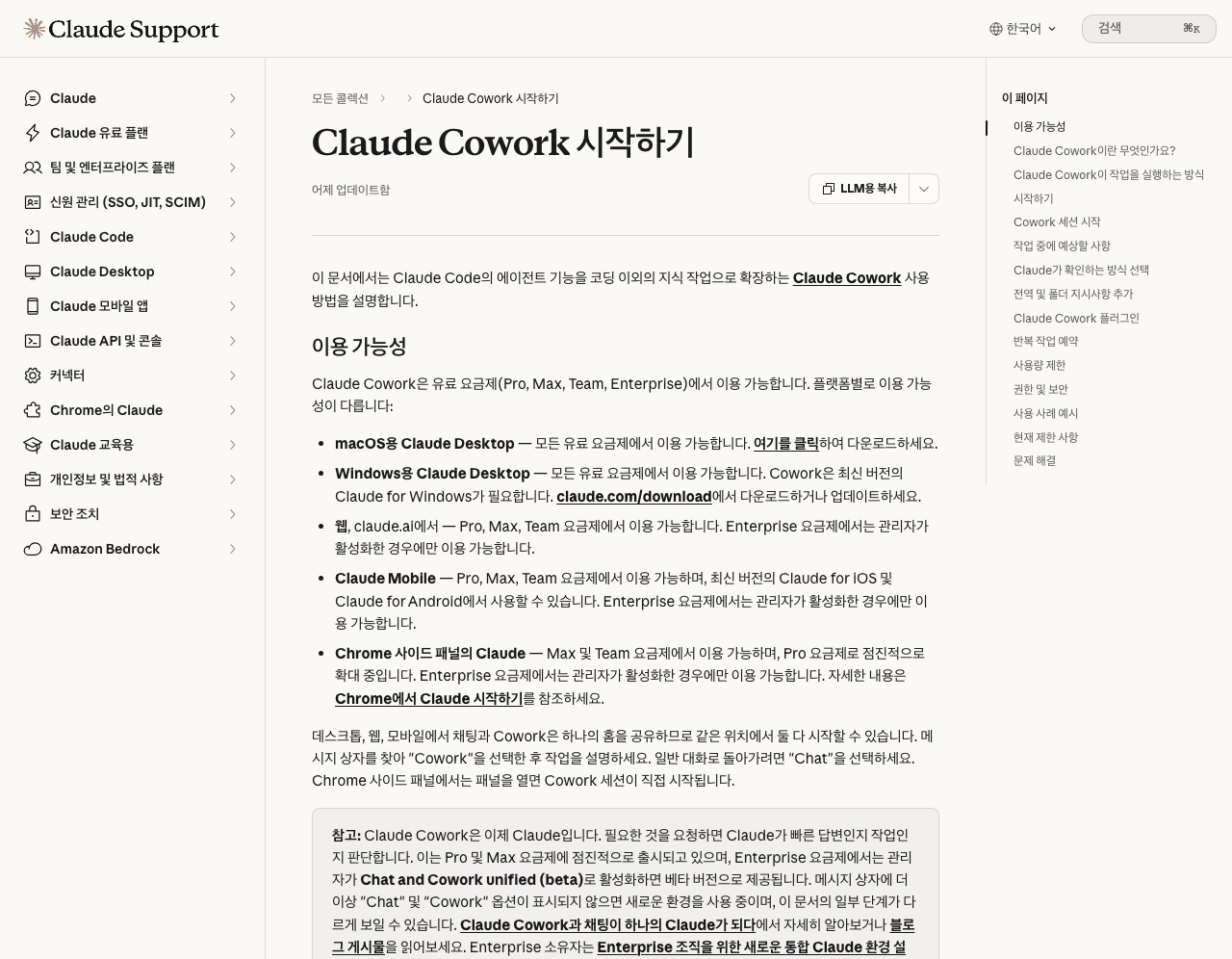
From the official help sections “Availability” and “Requirements,” here’s what to note:
- Available only on paid plans (Pro, Max, Team, Enterprise). It is not included in the free plan.
- The macOS and Windows desktop apps work on all paid plans. The web and mobile apps work on Pro, Max, and Team. On Enterprise, they work only if an admin turns them on.
- Handing off file work requires the desktop app. To access local files, the app must be “open and connected.”
- Signing up and installing the desktop app are covered with screenshots in the Getting started with Claude post.
3. Manual approval for the first few weeks
Here are the modes, based on the official help article “Choose how Claude checks before acting.” The “Previous screen” column shows the old labels.
| Mode | New screen | Previous screen | What it does |
|---|---|---|---|
| Manual | Yes, default | Manual approval, old label “Ask before acting” | Asks for approval before each action; you allow or deny each request |
| Auto | Yes | Auto approval | Proceeds without asking at each step; runs a safety check on each action and blocks risky ones; uses more of your usage limit than the other modes |
| Skip all approvals | No | Yes, old label “Run without asking” | No pauses and no automatic safety checks |
- Change the mode anytime from the permission setting in the message box. On the previous screen, use the mode selector in the chat box.
- If Auto keeps getting blocked, Claude falls back to asking for permission at each step.
- Permanently deleting a file always asks first in any mode. It only gets deleted when you click Allow.
The official safety document recommends running Manual in these cases:
- Tasks that touch sensitive files, accounts, or sites
- The first time you use a new tool or site
- Tasks where a mistake is hard to undo, such as sending messages or making purchases
4. Four steps for handing off a task
The four steps below are the order I’ve been posting on Threads. Each step includes the supporting sentence from the official docs.
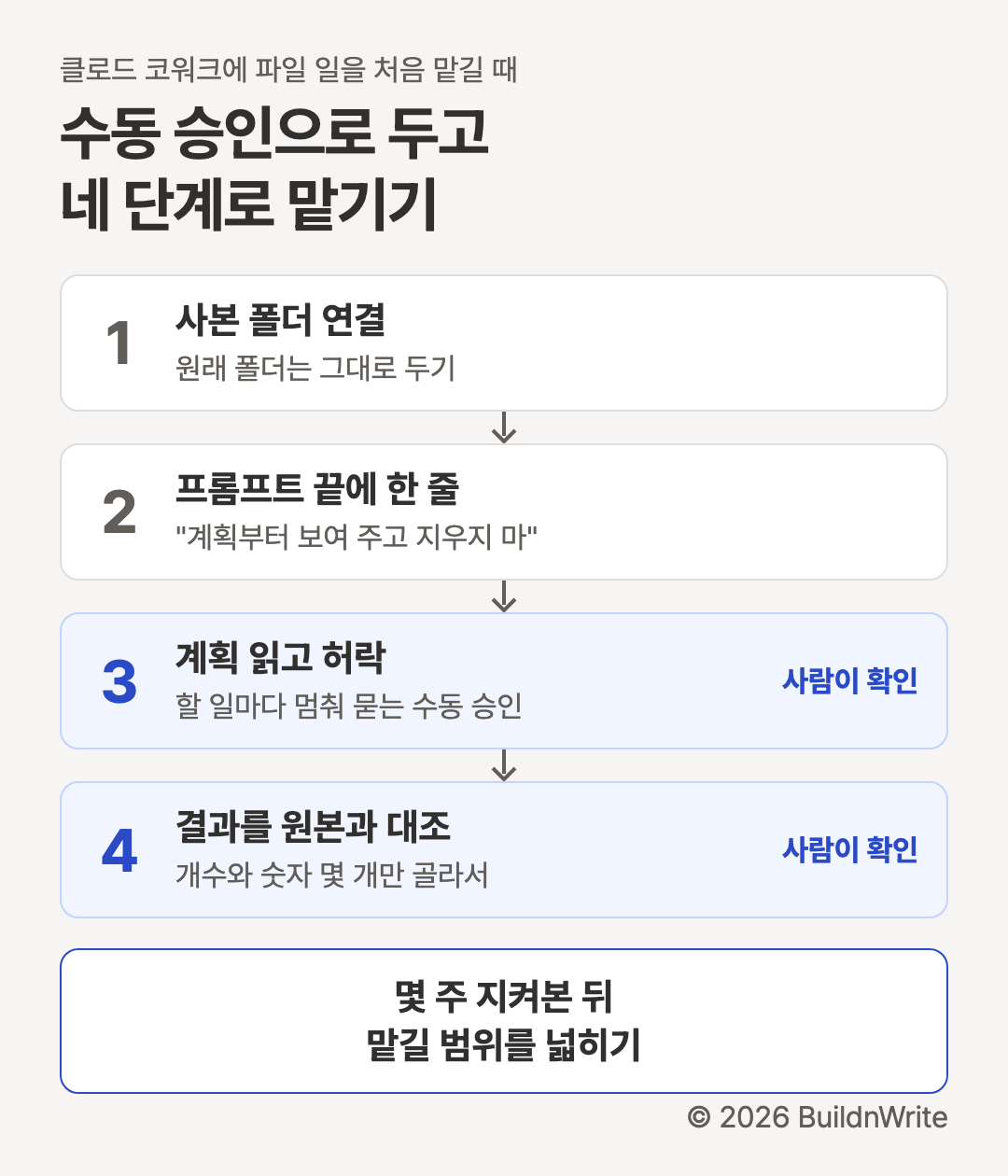
Step 1. Leave the original folder alone and open only a copy.
- Make a copy of the folder and connect only the copy, not the original.
- According to the official docs, Claude only reads and writes files in the folders you connect. The official safety doc also recommends creating a dedicated work folder instead of granting broad access, and backing up important files.
Step 2. Tell it up front not to delete anything.
Write out the task and add “Show me the plan first, and don’t delete anything” at the end. Here’s the receipt-processing example from the official help article’s usage examples, written as a request:
Make an expense report from the receipts in this folder.
Show me the plan first, and don't delete anything.
Step 3. Approve only after you’ve seen the plan.
- The official getting-started sequence also says to “review Claude’s approach, then run it.”
- In Manual mode, you get an approval request for each action. If a file or site shows up that wasn’t in the plan, deny it and give new instructions.
Step 4. Spot-check a few items against the originals.
For the receipt example, that means comparing the number of receipts, the number of table rows, and a few amount cells against the originals.
5. Good first tasks
If you’re not sure what to hand off, start by talking through what you did today.
Talk through what you did today, rambling is fine. At least 1 minute.
(Threads post by @buildnwrite, October 5, 2026)
Speak or type out what you did today for at least a minute, then ask:
Tell me which of the things I described can be automated or turned into a skill.When candidates come up, start with the ones that are easy to undo. Here are the file tasks from the official help article’s usage examples:
| Official example | Sample request | What to check |
|---|---|---|
| File sorting | Sort the Downloads folder by type and date | File count before and after sorting |
| Receipt processing | Make an expense report from the receipts folder | Number of receipts, a few amount cells |
| Bulk rename | Rename files to YYYY-MM-DD format | A few renamed files and their original dates |
6. Widening the scope after a few weeks
When widening the scope, the official docs point to two things to keep in mind.
Saving usage (official help article “Usage limits”)
- Multi-step tasks use more of your usage than simple questions.
- Group related work into one task instead of splitting it up.
- Start a new conversation for unrelated work.
- If you only need a quick answer without files, say so.
- Check how much you’ve used under Settings > Usage.
Scheduling recurring tasks
- Create one by typing
/schedulein a Cowork task, or from Scheduled in the left sidebar. - Scheduled tasks run in the cloud, so they run even when your computer is off.
- However, tasks that write to files in a folder on your computer require the desktop app to be open and connected. According to the official docs, Claude only reaches your connected folders while the desktop app is open.
- The official safety document recommends starting with low-risk tasks like summaries, and not scheduling tasks that are hard to undo, such as sending messages or making purchases. After a run, check the results on the Scheduled page.
If your team is going to hand work to Cowork, decide these things before the features:
- Which tasks to hand off, and who checks the results and against what standard
- Which folders on team members’ computers are allowed to be connected
- Whether the team uses Auto approval, and which tasks stay on Manual
Mode names, available plans, and screen guidance are based on these Claude Help Center articles as of October 16, 2026: Getting started with Claude Cowork, Using Claude Cowork safely, and Claude Cowork and chat become one Claude.
Frequently asked questions
- Can I use Cowork on the free Claude plan?
- No. The official Claude help says Cowork is only available on paid plans (Pro, Max, Team, Enterprise). To hand over a folder on your computer, you also need the Claude desktop app for macOS or Windows (checked October 16, 2026).
- Won't Cowork delete my files on its own?
- The official docs say Claude asks permission before permanently deleting a file in any mode, and deletes only after you click Allow. It can still read and write connected folders, so connect a copy folder first and back up important files.
- Can I use Cowork on a work laptop?
- Check with your company first. The official safety doc says a folder on a company-managed computer falls within Claude's scope once connected, so review whether that access is allowed. On Team and Enterprise, admins decide whether Auto mode is available.
BuildnWrite helps teams build AI agents that keep running. About BuildnWrite ›