How to Sign Up for Claude and Install the Desktop App
Who this is forReaders who want to use Claude beyond chat for automation or coding, but got stuck choosing among three plans at signup and want the desktop app installed too.
TL;DR: To use Claude beyond chat for automation or coding work, you need to finish signing up, choosing a plan, and installing the desktop app. I cover all three with the actual screens. Plan prices change often, so I also write down how to check them yourself and the date I checked.
Contents
- Stuck at signup if you want to go beyond chat
- Step 1. Sign up
- Step 2. Choose a plan
- Step 3. Install the desktop app
- Step 4. If you get stuck here
- Summary
Stuck at signup if you want to go beyond chat
If you have only used Claude for chat, you will likely stop at the signup screen when you see three plans. The names and prices don’t tell you how they differ, and you can’t tell whether any of them will do.
Let me start with the most important point. If you sign up on the Free plan, automation that works with files and coding work are blocked from the start. I explain the reasons below, but you should know the conclusion first so you don’t waste time.
Plan names, prices, and screen layouts change from time to time. The screen that is correct today may look different a few months from now. That’s why I also explain where to check the latest information.
Step 1. Sign up
Signing up is not difficult. It takes just a few clicks.
Sign-up flow
- 1 Click the start button claude.com home page
- 2 Choose the Google sign-in option, then continue Email sign-up also works, but you don't have to wait for a confirmation email.
- 3 Move to the chat screen You can start a conversation right away.
Step 2. Choose a plan
Right after you sign up, it asks you to choose a plan. The names and prices alone don’t show you how they differ.
When you look at the three plan cards side by side, they all seem similar, but there are really two dividing lines. Between Free and the paid plans (Pro, Max), feature access is the difference, and between Pro and Max, usage limits are the difference. These answer different questions, so comparing them on the same criteria is confusing.
Free ↔ Pro, Max: feature access
- What separates them Access to Cowork and Claude Code It's a yes-or-no question.
- Evidence Feature list on claude.com/pricing Cowork is not on the Free card; it starts with the Pro card.
- Result If you start on the free plan, you hit a wall with automation and coding work. The moment you need Cowork or Claude Code.
Pro ↔ Max: usage limits
- What separates them Daily and weekly usage allowance It's a how-much question, not a yes-or-no one.
- Evidence Both have the same feature list Both include Cowork and Claude Code.
- Result You can start with Pro. If the limits feel too tight, you can upgrade then; it isn't too late.
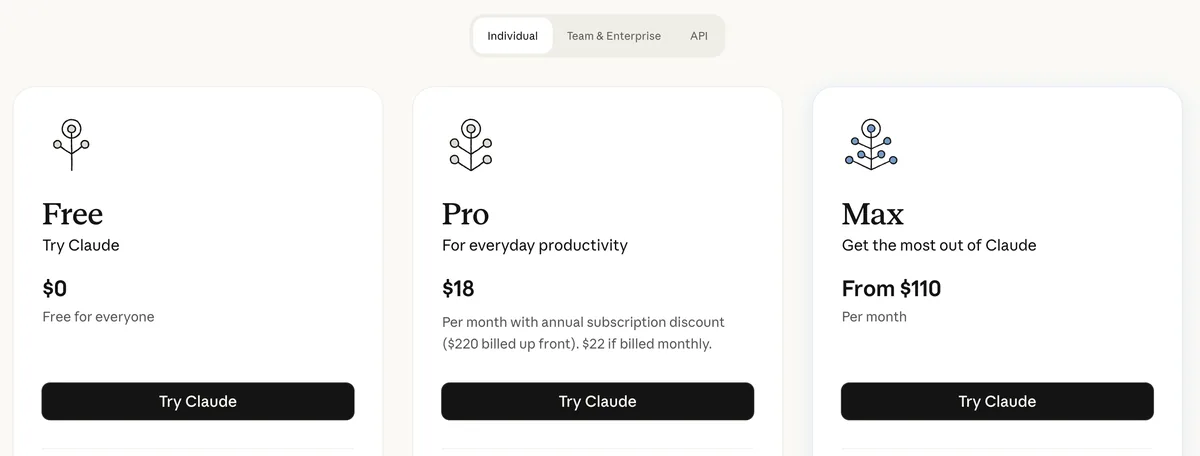
Here is the wording on the screen, copied as is.
| Card | Wording on screen | Price |
|---|---|---|
| Free | “Free for everyone” | $0 |
| Pro | “Per month with annual subscription discount ($220 billed up front). $22 if billed monthly.” | $18 |
| Max | “Per month” | From $110 |
More important than the numbers is what you want to do.
| If you are | Recommended |
|---|---|
| Just want to look around and see what Claude is | Free |
| Plan to go beyond chat into automation and coding work | Pro |
| Have tried Pro but often run out of usage | Max |
Step 3. Install the desktop app
If you only use chat, a browser is enough. But for automation or coding work, you need the Cowork and Code tabs in the desktop app. Claude Code can also be used from a terminal or editor, but this article explains it using the desktop app screen. I covered the terminal installation steps separately in Claude Code CLI installation guide.
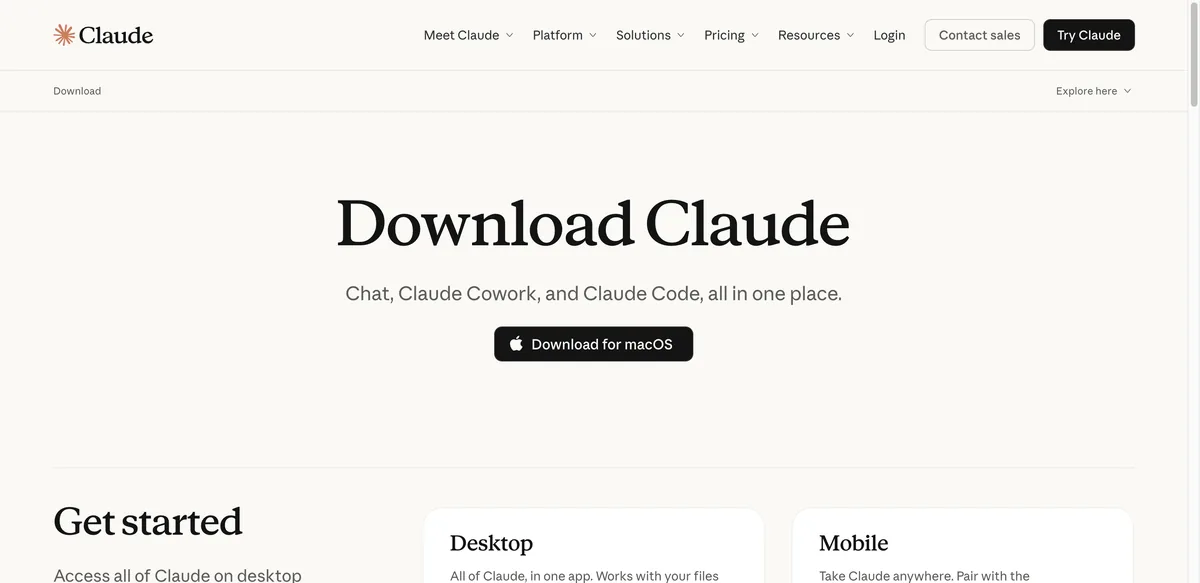
The screenshot shows only the Download for macOS button. If you use a different operating system, check on the same page whether the download button changes to match your system.
After installation, you can also find guides for other devices in the Desktop and Mobile cards in the Get started section below.
When you open the app, you see three tabs in the upper middle. The roles, as described in the official documentation, are as follows.
| Tab | What it’s for |
|---|---|
| Chat | Regular conversation without file access. Similar to claude.ai chat |
| Cowork | An autonomous agent that carries out work on its own in the background |
| Code | A coding tool that directly accesses local files. This is the tab this article uses as its reference |
This article explains things based on the Code tab screen. The official documentation says that if you press the Code tab and see a screen asking you to upgrade, you need a paid plan subscription. If that screen appears, first check that you are actually signed in with the plan you chose in Step 2.
Step 4. If you get stuck here
If you got this far without a problem, you can skip this section. It lists the causes and fixes for each symptom, as described in the official documentation.
| Symptom | Cause | Fix |
|---|---|---|
| Pressing the Code tab shows an upgrade screen | Signed in with the Free plan | Check that you are signed in with an account that has Pro or a higher plan |
| Error 403: Forbidden after signing in | Authentication failed | Sign out from the app menu and sign in again. Check that your subscription is active |
| The screen stays blank and frozen | A problem while running | Quit the app completely and restart it. If waiting for an automatic update doesn’t help, check your firewall and network |
| App installation or launch behaves oddly on macOS | Your macOS version may be too old | The official system requirement is macOS 13.0 or later. Check the version under the Apple menu, About This Mac |
The table above is taken directly from the Troubleshooting section of code.claude.com/docs/en/desktop and the system requirements on code.claude.com/docs/en/setup. If your symptom isn’t listed here, check the remaining items in the same documentation.
Summary
Once you finish signing up and installing, you can build your first automation without coding by following n8n first automation walkthrough.
Prices and screens in this article were checked on August 24, 2026, at claude.com/pricing and claude.com/download. The point that Claude Code is not included in the Free plan was checked the same day at code.claude.com/docs/en/setup, and the point that Claude Code can be used from a terminal and editor as well was checked at claude.com/product/claude-code. The tab layout of the desktop app and the conditions for accessing the Code tab were checked the same day at code.claude.com/docs/en/desktop-quickstart, and the response when you get stuck was checked the same day in the Troubleshooting section of code.claude.com/docs/en/desktop. Claude has changed plan names, prices, and screen layouts before. If the actual screen differs from this article, go by the wording on that page. That wording is always the latest.
Frequently asked questions
- Does the free Claude plan include Claude Code?
- No. The official documentation says the free Claude.ai plan does not include Claude Code access. Pro, Max, Team, Enterprise, and Console accounts do include it.
- Which Claude plan is needed for Cowork and Claude Code?
- Cowork and Claude Code both start with the Pro plan. Pro and Max have the same feature list, and Max differs in its higher daily and weekly usage limits.
BuildnWrite helps teams build AI agents that keep running. About BuildnWrite ›