How to Create a Discord Webhook URL (and Why It Works Like a Password)
Who this is forAnyone who wants automation results sent to a Discord channel but can't find where to create a webhook URL, or wants to know how to handle that URL safely.
TL;DR: To send automation results to a Discord channel, you first need to create a webhook address. The path is inside channel settings, deep in the Integrations screen. But more important than getting this address is the fact that the address itself works like a password. It doesn’t ask for a separate ID or password. Anyone with just this address can post to that channel.
Contents
- How to Signal That an Automation Is Done
- What a Webhook Is
- The Path: New Webhook
- Naming It, Picking a Channel, Copying the URL
- Before You Click: Why This URL Is Like a Password
- When You Get Stuck
- After It Works: What to Do If It Leaks
How to Signal That an Automation Is Done
After you build an automation, the next question comes quickly: where should the “done” signal go? Email means opening it every time, and keeping a screen open is a hassle. A common answer is a Discord channel. While the automation runs, you keep one channel open and results pile up there automatically. Review alerts, crawling results, and even error alerts can all arrive the same way.
To make this connection, you first need a webhook address. The catch is that the path to create it is fairly deep. You have to go through several tabs inside channel settings. First-timers often get stuck here because they don’t know where to click.
What a Webhook Is
Discord’s official support article describes webhooks as an easy way to send automated messages and data to a server’s text channels.
Put simply, a webhook is an address that lets your program post to the channel on its behalf. You can create one per channel, and with just that address (URL), any program can post messages to that channel.
You’ll find this address in the Integrations screen inside channel settings.
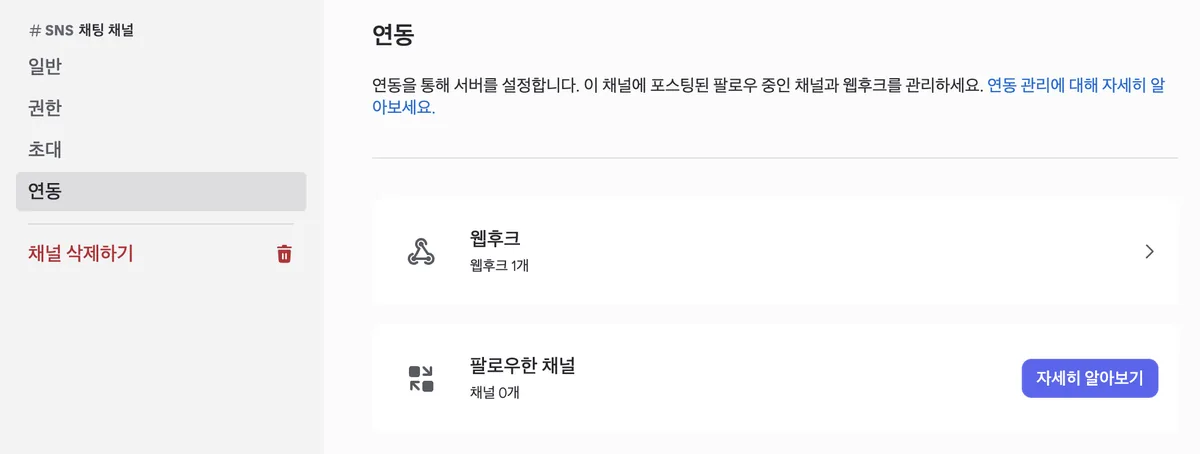
On the left are the General, Permissions, Invites, and Integrations menus. Click Integrations and two items appear on the right: Webhooks (it shows how many you already have as a number) and Followed Channels (a feature that pulls another server’s announcement channel into your channel; it’s different from webhooks). This article only covers webhooks.
The Path: New Webhook
Click the Webhooks item to go to the list screen. Discord adds its own description on this screen too.
Webhooks are an easy way to post messages from other apps and websites to Discord using super-charged internet power.
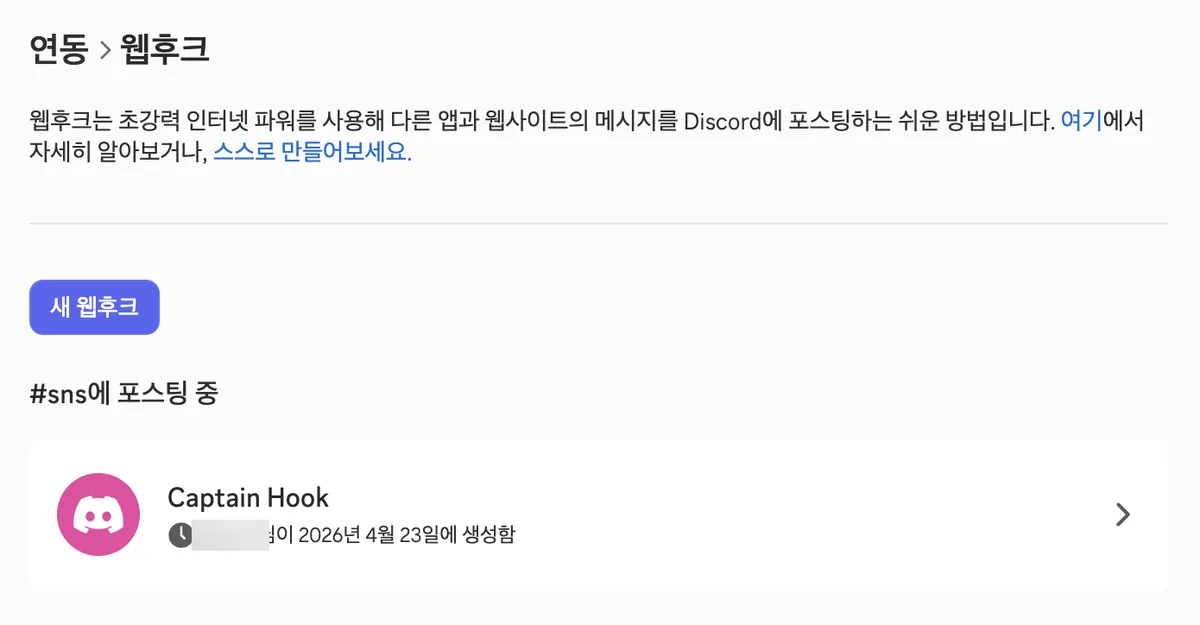
Click the purple New Webhook button and one more item appears in the list. Existing webhooks are grouped by channel. In the screen above, “Posting to #sns” is that group heading, and below it is a webhook named Captain Hook created on April 23, 2026. If you don’t rename it, default names like this stay, so give it a recognizable name when you create it to avoid confusion later.
Naming It, Picking a Channel, Copying the URL
Expand the newly created item and the edit screen appears.
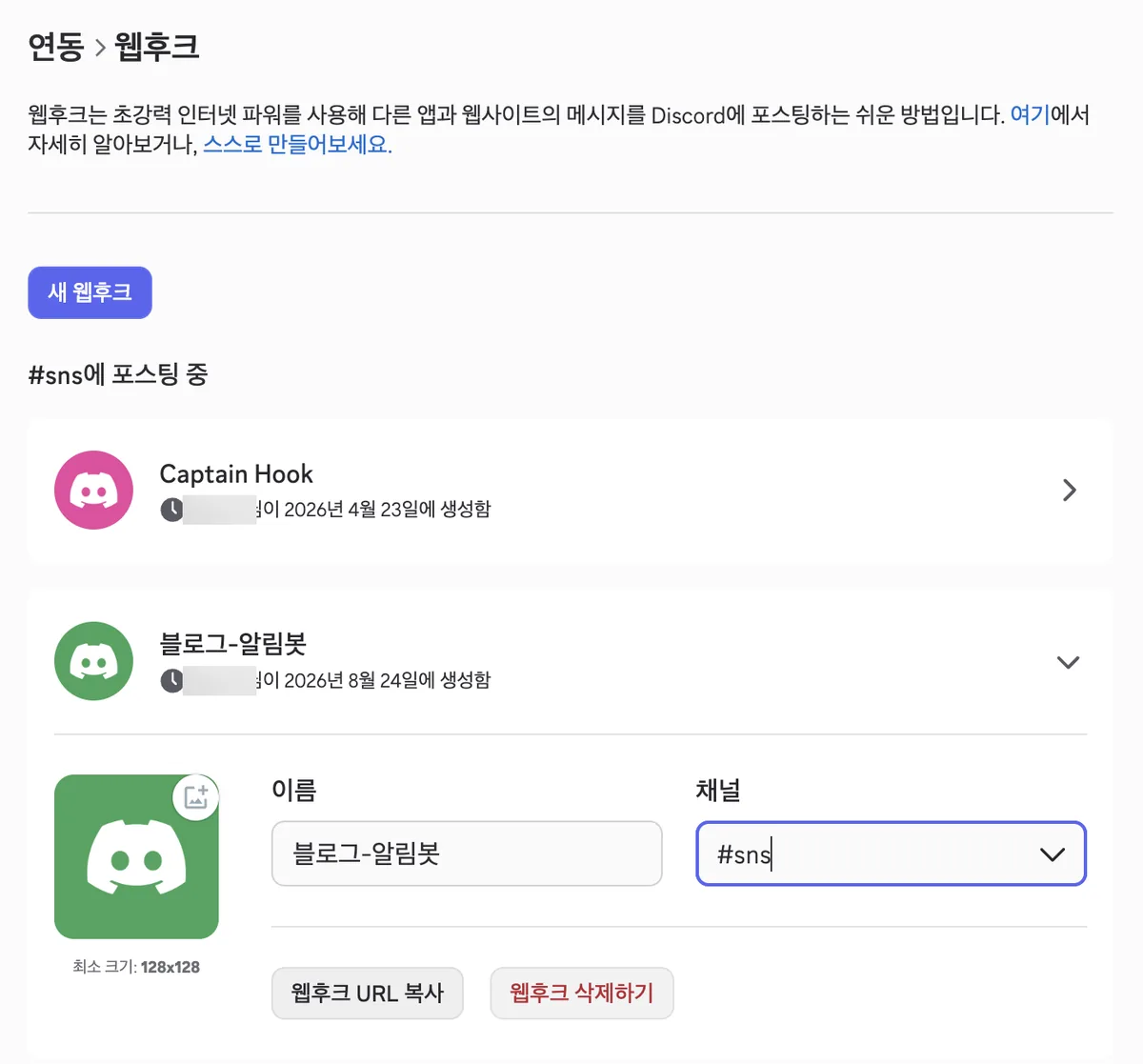
There are three things to set here.
| Field | What to do |
|---|---|
| Name | Pick something easy to recognize later. Example: “Blog-Alert-Bot” |
| Channel | Choose the channel this webhook will post to from the dropdown. The screen above uses #sns |
| Avatar (optional) | Upload an image at least 128x128. If you don’t, a default image is applied |
When you’re done, click the gray Copy Webhook URL button. The address goes to your clipboard. This is the most important moment in this article. Where you paste this address determines whether you’re safe or at risk.
Before You Click: Why This URL Is Like a Password
Another example in Discord’s official docs shows that sending messages through this webhook involves no login and no separate password. The GitHub integration example in Discord’s official docs walks through just two steps: create a webhook URL, then paste that address into the input field of the other service.
You generate the address, paste it into another service, and you’re done. That means having that address is the same as having permission to post to that channel. There’s no ID, no password, and no extra verification.
URL left as-is in code or on screen
- Where it lives GitHub code, screenshots, chat rooms Copied and pasted as-is
- Who can see it Anyone who can view that code or screen No extra login needed
- What they can do Post anything to that channel They can also change the name and avatar
Whoever has the URL is effectively the owner of that channel
URL kept only in a secrets store
- Where it lives .env file, GitHub Actions secrets Only the variable name stays in the code
- Who can see it Only people with access to that repository Looking at the code doesn't reveal the value
- What they can do Only the automation you set up can post to this channel The channel can trust only the automation's results
The URL has to stay hidden for the channel to be trustworthy
When You Get Stuck
If the Integrations screen doesn’t show up or the New Webhook button won’t respond, it’s usually a permissions issue. Discord’s official docs specify this feature at the channel level.
According to Discord’s official permissions guide, members with the Manage Webhooks permission can create, edit, and delete the webhooks in that channel.
So even if you aren’t the server owner, a role with the Manage Webhooks permission can create webhooks. And this permission is per channel. Just because it works in one channel doesn’t mean it works in another.
| Symptom | Cause | What to do |
|---|---|---|
| The Integrations tab is missing from channel settings, or the webhook list looks empty when you enter | No Manage Webhooks permission for this channel | Ask a server admin for the permission, or ask an admin to create the webhook for you |
| Creating a new webhook or changing its name and channel doesn’t work | Manage Webhooks is a per-channel permission, so something that works in another channel may not work here | Check the Manage Webhooks item in this channel’s permission settings, or ask an admin |
After It Works: What to Do If It Leaks
Once you’ve copied the URL, you put that value into code or an automation tool. From here on, keep the value out of your code and in a secrets store. If your automation runs on GitHub Actions, that procedure is covered in the GitHub Actions secrets guide.
Even so, the value can still leak. That happens when you accidentally commit it to a public repository, capture the screen and share it as-is, or paste it into a chat room.
The screens and steps in this article were checked on August 24, 2026. Discord may change screen layouts and menu locations. If your screen looks different, look for the Integrations menu inside channel settings, and check the details in the Discord official support article.
Frequently asked questions
- How do I create a Discord webhook URL for a channel?
- Open the channel's settings, click Integrations, then Webhooks, and click New Webhook. Set a name and channel, then click Copy Webhook URL.
- Why is a Discord webhook URL treated like a password?
- Anyone with the webhook URL can post to its channel. It needs no separate ID, password, or extra verification, so the URL should be kept in a secrets store.
Want the full system? The Claude Code & Codex Skills guidebook collects the skills and subagents behind this blog, from $19.
BuildnWrite helps teams build AI agents that keep running. About BuildnWrite ›