How to open, preview, and edit .md files in Google Docs and Google Drive
Who this is forPeople who store md files in Google Drive and keep looking for a viewer or converting them to Google Docs, and teams who want to co-edit Markdown documents that AI produced.
TL;DR: Starting October 5, 2026, Google Drive shows md files as formatted previews, and Google Docs can open, edit, and comment on .md files without changing their format. There is no setting to turn on, and the rollout can take up to 15 days to reach Workspace domains. This matters most for people who look for a viewer every time they open an md file, and for people who want to edit AI-generated Markdown documents with colleagues.
Contents
- What changed
- Who can use it and when
- Previewing md files in Drive
- Opening and editing md files in Google Docs
- Formatting that changes when you edit
- How it differs from existing Markdown features
On October 5, 2026, Google announced Markdown support for Google Docs and Drive on its Google Workspace Updates blog. The supported file extensions are .md and .markdown. The information below is based on that announcement and the Google Docs Help article (Korean-language version).
1. What changed
The announcement highlights two changes.
- Google Docs: You can open an md file in its own file format, edit it, and work on it with several people at once.
- Google Drive: You can preview an md file as a formatted document instead of raw symbols. Links are clickable, and tables appear as tables.
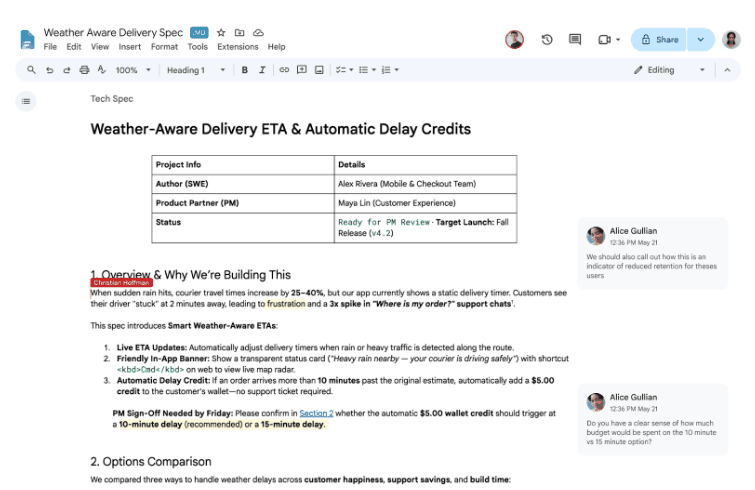
The announcement also describes the problems with the old approach. Until now, md files had to be imported into Google Docs format and converted. According to the announcement, this often changed the formatting, dropped comments, or split the content into several separate files.
The announcement also says the feature makes it easier for people and AI agents to work on the same document, because you no longer have to write Markdown symbols yourself or convert files by hand.
2. Who can use it and when
| Item | What the announcement says |
|---|---|
| Eligible users | All Google Workspace customers, and personal Google accounts |
| Admin setting | None |
| User setting | None |
| Rollout start | October 5, 2026 |
| Rollout pace | Gradual rollout; the feature can take up to 15 days to appear |
| Release tracks | Both Rapid Release and Scheduled Release domains |
- Rapid Release and Scheduled Release are release tracks that let Workspace admins choose when their organization receives new features.
- The rollout pace applies to Rapid Release and Scheduled Release domains. The announcement has no separate rollout schedule for personal accounts.
- There is no switch to turn on. If the feature doesn’t appear yet, the rollout may not have reached your account.
3. Previewing md files in Drive
The help article describes four steps.
- Right-click the md file in Google Drive.
- Choose Open with > Preview. (The Korean UI labels these menu items differently.)
- At the top of the viewer, switch between Markdown and Preview.
- To edit the file, open it in Google Docs (see Section 4).
Once the feature appears on your account, you can check an md file stored in Drive without a separate md viewer app or an online converter. The steps in the help article assume a computer where you right-click. Neither the announcement nor the help article says whether the Drive mobile app or the Docs mobile app supports this.
4. Opening and editing md files in Google Docs

The help article describes these steps.
- Upload the md file to Google Drive.
- Double-click the file. It opens in Google Docs in Markdown mode.
- A .md label appears next to the title.
After the md file opens, you can edit the content, share it, and reply to comments. The help article says comments and formatting are preserved when you reopen the file in Google Docs or another tool. It does not describe how comments appear in other tools.
5. Formatting that changes when you edit
The help article says three Google Docs features may change when you edit an md file.
| Google Docs feature | In md files |
|---|---|
| Smart chips | Changed to text or links |
| Web format (HTML) | Converted to plain text |
| Font color, highlighting, text alignment | Removed |
Smart chips let you insert people, files, dates, events, and places into a document by typing @. The help article does not explain what web format (HTML) refers to.
6. How it differs from existing Markdown features
Google Docs already has Markdown-related features. They are easy to confuse with this announcement, so I’ve listed them side by side.
| Feature | What it does | Resulting file |
|---|---|---|
| Markdown setting (Tools > Preferences) | Typing symbols such as # in a document converts them to formatting | Google Docs |
| Paste from Markdown | Pastes copied Markdown as formatting | Google Docs |
| Copy as Markdown | Copies the selection as Markdown text | Text on the clipboard |
| File > Download > Markdown (.md) | Exports a Google Doc as an md file | Separate md file |
| Import Markdown | Imports an md file into Google Docs | Google Docs (per the help article’s title) |
| Markdown mode (this announcement) | Opens and edits the md file as is, with comments | Original md file |
Paste, copy, and download all convert between Google Docs format and Markdown. This feature edits the md file itself without conversion. Neither help article explains how the Import Markdown path works once Markdown mode is available.
Frequently asked questions
- How do I preview a Markdown (.md) file in Google Drive?
- Starting October 5, 2026, Google Drive shows md files as formatted previews. Right-click the file, choose Open with > Preview, then switch between Markdown and Preview at the top of the viewer.
- Does editing a .md file in Google Docs convert it to a Google Doc?
- No. The file is not converted and stays a .md file in Drive. A .md label appears next to the title when it opens in Markdown mode. There is no setting to turn on.
Want the full system? The Claude Code & Codex Skills guidebook collects the skills and subagents behind this blog, from $19.
BuildnWrite helps teams build AI agents that keep running. About BuildnWrite ›