AI browser and computer use tools compared: Claude in Chrome, Codex, Aside, ego (lite)
Who this is forPractitioners who want AI to handle browser or computer tasks but are confused by Chrome extensions, in-app browsers, and tools like Aside, and don't know what to install first.
TL;DR: More than six tools for having AI do computer work have come out in just a few months. The names all sound alike, so it’s easy to get confused about what to install. I put the six most-mentioned tools into one table in three layers, “Chrome tab only,” “with my login as is,” and “up to the desktop app.” The summary draws on my own record of handing over everything from game installation to going live, plus raw user reviews. For work on the page you’re viewing, start with Chrome extensions. For repetitive work across several sites, start with tools that pass along your login. For work outside the browser, start with the desktop apps.
Contents
- How far can you go: three layers
- The six tools at a glance
- Which one to pick for each situation
- Layer 1, inside Chrome: Claude in Chrome and the Codex Chrome extension
- Layer 2, passing your login along: Aside and ego (lite)
- Layer 3, beyond the app: computer use in the Claude desktop app and the Codex app
- Hands-on: your first task in 10 minutes
- Wrap-up
A few nights ago, instead of sitting down at my gaming PC, I sent Codex one line. It was to download RimWorld from Steam, install the extension needed for a Chzzk (South Korea’s live-streaming platform) broadcast, connect the broadcast and donations, and leave the stream running. Everything finished without a human stepping in. This post starts from that experience. It splits six tools into groups by how far each one can reach and what you give up in exchange.
1. How far can you go: three layers
Before memorizing tool names, sort them by “what can the AI touch?” and the six fall into three groups.
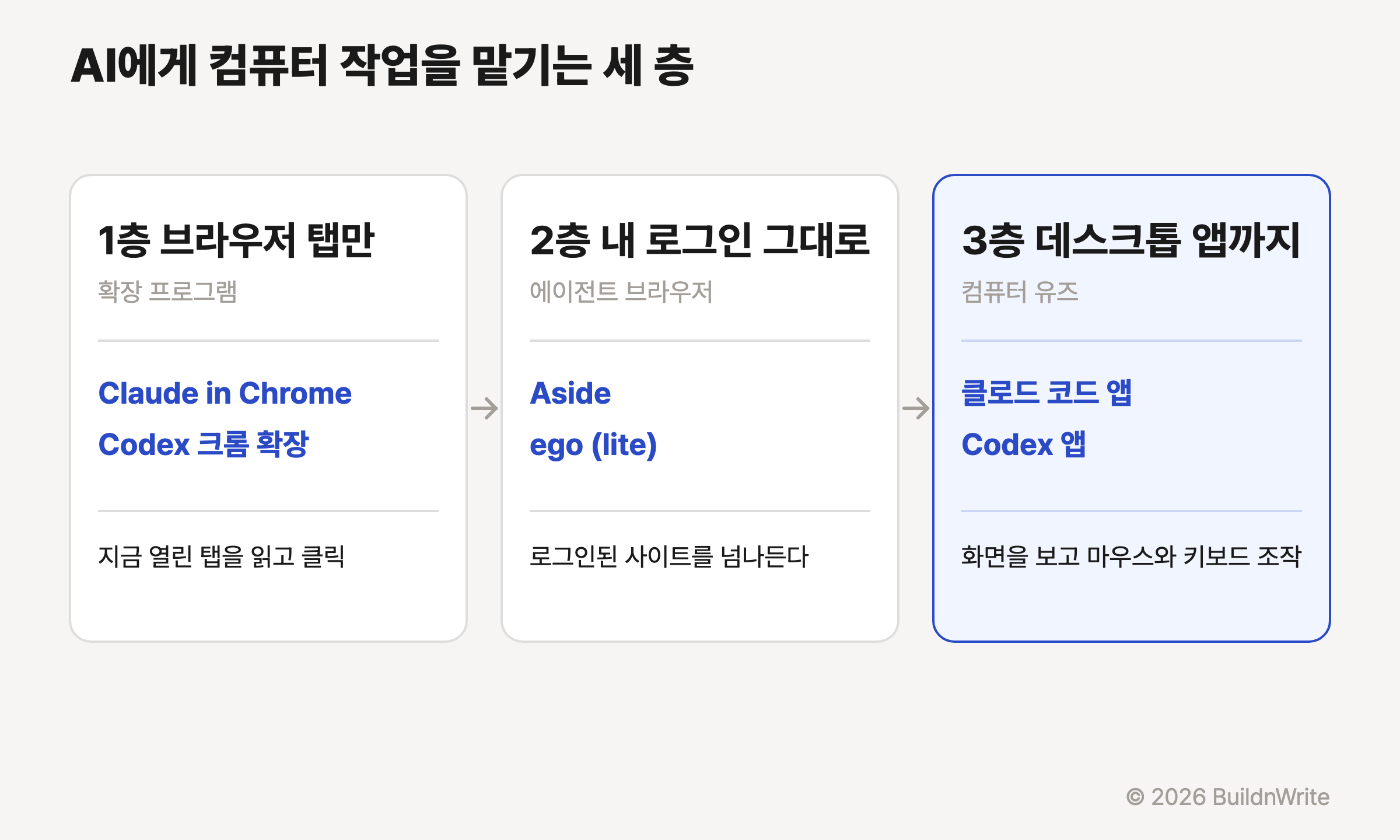
- Layer 1, browser tab only: install an extension in your Chrome, and the AI reads and clicks the tab you’re looking at.
- Layer 2, with your login: move your login state into a browser made for AI, and let it move across multiple sites.
- Layer 3, up to the desktop app: it looks at screenshots and moves the mouse and keyboard. Whether it’s a game launcher or a streaming program, anything on screen is fair game.
2. The six tools at a glance
| Tool | Layer | Scope | My login | Pricing | Supported OS |
|---|---|---|---|---|---|
| Claude in Chrome | Layer 1 | Chrome tabs | Your own Chrome, as is | Pro, Max, Team, Enterprise | Chrome desktop |
| Codex (ChatGPT) Chrome extension | Layer 1 | Chrome, Edge, Brave, Opera, Vivaldi tabs | Your own browser, as is | No plan requirement in the docs; depends on rollout stage and workspace settings | Mac, Windows |
| Aside | Layer 2 | Entire logged-in web | As is | Free $0, Pro $20/month, Max $200/month | Mac (tested firsthand) |
| ego (lite) | Layer 2 | Chrome-family browsers | Imported from Chrome | Free | Mac (Windows pending) |
| Claude desktop app computer use | Layer 3 | In-app browser, entire screen | Cookie import | Pro, Max beta | Mac, Windows |
| Codex app computer use | Layer 3 | Entire screen, desktop apps | Choose an extension or the built-in browser | Codex app: Plus, Pro, Business, Enterprise, Edu; computer use limited to supported regions | Mac, Windows |
Pricing and OS in the table are based on official documentation as of September 2026. The Claude desktop app bundles both Cowork and Claude Code. Official help says Cowork is being merged into Claude, so this post calls it the “Claude desktop app.”
3. Which one to pick for each situation
Here’s the conclusion first. The sections below are the evidence for this picture.
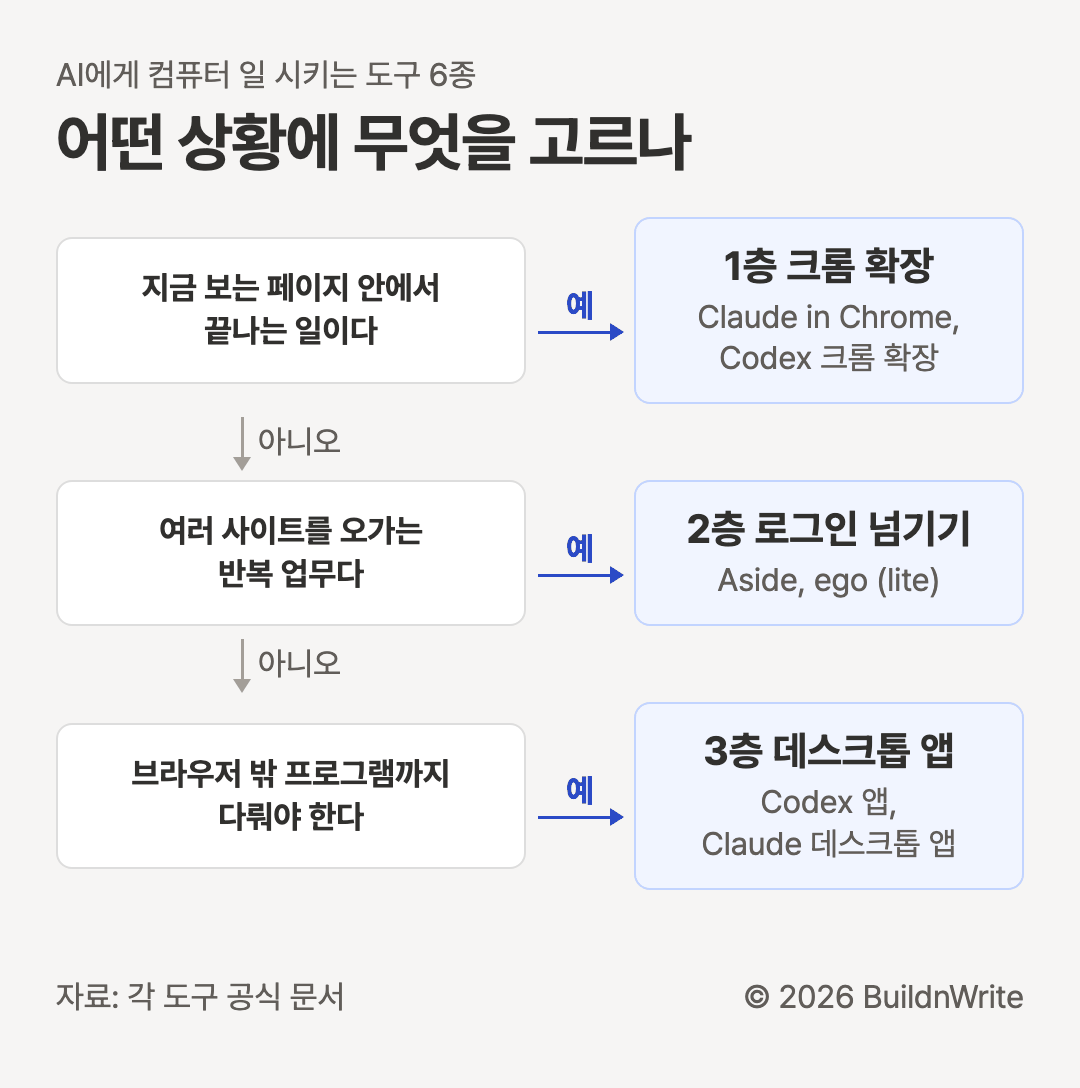
Examples of what each layer suits:
- Layer 1: summarizing the page you’re viewing, organizing comments, filling in forms
- Layer 2: repetitive work across several sites, collecting captures
- Layer 3: installing, configuring, and testing programs outside the browser
4. Layer 1, inside Chrome: Claude in Chrome and the Codex Chrome extension
This is the easiest layer to enter. Add one extension to the Chrome you already use, and you’re done. You don’t need to log in again.
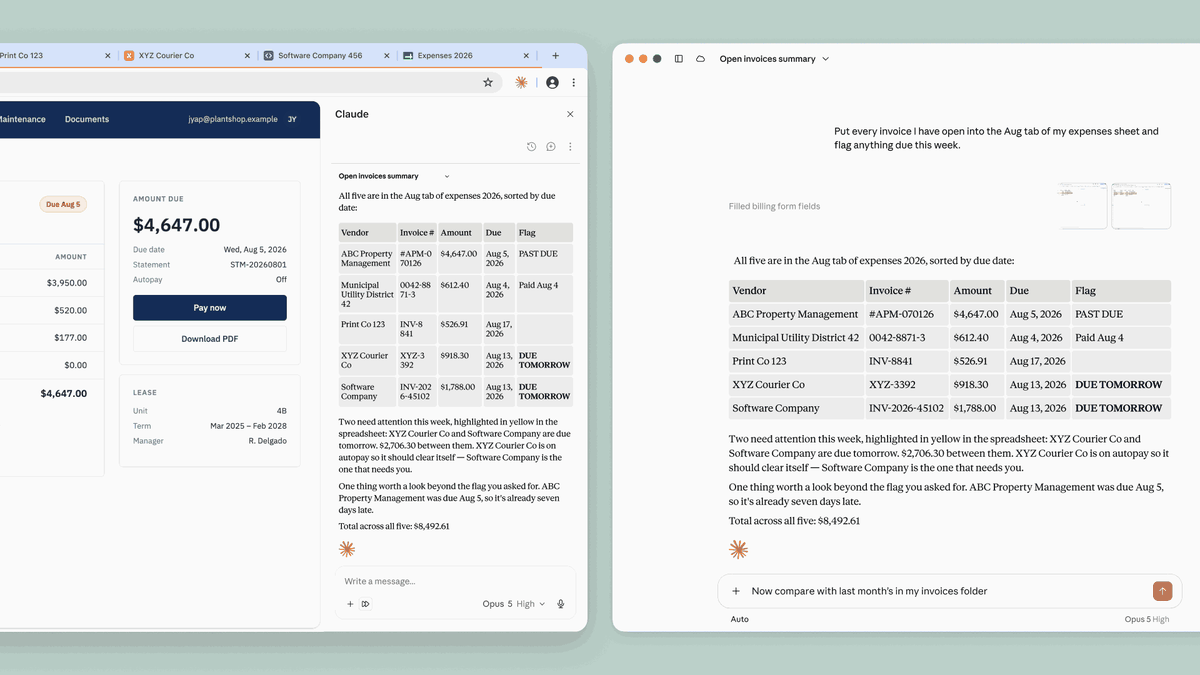
Both extensions work the same way. You write instructions in the side panel, and the AI reads the current tab, scrolls, types, and clicks. Only Opera has no side panel, so you start the task from the desktop app.
| Item | Claude in Chrome | Codex (ChatGPT) Chrome extension |
|---|---|---|
| Safety controls | Approval for each action, always allow per site, block list | Allow once per site, always allow, block |
| Permission requests | Reading and operating open tabs | All site data, browsing history |
| Other browsers | Chrome only | Edge, Brave, Opera, Vivaldi |
| Background | Keeps running while Chrome is open | Work starts from the desktop app |
User reviews are split. In one Reddit thread titled “why is it so bad,” complaints appeared alongside replies saying it has improved a lot recently. Another thread has someone who uses it every day.
Too many connectors (MCP) eat up my context. (translated)
(Reddit r/ClaudeAI, karn****)
It seems Claude has improved this a lot recently. (translated)
(Reddit r/ClaudeAI, Empt****)
I use this every day for a small automation setup. (translated)
(Reddit r/ClaudeAI, Ok_J****)
As a South Korean example, the Excel tutorial site Oppadu Excel (a Korean Excel tutorial site) posted how to use this extension to summarize YouTube comments and polish blog posts. Repetitive work that ends inside the browser is Layer 1’s territory.
5. Layer 2, passing your login along: Aside and ego (lite)
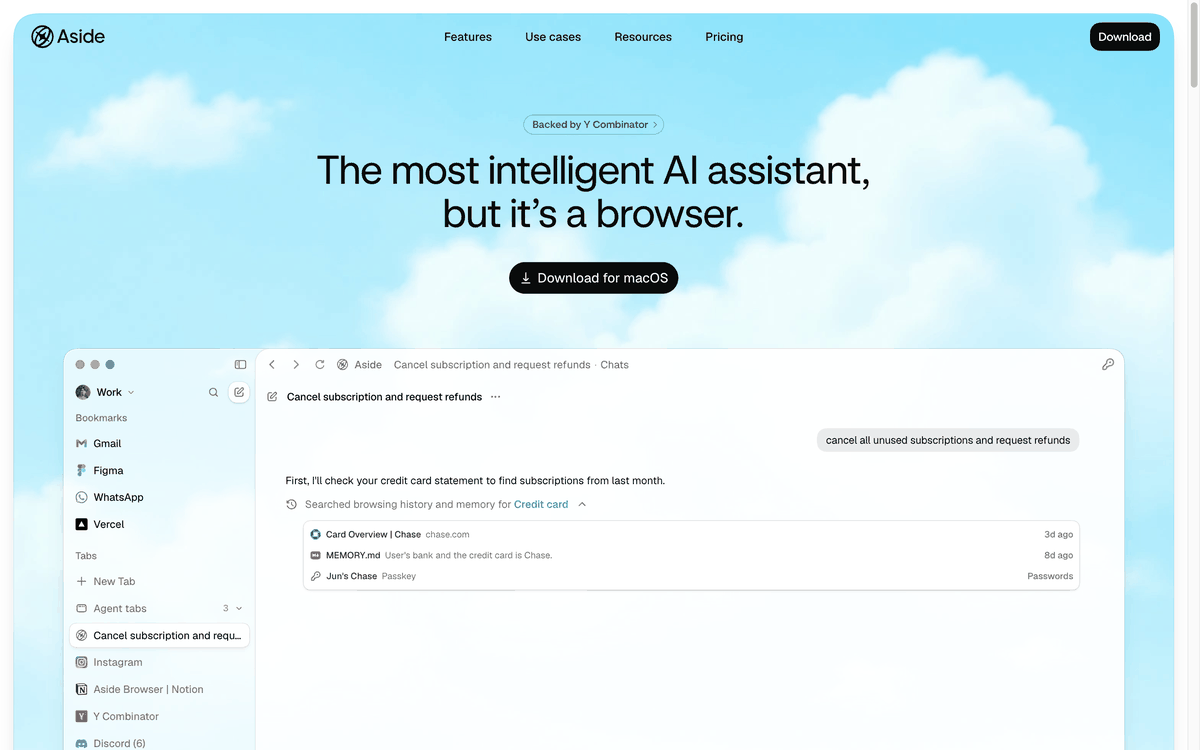
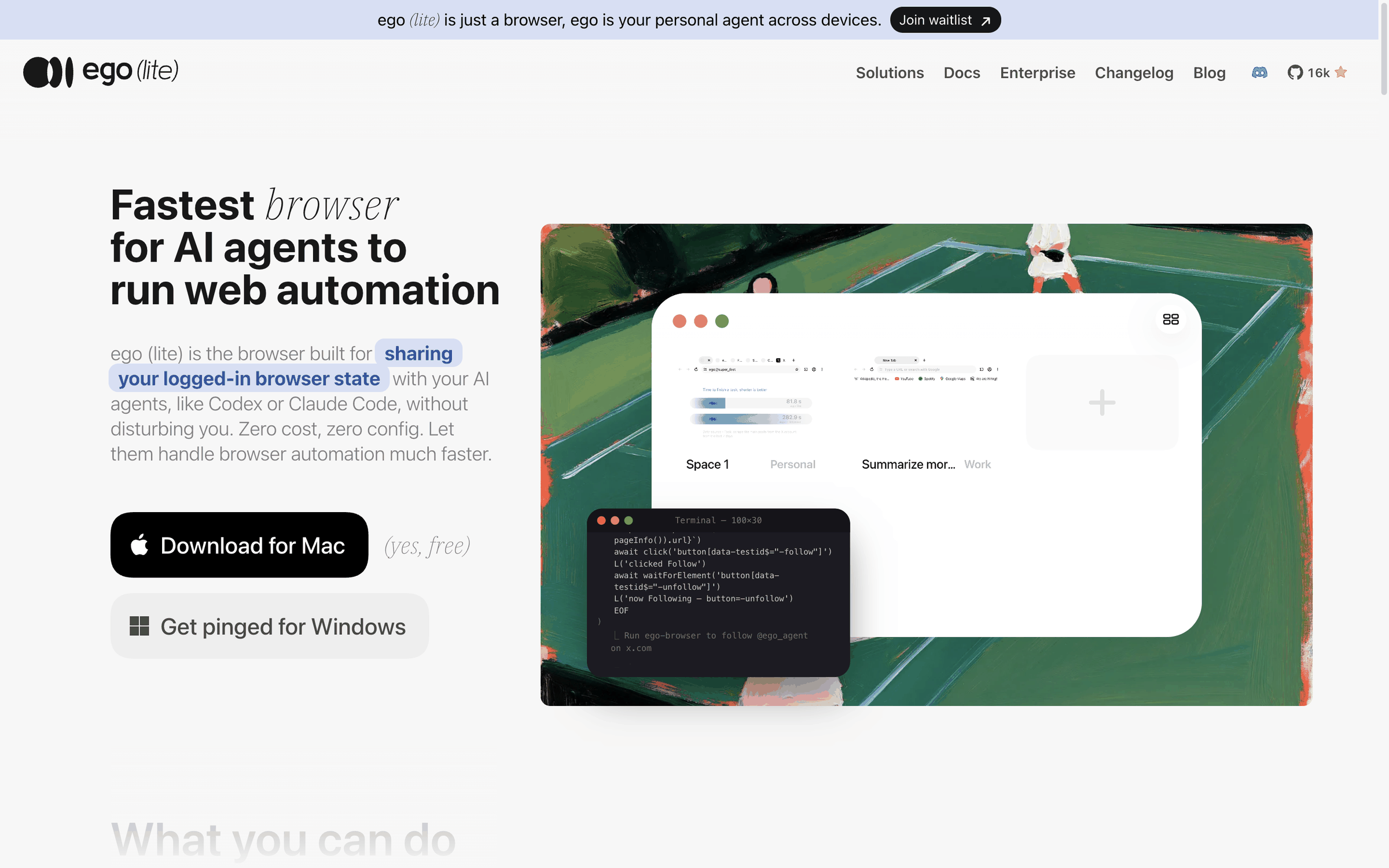
Layer 2 is the approach of keeping a separate browser just for AI. An extension borrows your own Chrome, but here the AI uses an entirely separate browser that carries over your login state.
| Item | Aside | ego (lite) |
|---|---|---|
| Login state | Log in directly in the Aside browser | Import tabs, bookmarks, cookies, and passwords from Chrome |
| Agent connection | Its own agent and terminal commands | Install the ego-browser skill in Claude Code or Codex |
| Safety controls | Human approval before payments, posts, and messages | Agent-only Space, separated from your own tabs |
| Pricing | Free, Pro $20/month, Max $200/month | Free |
Aside is the tool the author uses for captures on this blog. I’ve put two related posts here:
- Concept: What is Aside?
- Differences from Chrome and Playwright: Could Aside become the second Cursor?
Reviews of both products bring up convenience and unease about handing over cookies, side by side.
Up to now it feels like it has the best of both worlds. (translated)
(Reddit r/ArcBrowser, Gloo****)
Handing an agent my real Gmail browser cookies is a shaky foundation in the long run. (translated)
(Reddit r/ShareAIagents, JanJ****)
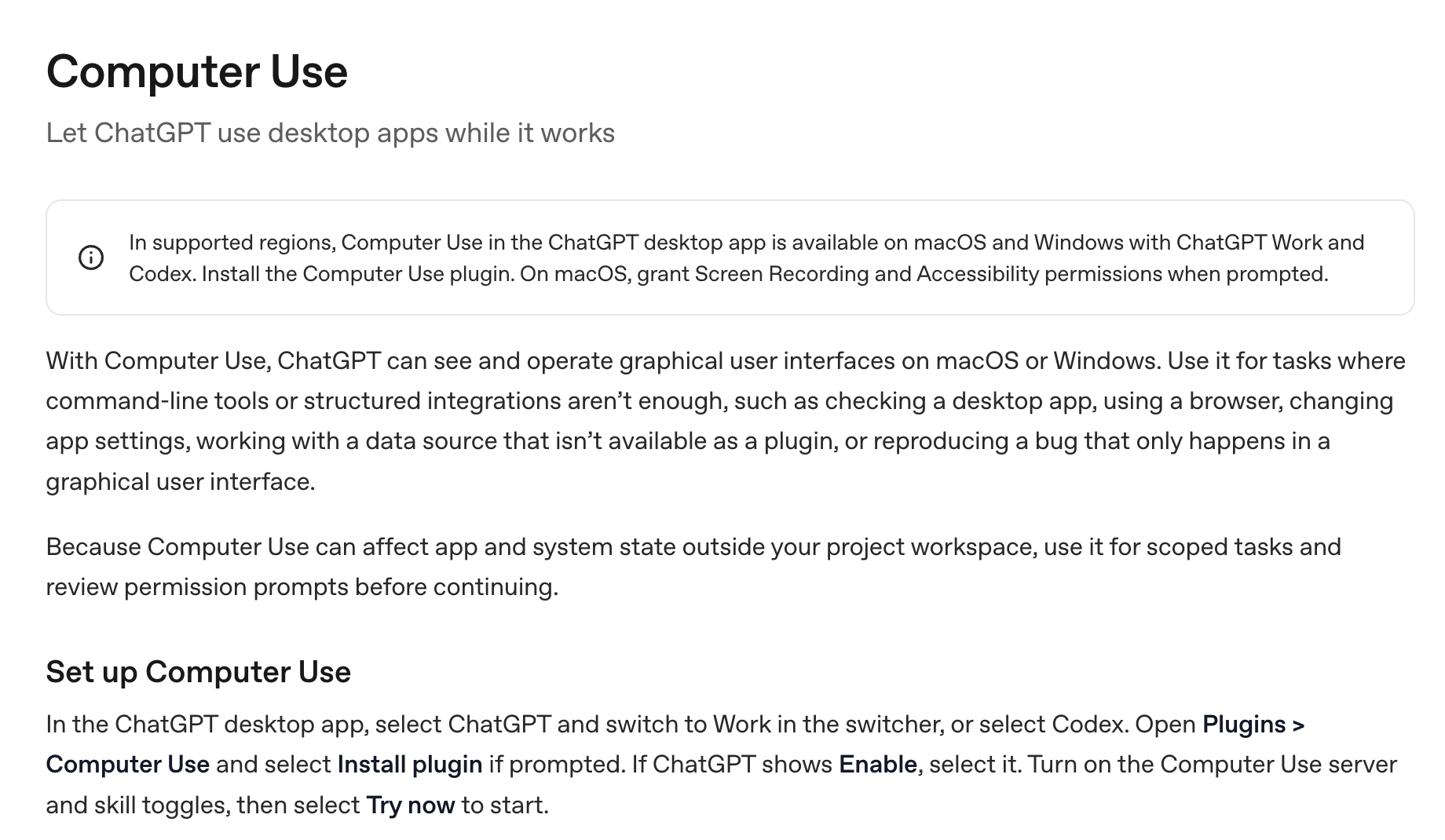
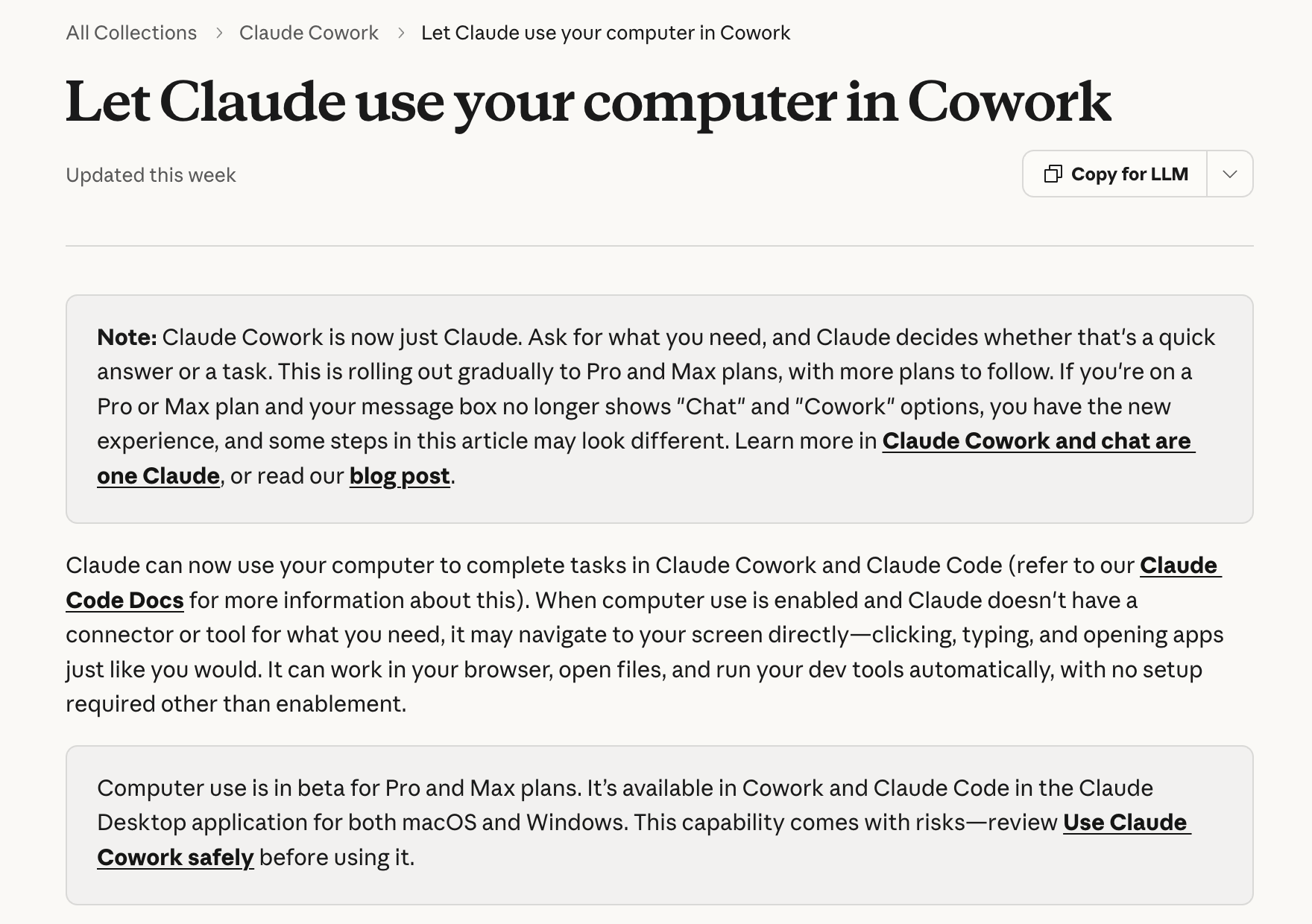
6. Layer 3, beyond the app: computer use in the Claude desktop app and the Codex app
This is the layer where I handed off the RimWorld and Chzzk setup. It reaches beyond the browser to every program on screen.
From game install to stream, in one line
Here’s the list of tasks I gave to Codex computer use. No human stepped in at any point.
- Launch Steam, search for RimWorld, and download it
- Install the extension needed for a Chzzk stream
- Connect the Chzzk stream
- Connect donations
- Start the broadcast
Each step moves between different programs, such as the Steam launcher, Chrome, and a streaming app. Tasks that normally mean going back and forth through many settings screens, like installing extensions and connecting accounts, went through without a hitch. The measured state of the finished stream is below.
| Item | Measured |
|---|---|
| Chzzk stream | ON, 1080p, 6144kbps, 30FPS |
| Public scene setup | Game capture, game audio, and the judgment overlay only |
| Removed from the public scene | Display capture, webcam, microphone |
| Gameplay afterward | Claude Code plays autonomously in in-game MCP mode, total of 3 turns, about $5.42 |
Codex computer use handled the setup, and Claude Code handled the gameplay after setup. The gameplay side reads game state as data rather than looking at the screen, so it’s outside the scope of this post.
The official docs for the two products show these differences:
| Item | Claude desktop app | Codex app (ChatGPT desktop) |
|---|---|---|
| Status | Pro, Max beta | Available, limited to supported regions |
| Priority | Connectors, browser, then screen control | Plugins, browser, computer use |
| Permissions | Per-app approval, hidden instruction detection, stop | Per-app approval, always allow, stop and hand-off |
| Window constraint | Mac 15 or later: separate background conditions apply | Only operates windows in front |
| Official warnings | No isolation wall between Claude and apps; no permission for banking, medical, and government apps | Cannot approve admin authentication or security prompts; humans stay present for payments and account settings |
Reviews split into two camps:
- The Korean blog FindSkill (a Korean tech blog) wrote after 48 hours on a Mac: “It actually works. It’s slower than a native Mac app and slightly less accurate, but it’s definitely possible.”
- On Reddit, one comment says: “Unfortunately it’s quite fragile and doesn’t always work” (translated, r/codex).
- One report says the Claude desktop app’s built-in browser “does not work over any remote connection, including Linux inside Windows (WSL)” (translated, r/ClaudeAI). If you connect to a remote server, check this first.
7. Hands-on: your first task in 10 minutes
If this is your first time, start at Layer 1. Setup is shortest, and if something goes wrong, it stays within one tab.
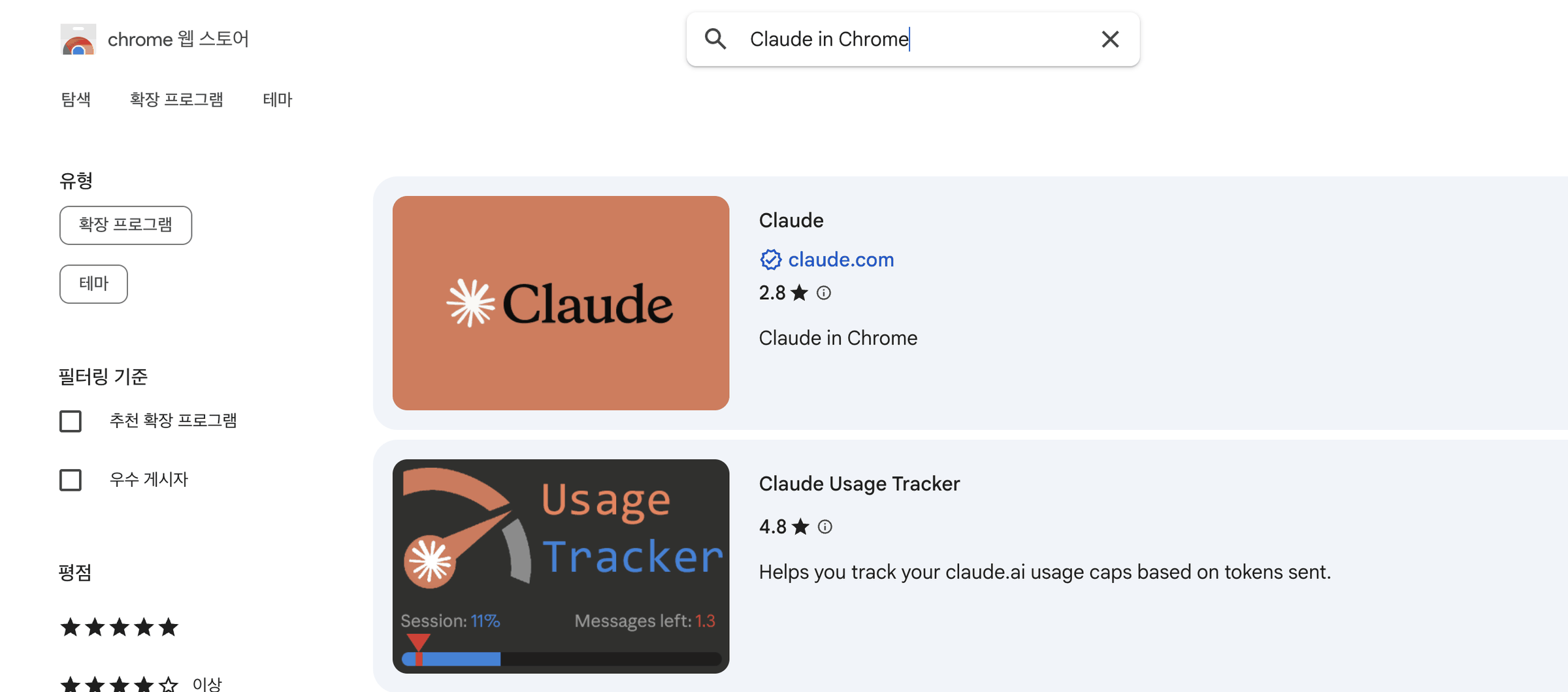
- In the Chrome Web Store, search for Claude and install the item with the claude.com verification badge.
- Log in to Claude in the Chrome right side panel. You need a Pro or higher plan.
- Open a YouTube video or news page with lots of comments.
- Paste the instruction below into the side panel.
Scroll through the comments on this page, read them, and summarize 5 recurring opinions in a table. Don't leave this page.- For the first permission request, choose the one-site allow option (the Korean UI labels it differently). Don’t press the always-allow option yet.
- Check that the side panel builds up a line for each action, such as scrolling, reading, and clicking.
To move to Layer 3, use Codex as the reference: in the desktop app, pick Codex, turn on Computer Use from the plugin menu, and on a Mac, allow the Screen Recording and Accessibility permissions. Start your first instruction with something reversible, like playing a song on Spotify.
8. Wrap-up
Some tools aren’t covered here. Perplexity Comet and Dia are AI browsers, but they focus on search and summarization. Browser Use, Playwright MCP, and Skyvern are automation that developers attach with code, so they’re topics for a separate post. I dropped OpenAI Operator from the table because its official help says it can no longer be used.
Frequently asked questions
- Which tool should I use for work that stays inside one Chrome tab?
- Use a Layer 1 Chrome extension, either Claude in Chrome or the Codex Chrome extension. They operate only inside the tab that is open now, using your own browser and login as is.
- Which tools can AI use for programs outside the browser?
- The Layer 3 desktop apps, the Claude desktop app and the Codex app, can operate programs outside the browser. They use computer use, reading screenshots and moving the mouse and keyboard across the entire screen.
BuildnWrite helps teams build AI agents that keep running. About BuildnWrite ›